
How to Use Microsoft Copilot in Your Daily Work: Practical Tips


Contents
Microsoft Copilot Studio lets you build and customize AI assistants across Microsoft 365. That means you can streamline tasks, automate workflows, and tailor Copilot to your team's specific needs—without writing code.
Artificial intelligence has moved beyond experiments and now it is a part of how everyday work gets done. Across roles and industries, professionals use AI to draft content, analyze data, and manage routine tasks with less effort and more speed.
One of the most visible tools behind this shift is Microsoft Copilot. What began as a simple writing assistant is now integrated across the Microsoft 365 ecosystem—Word, Excel, Outlook, Teams, PowerPoint, and even Windows. With the latest updates in 2025, Copilot has become faster, more connected, and more attuned to how teams actually work.
This deeper integration means Copilot isn’t just reactive—it’s becoming part of how work gets done. From summarizing documents and generating reports to surfacing insights and speeding up communication, Copilot supports tasks that cut across roles and departments.
And for teams that need more tailored solutions, Microsoft Copilot Studio offers a way to design custom AI assistants that connect to internal systems and data—expanding what Copilot can do in specific business contexts.
In this guide, we’ll show how to start using Microsoft Copilot in practical, everyday workflows—no technical background required. You’ll learn how to write better prompts, avoid common pitfalls, and explore where Copilot delivers the most value.
What is Microsoft Copilot?
Microsoft Copilot is an AI assistant built into Microsoft 365 tools like Word, Excel, Outlook, Teams, and PowerPoint. It helps with common tasks—writing content, summarizing information, analyzing data, or generating visuals—directly within the apps many teams already use. Copilot is powered by artificial intelligence and large language models, leveraging both OpenAI and Microsoft technologies to deliver advanced capabilities.
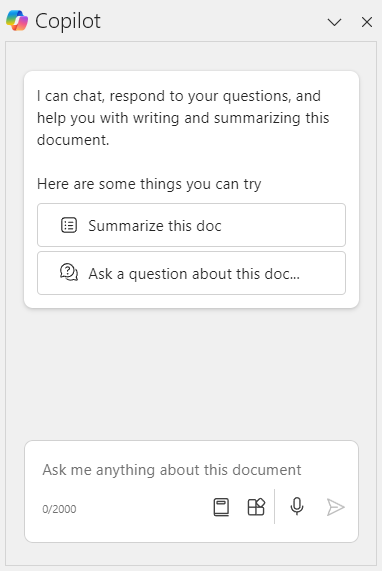 Source: Microsoft.com
For example, you can ask Copilot in Word to rewrite a section of a document, or use it in Excel to explain trends in a dataset. In Teams, it can summarize a meeting and extract action items. Its goal is to reduce manual work and support decision-making, without requiring users to switch tools or learn something new. Copilot is integrated with Windows and is available across multiple device types, including PCs, mobile devices, and web browsers, ensuring accessibility and convenience.
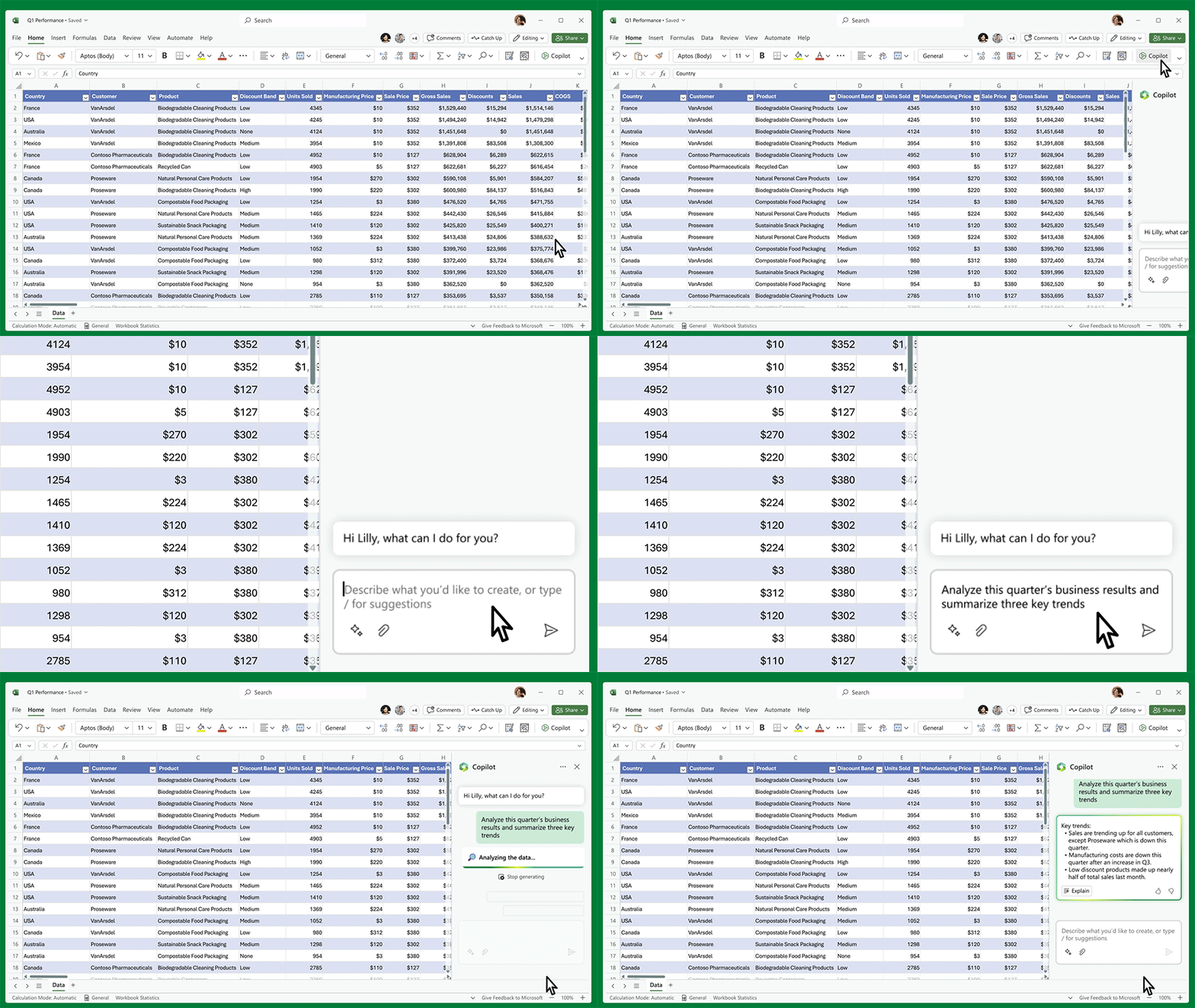
Source: Microsoft.com
While Copilot works out of the box for general productivity, organizations can go further with Copilot Studio.
What is Copilot Studio?
Microsoft Copilot Studio is a low-code platform for building custom copilots. These assistants can connect to business systems like CRMs, ERPs, or SharePoint, and automate specific workflows based on internal data.
With Copilot Studio, teams can design assistants that monitor order volume, respond to employee requests, or surface information from internal databases—use cases that go beyond general writing and analysis.
Here’s how the two compare:
|
Feature |
Microsoft Copilot |
Microsoft Copilot Studio |
|
Main use |
Everyday productivity inside 365 apps |
Custom workflows using internal business data |
|
Users |
General employees |
Power users, automation leads, IT |
|
Setup |
Built into Microsoft apps (Word, Excel) |
Designed in Studio, then deployed within your org |
|
Example prompt |
“Summarize this Teams meeting.” |
“Alert the ops team when order volume drops below forecast.” |
For larger or more advanced use cases, Azure AI Foundry adds another layer. It allows organizations to build, manage, and scale AI systems—including custom copilots—across multiple departments or business units. Foundry supports things like model orchestration, prompt versioning, and enterprise monitoring—making it useful when custom copilots need to operate across complex environments.
The Microsoft Copilot stack at a glance
- Microsoft Copilot: Built into Word, Excel, Outlook, and other Microsoft 365 apps. Supports writing, analysis, and summarization tasks.
- Copilot Studio: Lets teams build custom AI assistants that integrate with internal tools and workflows.
- Azure AI Foundry: Infrastructure for developing and scaling enterprise-grade AI solutions across multiple copilots or teams.
Together, these tools form a layered stack—from individual productivity to custom, organization-wide automation.
What does Microsoft Copilot do?
Microsoft Copilot supports writing, analysis, communication, and reporting—helping teams complete everyday tasks with fewer manual steps. Copilot is designed to assist users with a wide range of capabilities across Microsoft 365 apps, including content generation, data analysis, and seamless integration.
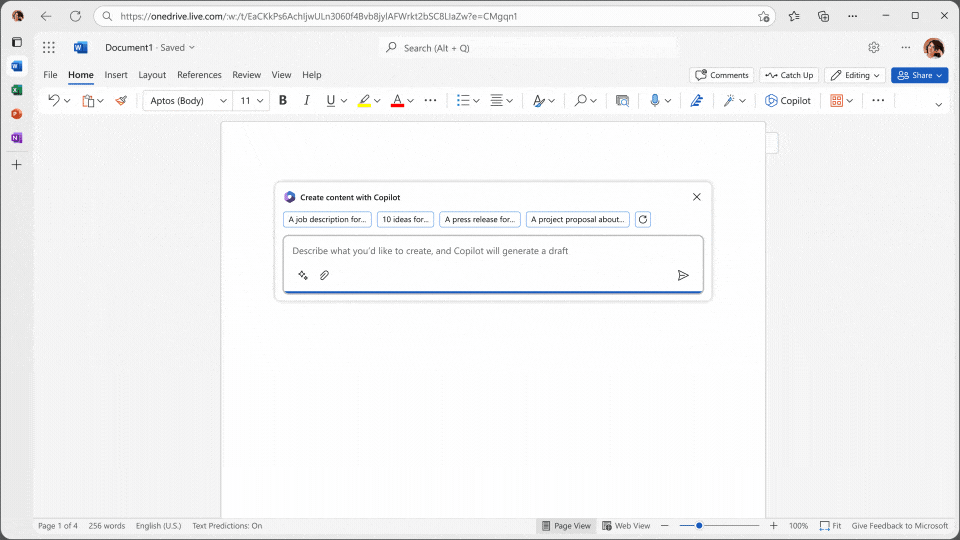
Source: Microsoft.com
Here’s what that looks like in practice:
Word
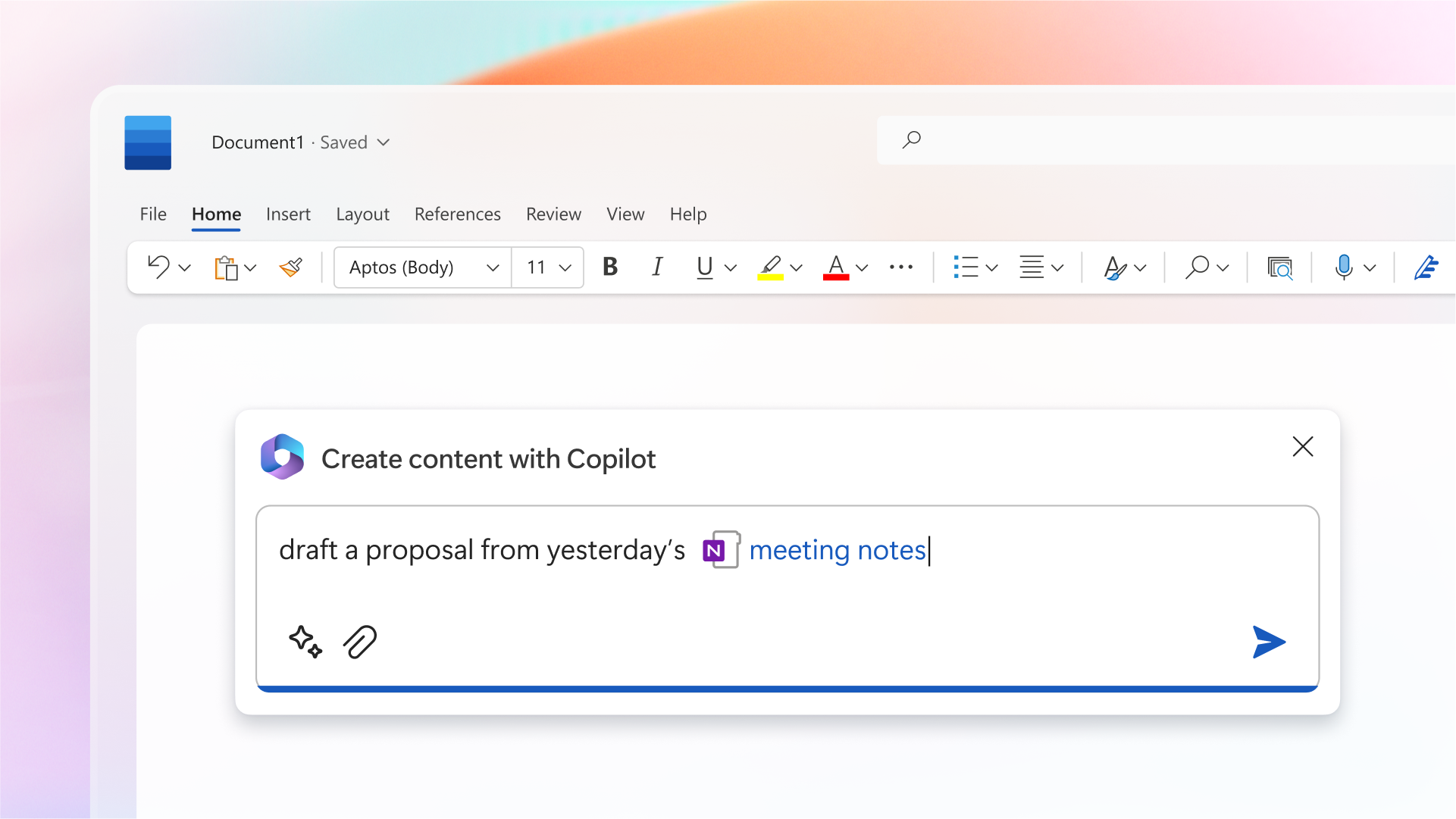
Draft, rewrite, or summarize text directly within your document. Useful for creating product descriptions, proposals, reports, or marketing briefs without starting from a blank page.
Excel
Analyze data, create formulas, or generate charts using natural-language prompts. Teams can track performance, forecast demand, or compare product margins without advanced spreadsheet knowledge.
Outlook
Summarize long email threads and draft responses in your tone. This helps teams manage high volumes of communication and maintain clarity in customer or internal conversations.
Teams
Generate meeting summaries, identify action items, and extract follow-up tasks. Ideal for keeping distributed or cross-functional projects on track.
PowerPoint
Turn written notes or briefs into structured presentations. Copilot helps build decks for campaign recaps, performance reviews, or strategic updates.
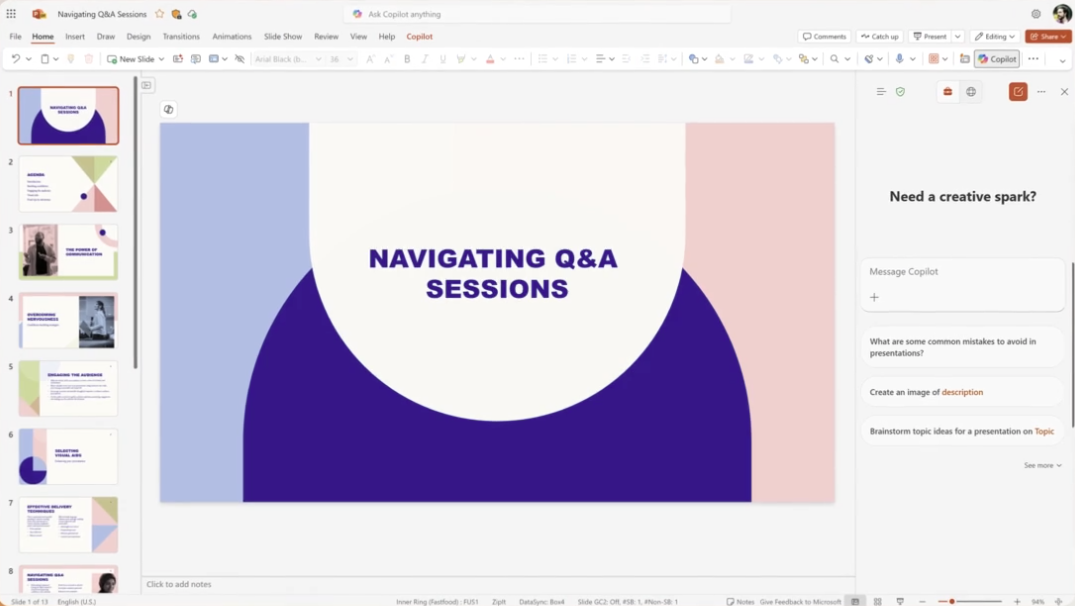
Source.com: Microsoft.com
Each Copilot feature builds on the same foundation: your organization’s data, context, and Microsoft’s AI models—working together to reduce friction and enhance the quality of everyday work.
Microsoft Copilot examples you can try today
You don’t need to be an AI expert to start using Microsoft Copilot. It's already integrated into the tools many teams rely on daily. The Microsoft Copilot examples below show how different departments are simplifying routine work with prompts.
Marketing Microsoft Copilot example
Ask Word: “Draft a product launch brief for our new eco-friendly packaging line.”
Ask PowerPoint: “Turn this campaign outline into a 5-slide presentation for stakeholders.”
Ask Excel: “Summarize engagement data from last month’s social channels.”
HR Microsoft Copilot example
Ask Outlook: “Summarize employee survey feedback and highlight recurring themes.”
Ask Word: “Create an onboarding checklist for new warehouse staff.”
Ask Teams: “Generate follow-up tasks from our HR team meeting.”
Source: Microsoft.com
Finance Microsoft Copilot example
Ask Excel: “Compare last quarter’s online sales vs. forecast and identify top-performing products.”
Ask Word: “Draft a short summary of our budget variance for management.”
Operations Microsoft Copilot example
Ask Teams: “Summarize today’s production meeting and assign owners for next steps.”
Ask Excel: “Analyze delivery times and flag suppliers causing delays.”
These examples highlight how Copilot can support a wide range of tasks across teams—from content creation and communication to performance tracking and process optimization. Each prompt can be adjusted based on your business context, making Copilot flexible enough for different roles and use cases.
Microsoft Copilot tutorial: Getting started
If you already use Microsoft 365, you’re closer to using Copilot than you might think. Here’s a simple way to get started.
Step 1: Check access
Make sure your Microsoft 365 license includes Copilot. It’s currently available in most Business and Enterprise plans and integrates automatically with apps like Word, Excel, Outlook, and Teams.
Step 2: Open the app
Open the Microsoft 365 tool you use most—Word, Excel, or Teams.
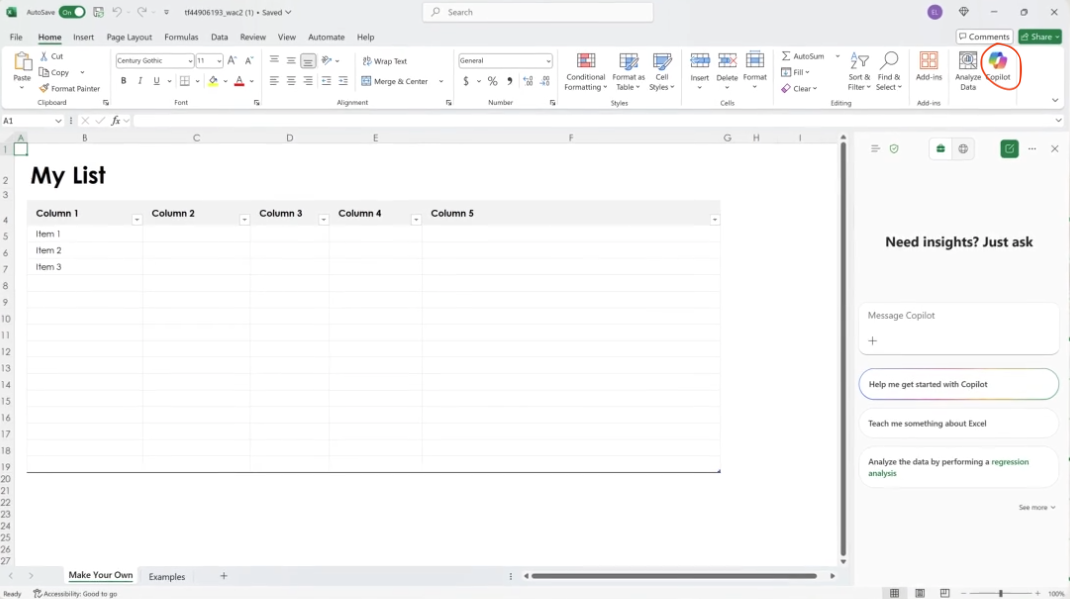
If your license includes Copilot, you’ll see the Copilot icon on the Home tab (in Word or Excel) or in the sidebar (in Teams). The Copilot button is typically located at the top right of the app interface or sidebar, making it easy to access AI-powered assistance.
Source: Microsoft.com
If you don’t see the icon yet:
- Check you’re signed in with the account that has a Microsoft 365 Copilot license.
- Update your app: go to File → Account → Update Options → Update Now.
- Use the web version at office.com — Copilot often appears there first.
- If you’re on a company account, ask your IT admin to confirm that Copilot is enabled for your organization.
Once the icon appears, click it to open a prompt window where you can enter your first request.
Step 3: Try a basic command
Start small with a prompt that fits your workflow:
- In Word: “Summarize this document in three bullet points.”
- In Excel: “Analyze monthly sales data and highlight key trends.”
- In Teams: “Summarize our last meeting and list action items.”
Step 4: Refine your prompts
Be specific about what you need, who it’s for, and how it should be delivered.
Example: “Draft a one-paragraph email for customers explaining our new delivery policy in a friendly tone.”
Step 5: Review and edit
Copilot provides a starting point—not a finished product. Review the output, make adjustments, and add any missing context to ensure it fits your tone, goals, and audience.
Step 6: Explore copilot studio (Optional)
Once you’re comfortable with built-in Copilot features, take the next step with Copilot Studio. It lets you create custom AI assistants connected to internal systems—such as your CRM, ERP, or inventory tools—so you can automate tasks specific to your business.
Prompting basics: How to use Microsoft Copilot
You don’t need technical skills to get value from Microsoft Copilot—but you do need to know how to ask the right way.
Think of prompting like briefing a colleague. The clearer your request, the better the result.
1. Be clear and specific
Avoid vague instructions. Be direct about what you want Copilot to do.
Instead of: “Write a report.”
Try: “Create a one-page summary of our Q3 online sales results, focused on product categories and growth trends.”
2. Add context
Tell the Copilot who the content is for, what it’s about, or why it matters.
Example: “Draft an internal email for the marketing team summarizing this week’s campaign performance.”
3. Define the format
If you want a list, table, or brief summary—say so up front.
Example: “Summarize this data in a three-column table showing region, revenue, and variance.”
4. Iterate
Copilot improves with feedback. Don’t hesitate to refine the output.
Follow-ups like:
- “Make it more concise.”
- “Use a professional tone.”
- “Add recommendations for next steps.”
…can quickly improve the results.
5. Reuse what works
If a prompt consistently delivers strong output—save it. Common prompts for reports, recaps, or customer emails can become reusable templates for your team.
Microsoft Copilot common pitfalls and how to avoid them
Like any new tool, Microsoft Copilot delivers the best results when used with intention—and a clear understanding of its limits. Here are some of the most common AI missteps and how to avoid them.
1. Treating Copilot like a search engine
Copilot doesn’t search the internet. It works with the content already in your Microsoft 365 environment—emails, documents, chats, and spreadsheets. If you prompt it like a browser, the results will fall short. Instead, frame your requests around your own content. For example, ask: “Summarize insights from this month’s sales report in Excel.”
2. Expecting final answers
Copilot generates helpful drafts and suggestions, but it’s not a decision-maker. It may miss nuance, overlook context, or make incorrect assumptions. Use it to move faster, not to skip the thinking step. Always review and refine the output—especially when it involves data, reporting, or anything shared externally.
3. Being too vague
Vague prompts often produce vague answers. If you ask for a report or summary without more detail, you’ll likely get something too general to be useful. Instead, give Copilot enough direction—what you need, who it’s for, and the tone or format. For example: “Write a 100-word product update for customers in a friendly, confident tone.”
4. Ignoring data security
While Copilot follows your Microsoft 365 permissions, it can still surface sensitive information if access controls aren’t set up properly. It’s important to ensure your environment is configured correctly and that employees understand what’s safe to share with AI tools. Avoid feeding any confidential data into public or external systems, and apply the same caution you would with any cloud-based service.
5. Overusing It
Copilot is great for handling repetitive tasks, but not every workflow benefits from automation. If you try to use it for everything, you risk reducing quality or missing context that only a human would catch. Use Copilot to take care of busywork—but keep strategy, judgment, and creativity in human hands.
Building AI confidence across teams
Adopting Microsoft Copilot isn’t just a tech upgrade—it’s a shift in how teams approach work. For many employees, using AI still feels unfamiliar or uncertain. The key to s uccessful AI adoption isn’t technical mastery—it’s building trust and confidence through small, meaningful wins.
1. Start small
Begin with low-risk, everyday use cases like summarizing emails, drafting internal reports, or recapping meetings. These are tasks people already do, and when Copilot helps them get done faster or with less friction, the value becomes immediately clear.
2. Share success stories
Encourage teams to talk about what’s working. A quick “before and after” example shared during a meeting or in a team chat can help others see how Copilot fits into real workflows. Peer examples often do more to build trust than formal documentation.
3. Create AI champions
Identify a few early adopters—people who are curious and comfortable experimenting. Give them space to explore Copilot and share tips, use cases, and feedback. Internal advocates often become go-to resources and help spread practical knowledge across teams.
4. Offer light training
Not everyone needs deep technical training. Short, focused demos or lunch-and-learn sessions go a long way. Keep it relevant: show how Copilot can generate a product description, summarize a project brief, or flag trends in a spreadsheet. Make it feel useful, not theoretical.
5. Normalize experimentation
AI adoption improves when people feel safe to explore. Encourage teams to test new prompts, tweak results, and learn by doing—without fear of getting it wrong. Treat Copilot as a co-pilot: something you’re learning to work with, not something that needs to be perfect from day one.
How Microsoft Copilot differs from ChatGPT (and why it’s safer for enterprise users)
At a glance, Microsoft Copilot and ChatGPT look similar. Both use natural language to generate content, answer questions, and support everyday tasks. But under the surface, they’re built for very different use cases—one for general productivity, the other for secure, enterprise-grade workflows.
Built for the enterprise
ChatGPT is a public, standalone assistant designed for general use. Microsoft Copilot, by contrast, is built into Microsoft 365 and runs inside your organization’s secure Microsoft tenant. It respects all your company’s identity and access controls—meaning it only works with content users are allowed to access.
Data privacy and security
This is where Copilot offers a clear advantage for businesses handling sensitive information:
- It operates entirely within your Microsoft 365 environment, not on public servers.
- It uses Microsoft Graph to access only the data you’re permitted to see—such as emails, Teams messages, or SharePoint files.
- Prompts and responses are not used to train the underlying models.
- Copilot runs on Azure OpenAI Service, ensuring data remains within Microsoft’s secure cloud infrastructure.
In short, Copilot understands your work context—but your data never leaves your environment.
Context and workflow integration
While ChatGPT functions like a smart chatbot, Copilot is designed to work inside the apps you already use. Its context awareness is what sets it apart.
For example:
- In Excel, it can scan actual spreadsheets to generate charts, surface trends, or write formulas.
- In Teams, it can summarize live meeting discussions and identify follow-up tasks.
- In Word, it can draft content based on your company’s templates, tone, or stored documents.
This tight integration reduces friction and keeps work—and data—inside secure tools and workflows.
Customization and scalability
Copilot also supports advanced business needs. With Copilot Studio, teams can build custom assistants that interact with internal systems like CRMs, ERPs, or ticketing platforms. For larger deployments, Azure AI Foundry provides the infrastructure to manage models, prompt flows, and security policies at scale. ChatGPT can’t do this—at least not without moving sensitive data outside your environment.
In summary:
- ChatGPT is a powerful, public AI model for general-purpose use.
- Microsoft Copilot is a secure, enterprise-grade assistant built into Microsoft 365—designed for real business workflows and data governance.
If your team works with sensitive data or operates in a regulated environment, that difference matters. With Copilot, you get the benefits of AI—without the risk of exposing business-critical information.
Conclusion: Microsoft Copilot as your everyday AI partner
Microsoft Copilot isn’t a separate tool—it’s becoming part of how people write, analyze, communicate, and manage various tasks inside the tools they already use. What matters now is learning how to use it well.
From quick summaries and reports to more complex, cross-functional workflows, Copilot supports a wide range of everyday scenarios. And for teams with more specific needs, tools like Copilot Studio and Azure AI Foundry offer ways to adapt and extend that support using your own data and systems.
The most effective approach isn't to wait for perfect answers, but to start where the value is clear—repetitive tasks, content-heavy work, or slow manual processes. Copilot helps by allowing users to offload time-consuming work and focus on decisions that require context and experience.
As more organizations begin making AI part of their daily operations, trust builds through use—not through abstract promises. Free users may not have access to the full range of enterprise features, but even small-scale experiments can show how Copilot fits into real workflows.
Across industries, we’re seeing teams test, adapt, and learn in small steps. That’s how long-term capability is built: not through hype, but through consistent, practical use.
Key takeaways
-
Microsoft Copilot is built into Microsoft 365 apps like Word, Excel, Outlook, and Teams, allowing users to streamline various tasks such as drafting, summarizing, and analyzing content.
-
Microsoft Copilot examples show real use cases across departments—like summarizing meetings, generating reports, and writing customer emails—making AI practical for everyday work.
-
Copilot Studio extends functionality by allowing users to create custom AI assistants that connect with internal tools like SharePoint, CRM, or ERP systems.
-
Making AI part of daily workflows starts with small, clear use cases—helping teams build confidence and reduce resistance without disrupting existing processes.
-
Free users may have limited access, but most business plans include Microsoft Copilot features, enabling teams to explore its value with minimal setup.


