
Silk Design System Documentation
Contents
Silk is a free design system created by Netguru for teams who don’t want to spend months reinventing buttons, spacing, and variables—yet still need something they can make their own.
About Silk design system
Built for mobile and responsive web, Silk supports modern product teams with a strong focus on accessibility, flexibility, and ease of use.
What sets Silk apart is the balance between simplicity and depth. It avoids the weight of enterprise systems while offering far more structure and polish than a basic UI kit.
How to start using Silk
Download Silk and Phosphor icons from the Figma Community. Don’t skip the icons, it’s important that you have both libraries in your Figma. Rename them in a way that works best for you, e.g. by removing "(Community)" from the name. Use unique names to help you find the libraries later.
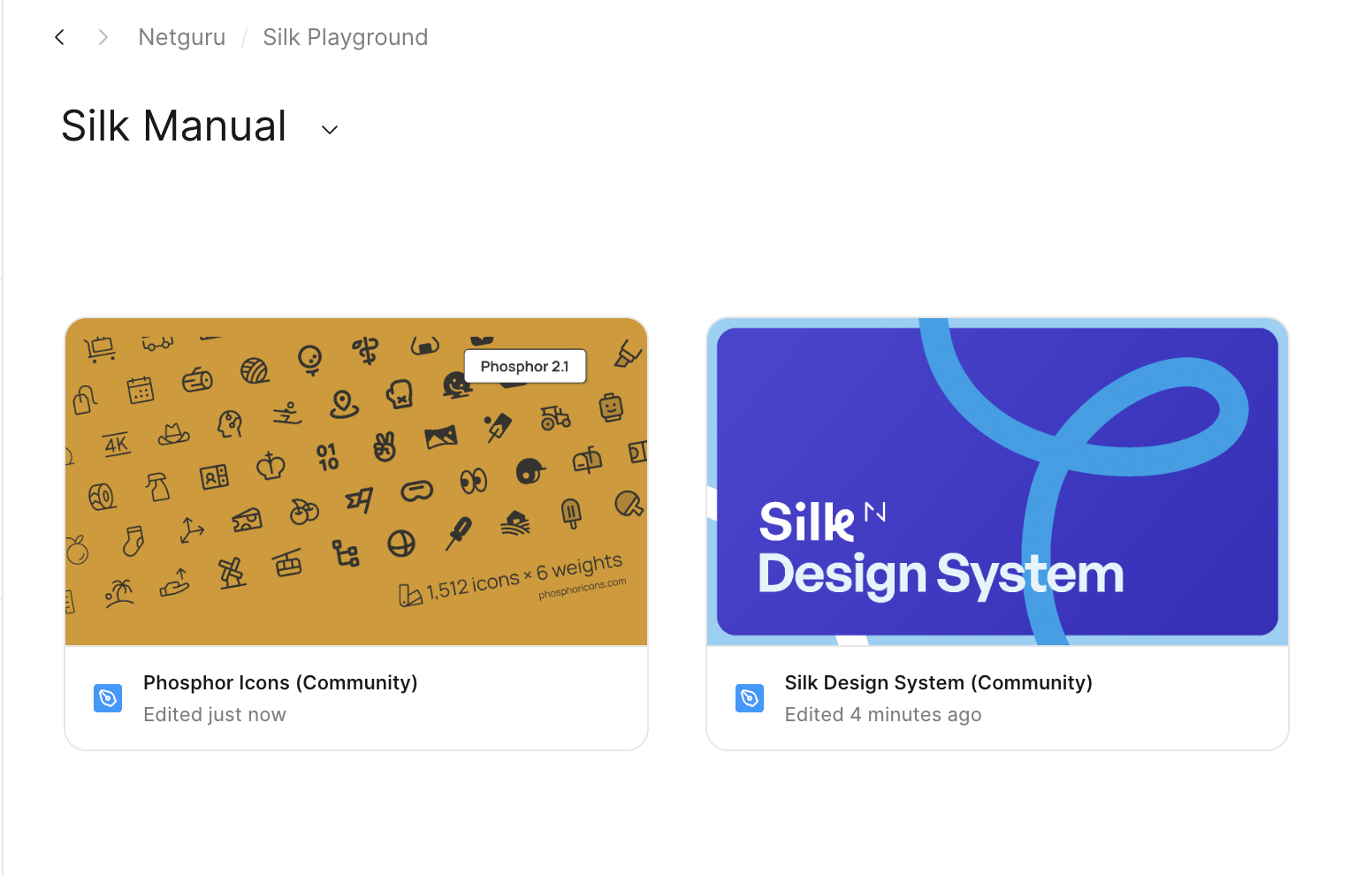
Tip: To work with Silk properly, you will need to publish the library. Libraries living in drafts cannot be published, so make sure to move Silk and Phosphor out of your drafts into your project.
Silk setup
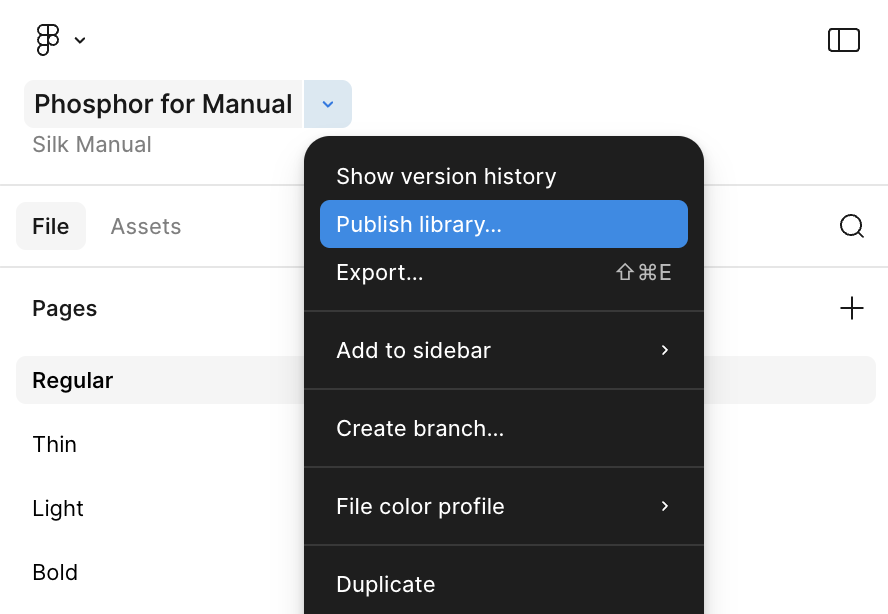
Once Phosphor icons and Silk DS are in the proper project, it’s time to publish libraries.
- Publish the Phosphor Icons library first before publishing Silk.
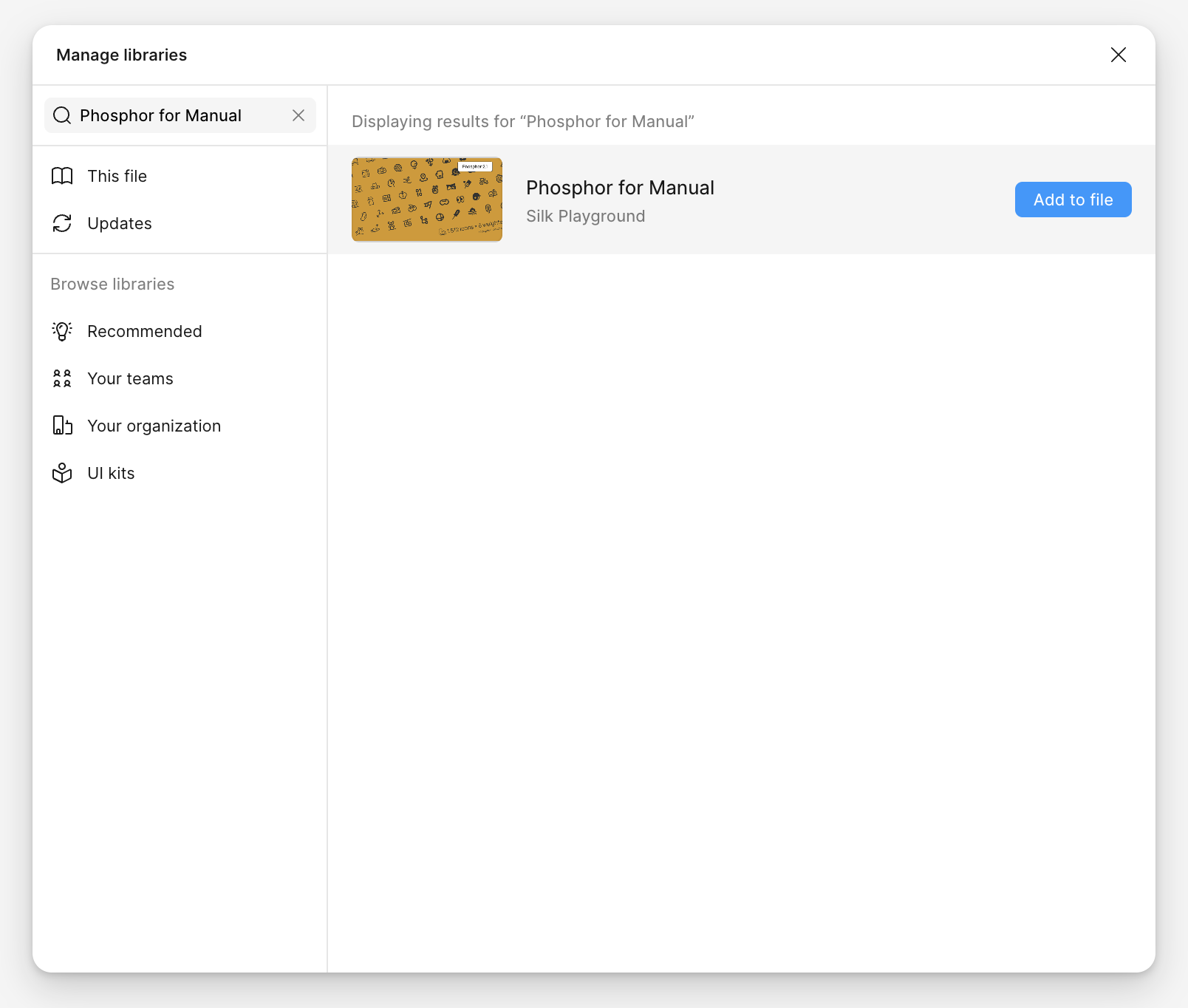
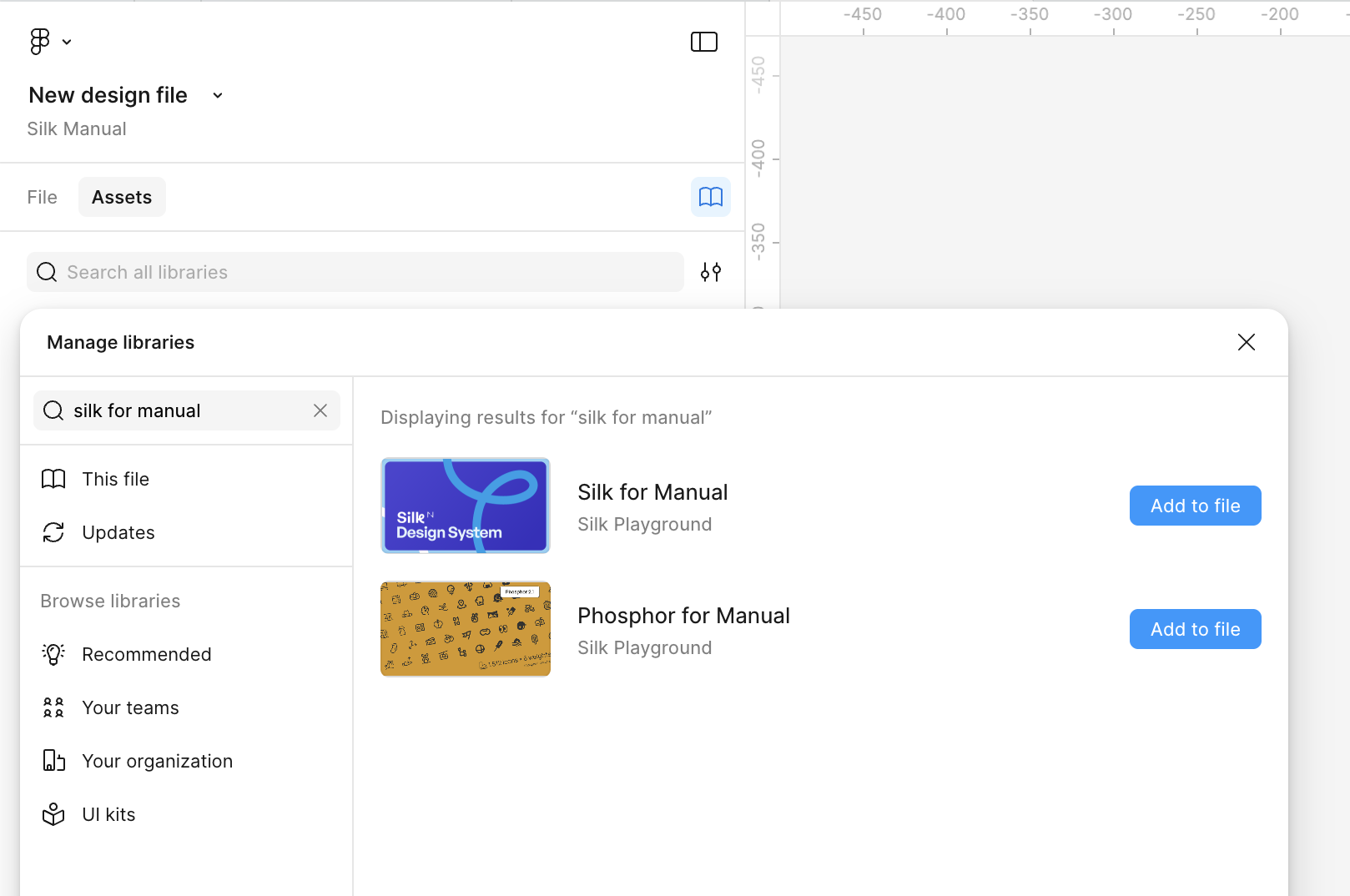
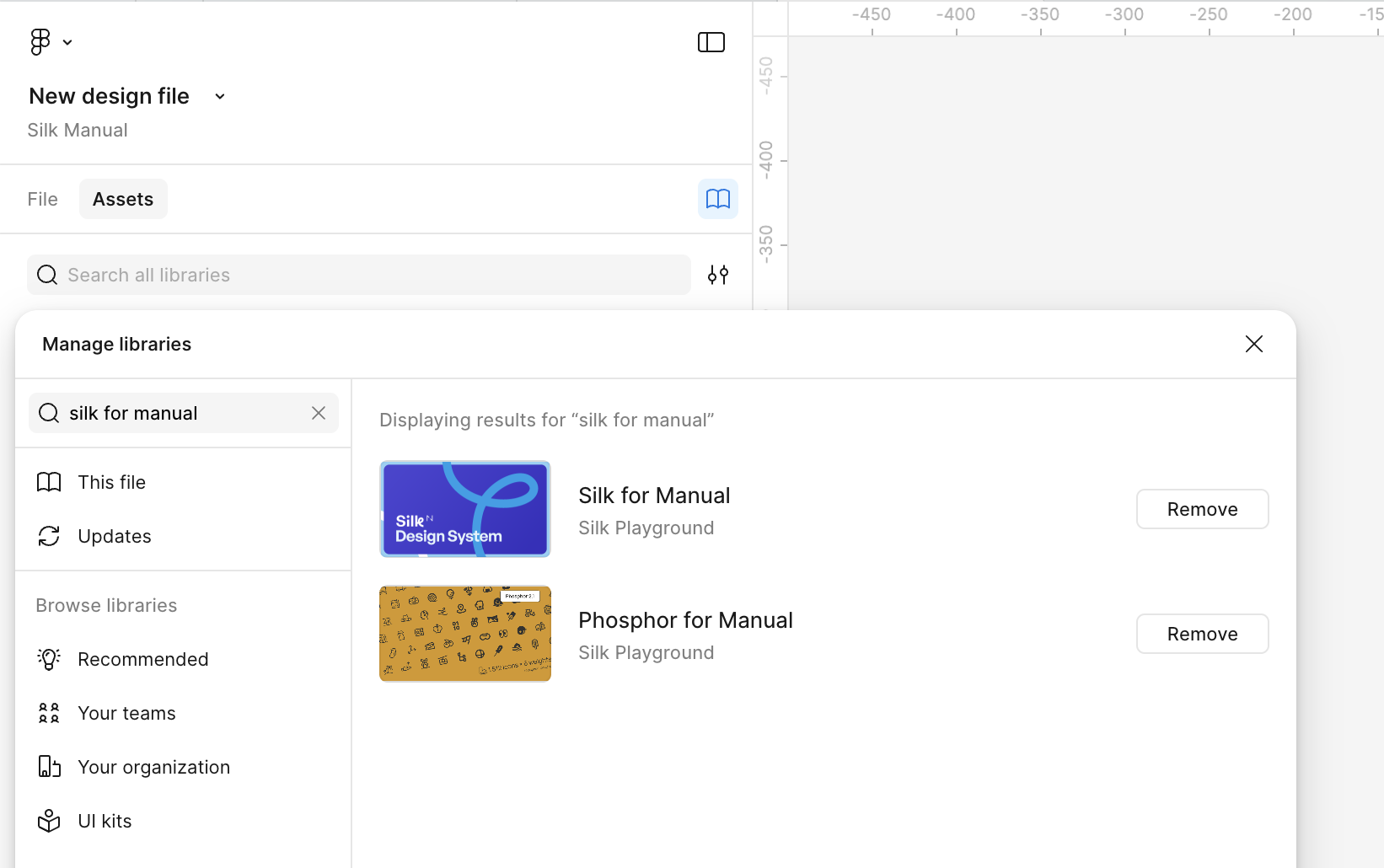
- Add your icon library to your Silk file. Open your copy of “Silk Design System by Netguru”, click on the “Manage libraries” icon in the left side panel, search for the icon library you just published, and click “Add to the file".
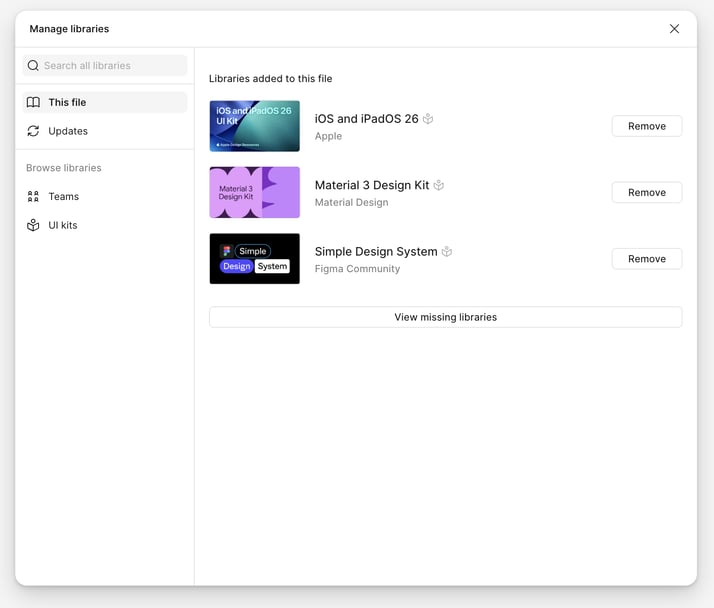
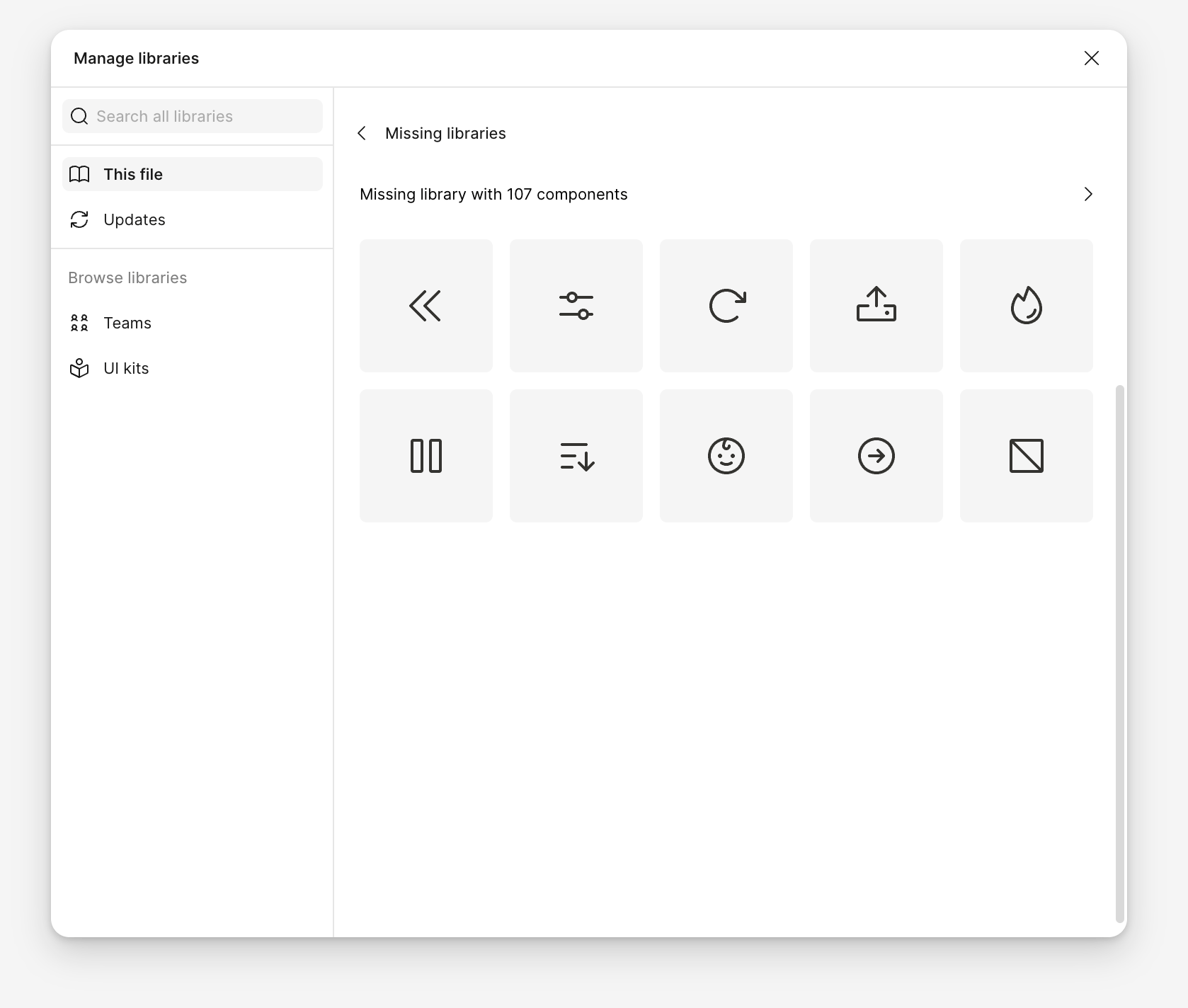
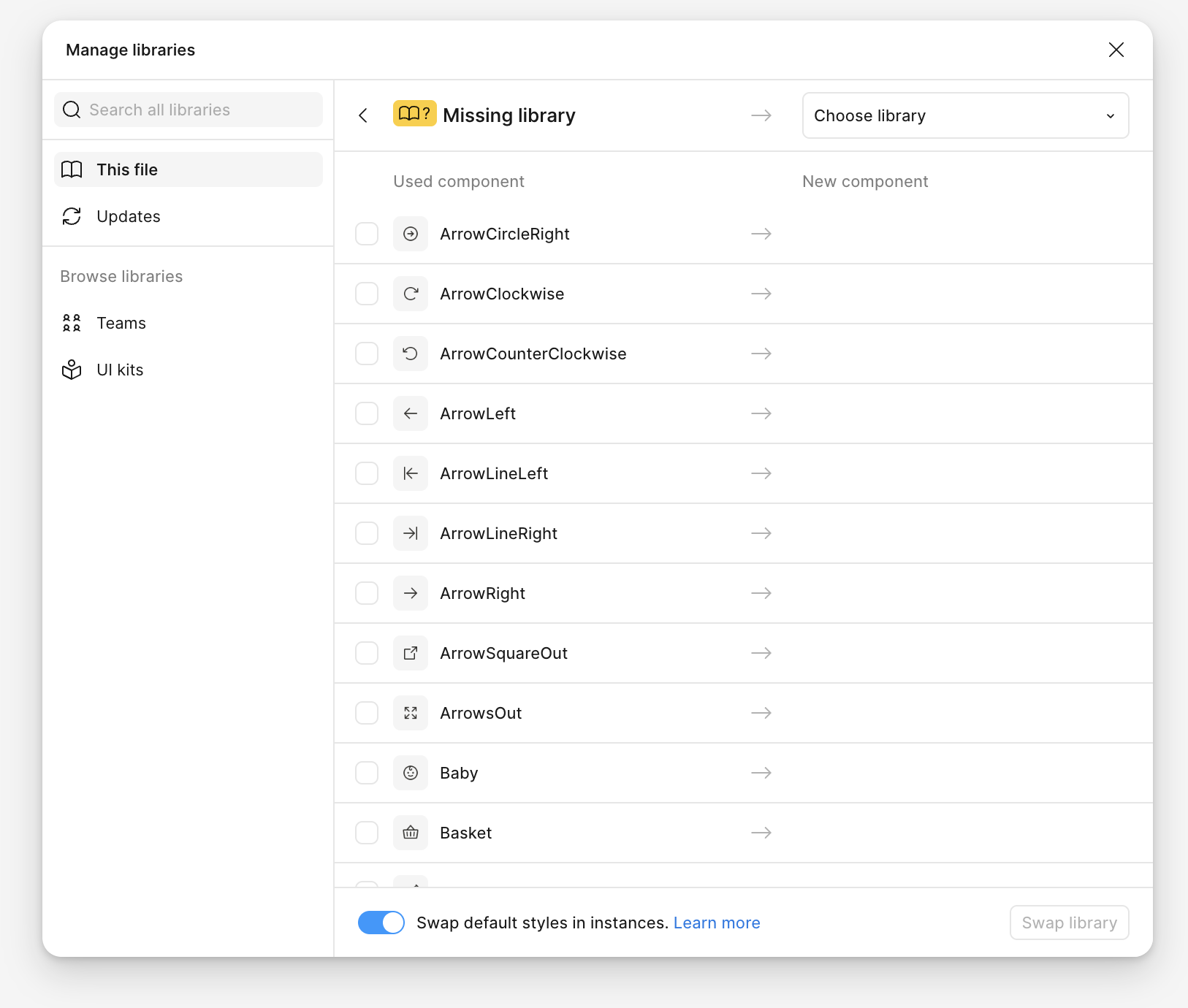
- Stay in the “Manage libraries” window. Click the “This file” tab and then “View missing libraries”. Then link the missing icon library to the Phosphor icons and click “Swap library”.
- Publish your Silk library the same way you published the icon library.
From now on, whenever you create a design file, you can add both libraries to it. This will make all variables, icons, and components available in your file.
Using Silk’s default theme
If you are planning to use Silk as is, you’re all set and ready to go. Just search for the right components using the Assets panel or browse the library file directly and copy patterns and templates.
If you need to make any changes, you can always go to the library file, add components or modify the existing ones, and then republish the library.
Customizing Silk
1. Customizing colors
Silk’s color system is built to be flexible. You can adapt it to your brand in two main ways:
- Using Silk’s existing color palettes (fastest and safest method)
- Creating your own custom palette (for full brand alignment)
This chapter explains both approaches and highlights what to consider to keep your designs consistent and accessible.
Using Silk’s built-in color palettes
Silk uses three core color categories throughout components:
- Accent – primary brand or action color
- Neutral – backgrounds, surfaces, borders, text
- Semantic – success, warning, error
These categories work like aliases. Each alias points to the primitives (previously named global-colors) e.g., Blueberry, Slate, Aquamarine). You can swap these primitive colors to match your brand without touching individual components.
How it works
- Accent colors are linked to Blueberry by default
- Neutral colors are linked to Night
- Semantic colors point to Teal (success), Red (error), Amber (warning)
Because Silk is built on variables, swapping the primitive color scale in the accent, neutral or semantic variables updates the entire system automatically.
Example: If you want your accent color to be Teal instead of Blueberry, simply replace Blueberry with Teal in the variable panel.
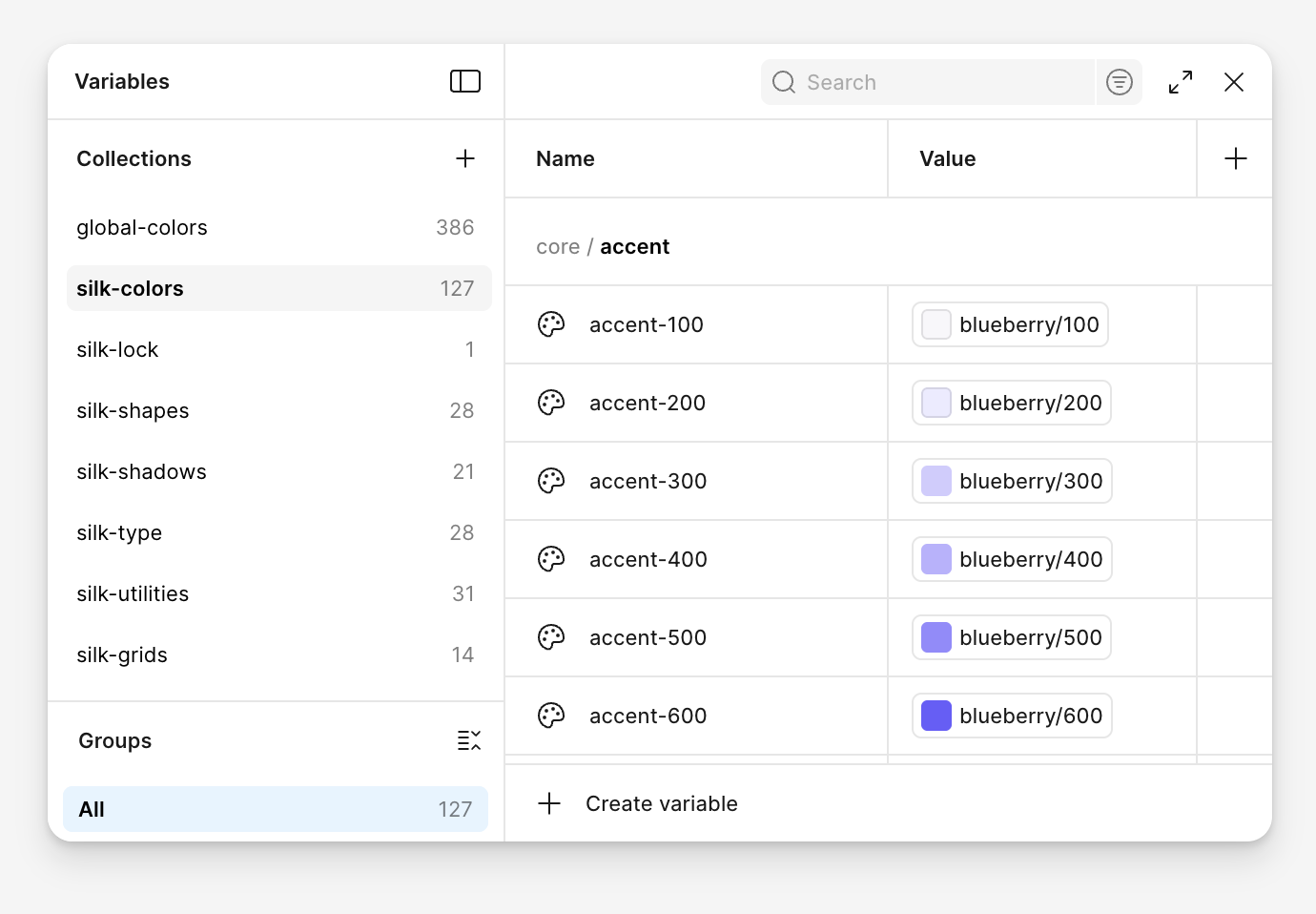
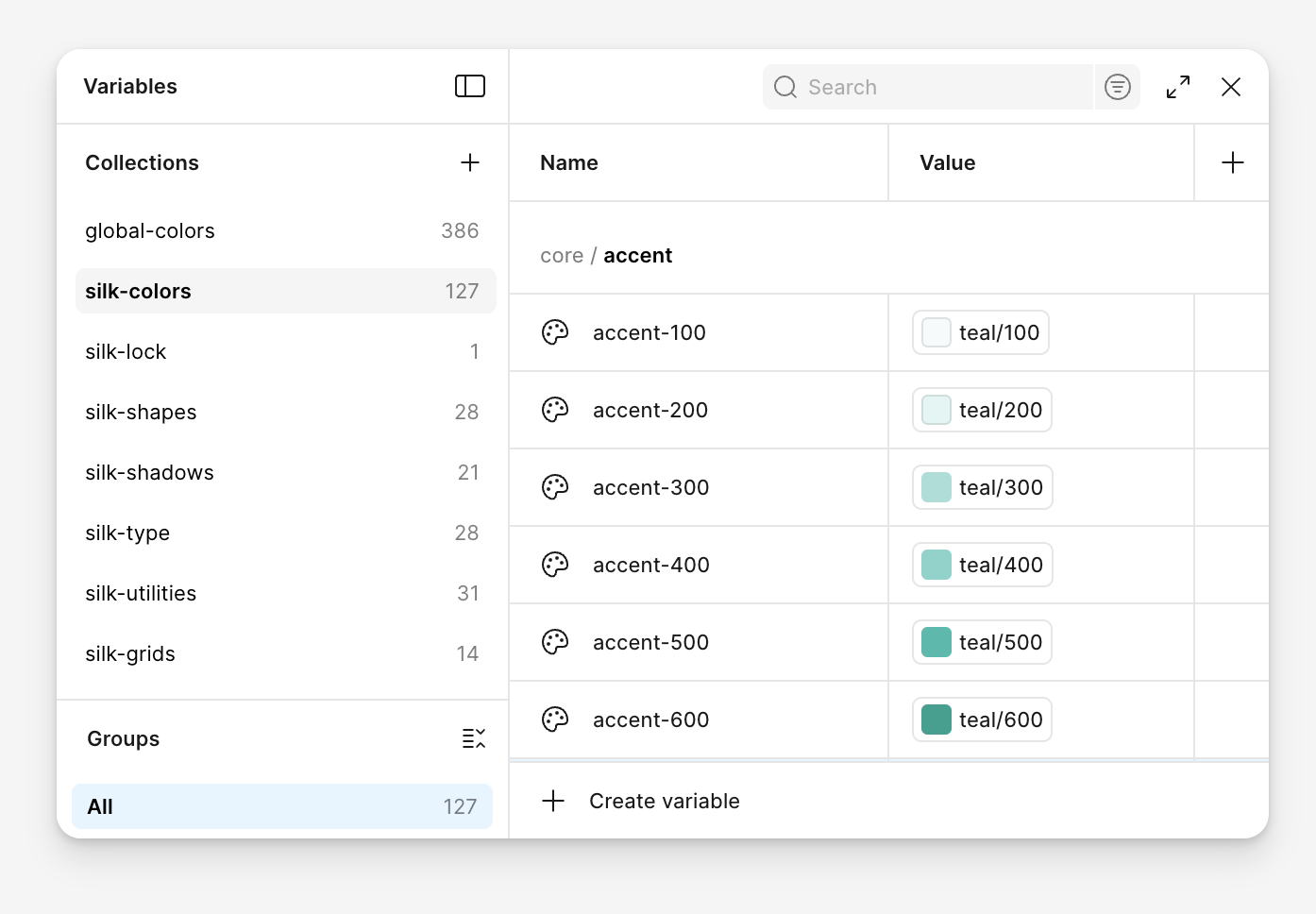
If your accent color shifts, you may also adjust neutrals (e.g., switching Night → Slate) to maintain visual balance.
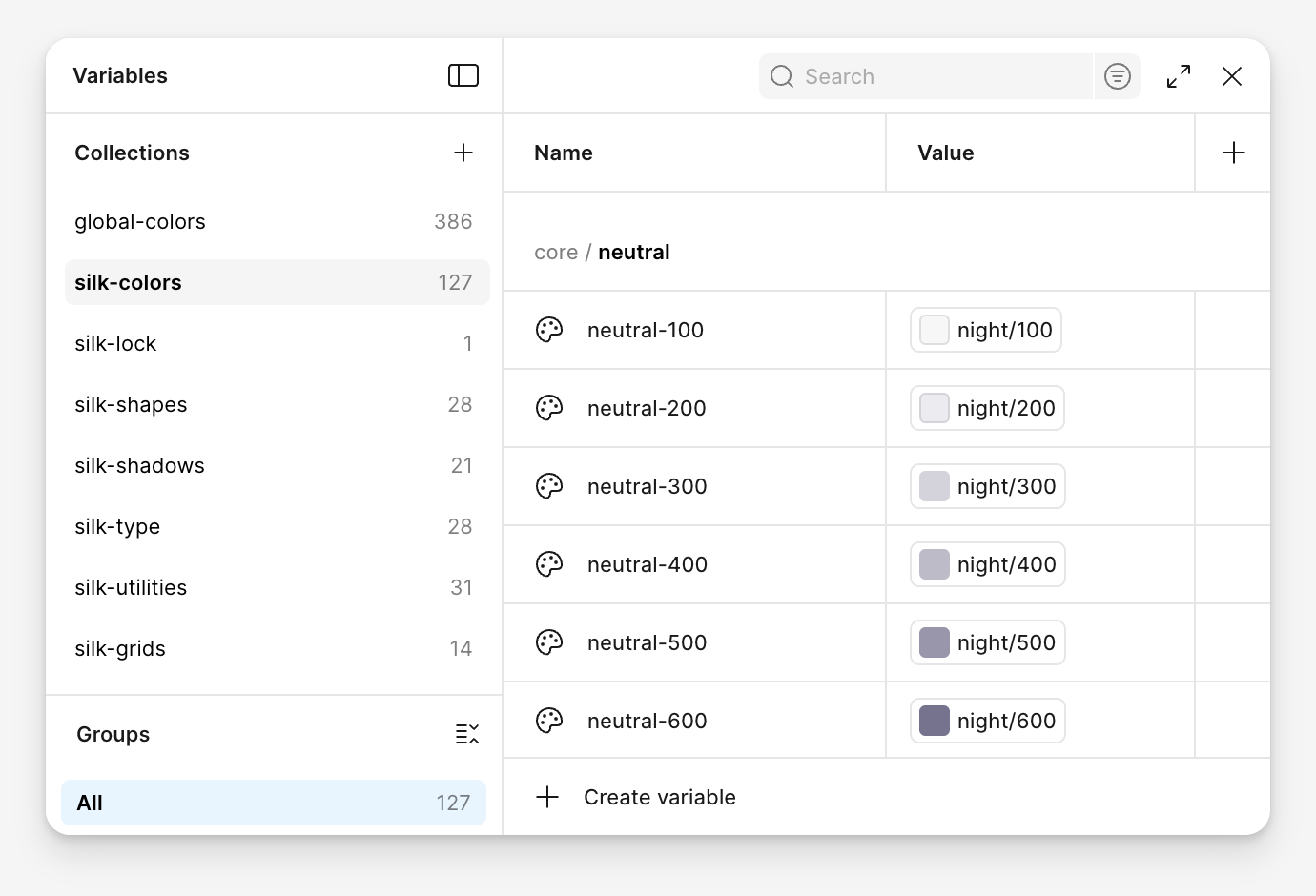
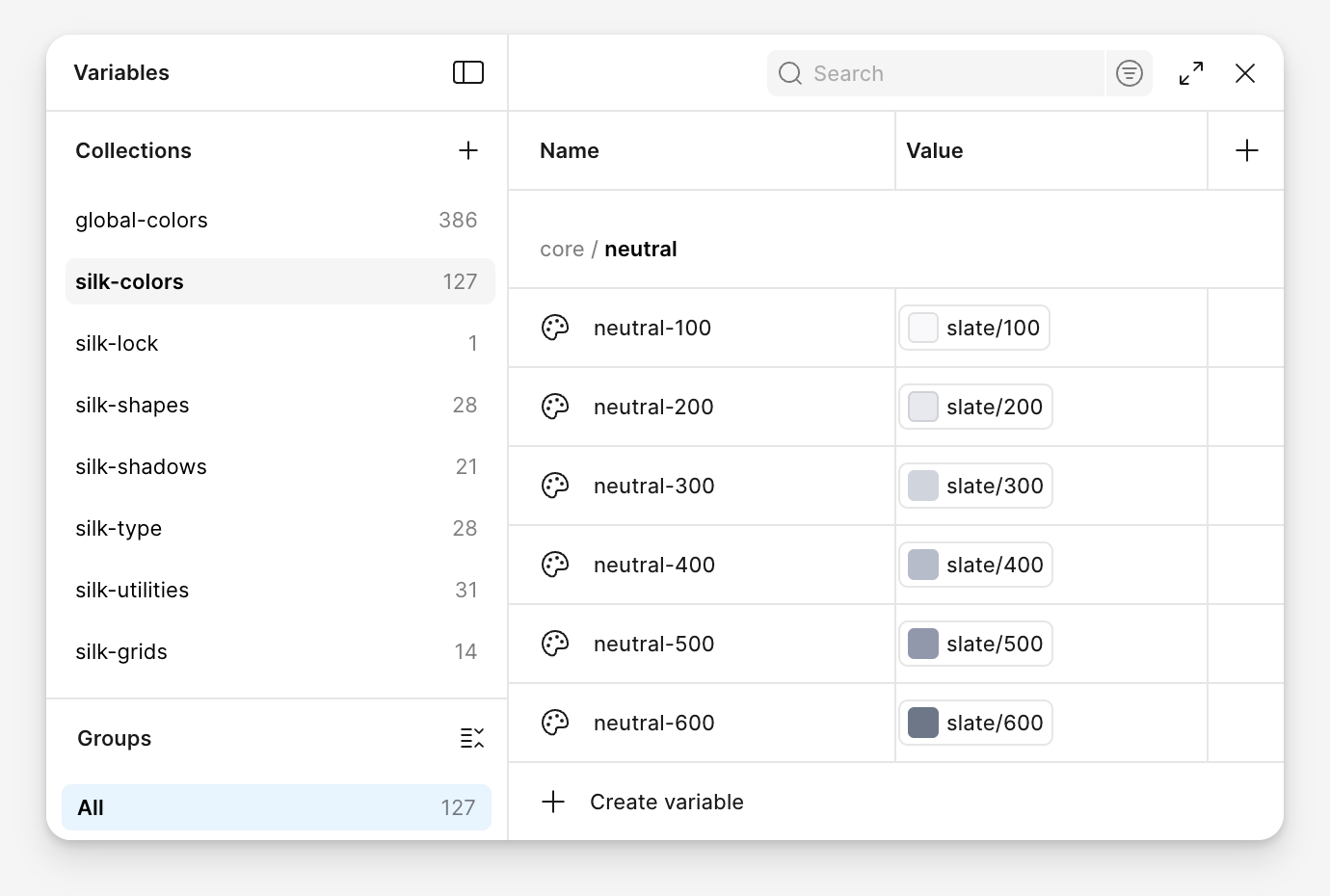 When swapping colors, always match the shade level precisely, eg:
- Replace Blueberry/700 → Teal/700,
- Replace Teal/100 → Aquamarine/100,
- Replace Night/500 → Slate/500, etc.
Check out a preview of the final result of the switch:
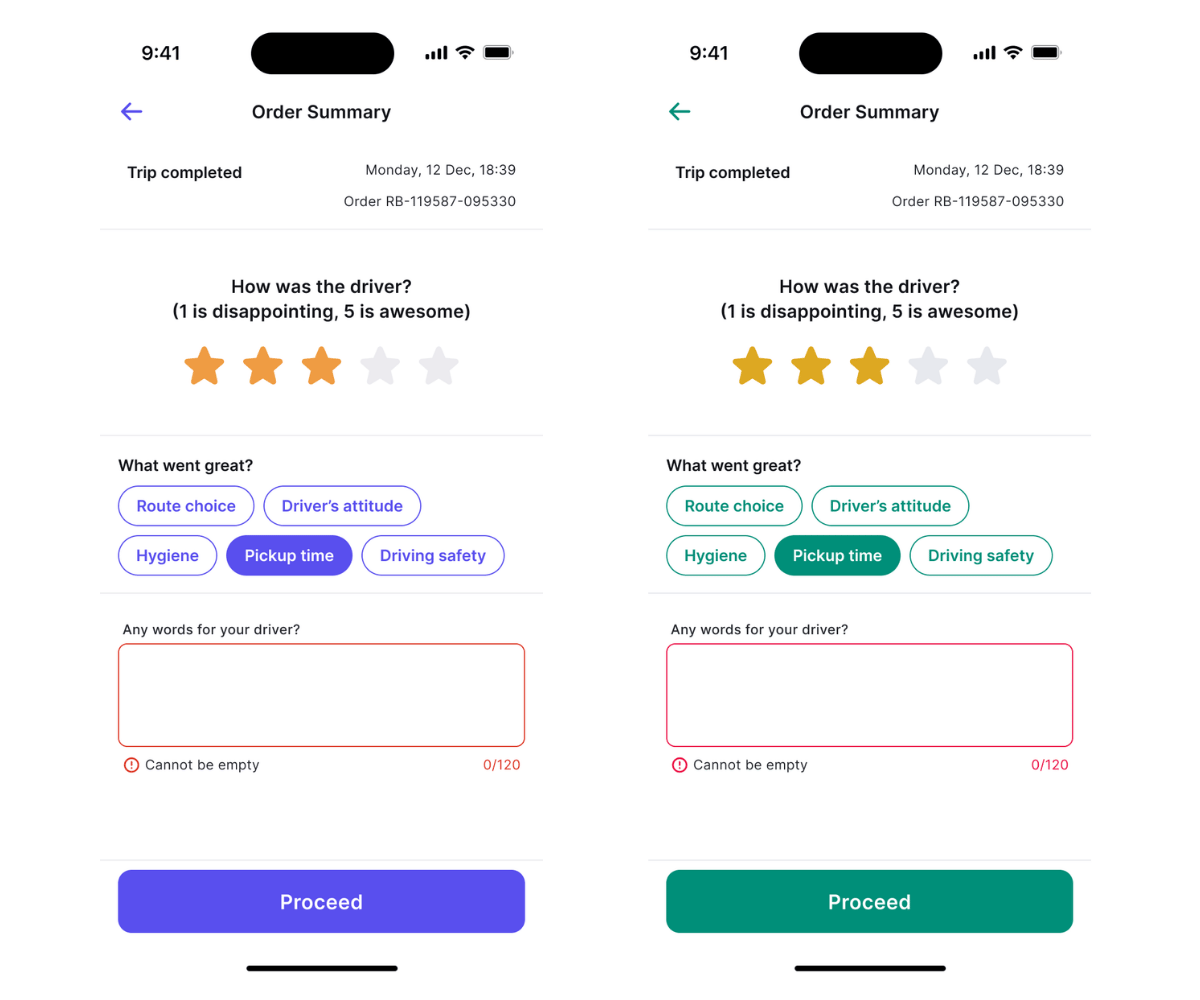
Using variables in the UI
Colors from primitives should never be used directly in the components and UI elements. Whenever possible, avoid using colors coming directly from colors/core-accent and colors/core-neutral, too.
So which variables are ok to apply directly to UI elements? Look for the ones that describe function:
colors/textcolors should be applied to text elements; for example usecolors/text/titlefor titles andcolors/text/interactivefor interactive text,colors/surfacecolors should be applied to surfaces, for example background of a section or a side panel,colors/bordercolors should be applied to strokes, for example an outline of a widget.
Creating a custom palette
Silk supports full palette replacement for brands that require a completely custom color system. However, to keep components accessible and consistent, custom palettes must match Silk’s original structure—especially in terms of perceived contrast.
Before you jump in, it’s important to understand how the existing palettes are constructed.
Each color scale consists of 12 shades. It means that – for example – Silk’s default accent color, Blueberry, has 12 shades, from very light to very dark. They are named with numbers from 100 to 1200. The central colors in your scale (shades no. 700 and 600) are usually used for interactive elements, so they should align with the WCAG2 standards.
For example blueberry-600 has a WCAG 2 contrast of 4.5, while blueberry-700 has a contrast of 5.5. You can use it as a starting point for your new color scale.
Define your key brand colors
Let’s say you want to create a new palette centered around your brand’s blue. We’ll call it cobalt.
If you already have this shade defined, start by checking its contrast against white. For the purpose of this example, let’s assume the color is #2C5DD9. It has a contrast of 5.7, so it can work as our central color cobalt-700.
Once the central shade is defined, you can use it as the anchor for building the rest of the scale.
However, you won’t always be this lucky. Sometimes your main color will be much lighter or much darker than this. Don’t worry, we will cover those scenarios in “Handling challenging colors”.
Generate the full palette
With your key color defined, you can use a tool like Gemini or Claude to ask for the full ramp. Just paste the following prompt, adjusting the words in brackets.
You are a senior design system designer working on a series of color ramps for a design system.
This is the framework for the color ramps:
1. Each ramp has 12 shades from 100 to 1200, named color-100, color-200 etc.
2. Each step of the ramp has a predefined contrast against white. This is the contrast ratio:
100 – 1.05
200 – 1.2
300 – 1.4
400 – 1.9
500 – 2.9
600 – 4.5
700 – 5.5
800 – 6.5
900 – 8
1000 – 11
1100 – 14.5
1200 – 18.5
This is an example:
blueberry-100 is F8F7FA
blueberry-200 is ECEBFF
blueberry-300 is D0CCFF
blueberry-400 is B9B2FF
blueberry-500 is 938AFF
blueberry-600 is 685DFD
blueberry-700 is 594FEE
blueberry-800 is 4F45E3
blueberry-900 is 3C35D0
blueberry-1000 is 31299E
blueberry-1100 is 201C6D
blueberry-1200 is 100D35.
In the next message I will specify a [600] shade and ask you to generate a full ramp which follows the same structure and standards as above, while staying visually attractive. The shades should be [saturated/muted]. Allow for a subtle hue shift for a more pleasing visual effect. Provide the output in the form of a [table/JSON file/CSS variables].
The first result won’t be perfect. Take time analysing the output and fine-tuning the results. Here’s what we’ve got:
{
 "cobalt": {
 "100": "#F4F8FE",
 "200": "#E6EEFD",
 "300": "#D0E0FC",
 "400": "#A6C5FA",
 "500": "#6F9EF5",
 "600": "#3B76F0",
 "700": "#2C5DD9",
 "800": "#204BC2",
 "900": "#1435A1",
 "1000": "#0D2275",
 "1100": "#06144D",
 "1200": "#020826"
}
 There are a couple of issues. First, the
 600 shade has a little low contrast (4.2 instead of 4.5). This is acceptable in our case because the shade is used for non-text elements, where this level of contrast is sufficient.
Second, the darkest shades feel too warm for our project. They resemble ink more than cobalt stone, so we can adjust them manually.
When tweaking your colors, always test them in a real interface sample. You can use the example screens included in the Silk Figma file.
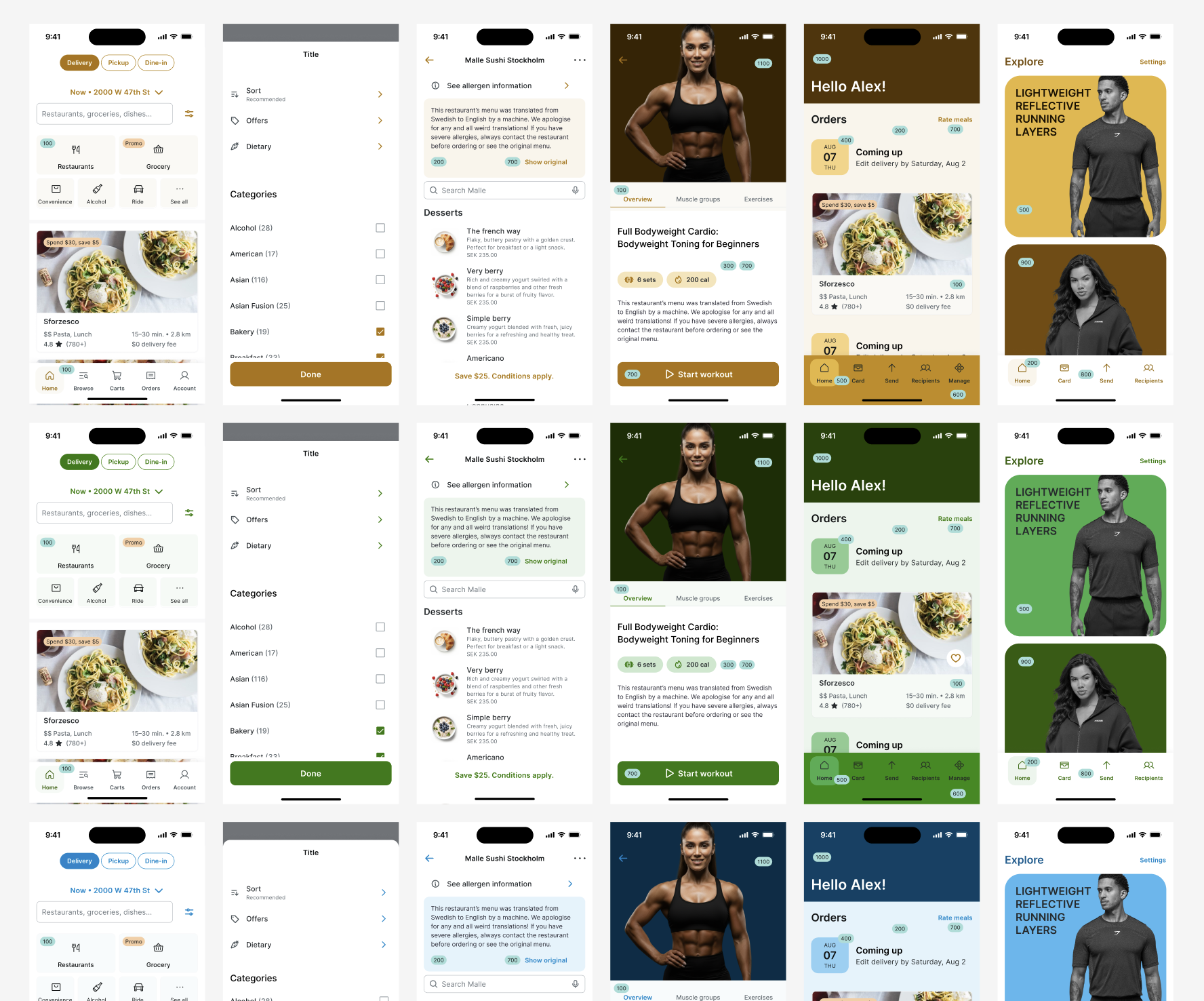 Once you have a working palette, create a new ramp in the
 primitives set. Then update the colors/core/accent colors the same way it was described in “6.1. Using Silk’s built-in color palettes” – replacing blueberry-100 with cobalt-100, and so on.
Handling challenging colors
Some hues—especially yellows, bright greens, and teals—are difficult to align with standard contrast targets without sacrificing visual quality. For example, it is not possible to create a rich, honey-like yellow that still meets accessibility standards.
To mitigate that, you will need to adjust not only the global palette, but also the variables in the colors/text, colors/surface, and colors/border groups. Let’s start from the top.
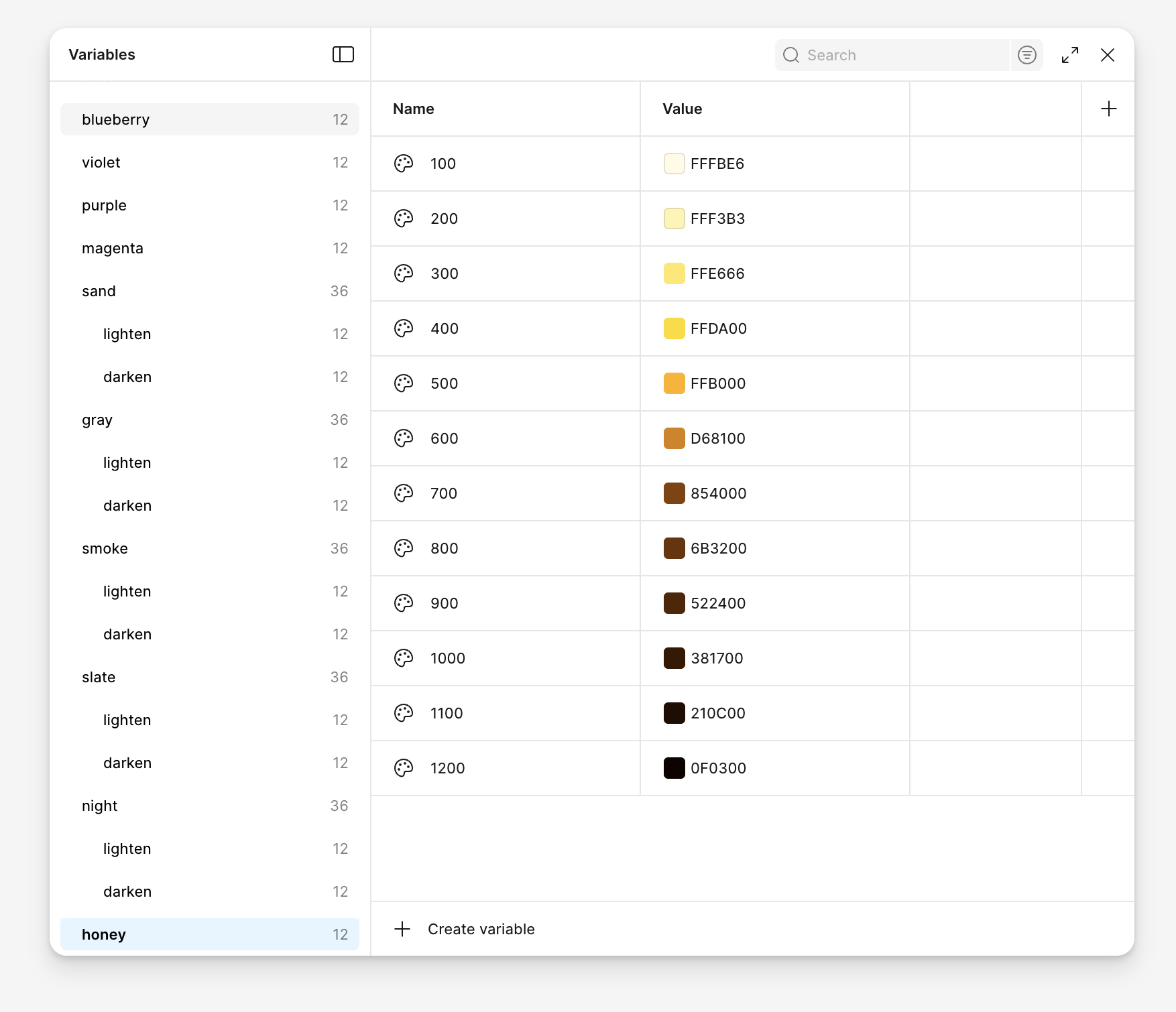
If your main accent color is a honey yellow, like for example #FFDA00, you can still build a palette around it. This shade has a contrast ratio of 1.4, so according to our framework it would correspond to 300.
You can then use the same prompt as before, specifying #FFDA00 as honey-300.
 The resulting palette shows little variation in the lighter shades, so we make a few manual adjustments by moving the main color to the
 400 position.
 Since we’re happy with this palette, we can create a new ramp in the
 primitives set and then update colors/core/accent color the same way it was described in “6.1. Using Silk’s built-in color palettes” – substituting blueberry-100 with honey-100, and so on.
All components will update automatically. The results might look a bit alarming at first, but don’t worry, we’ll fix everything in the next steps.
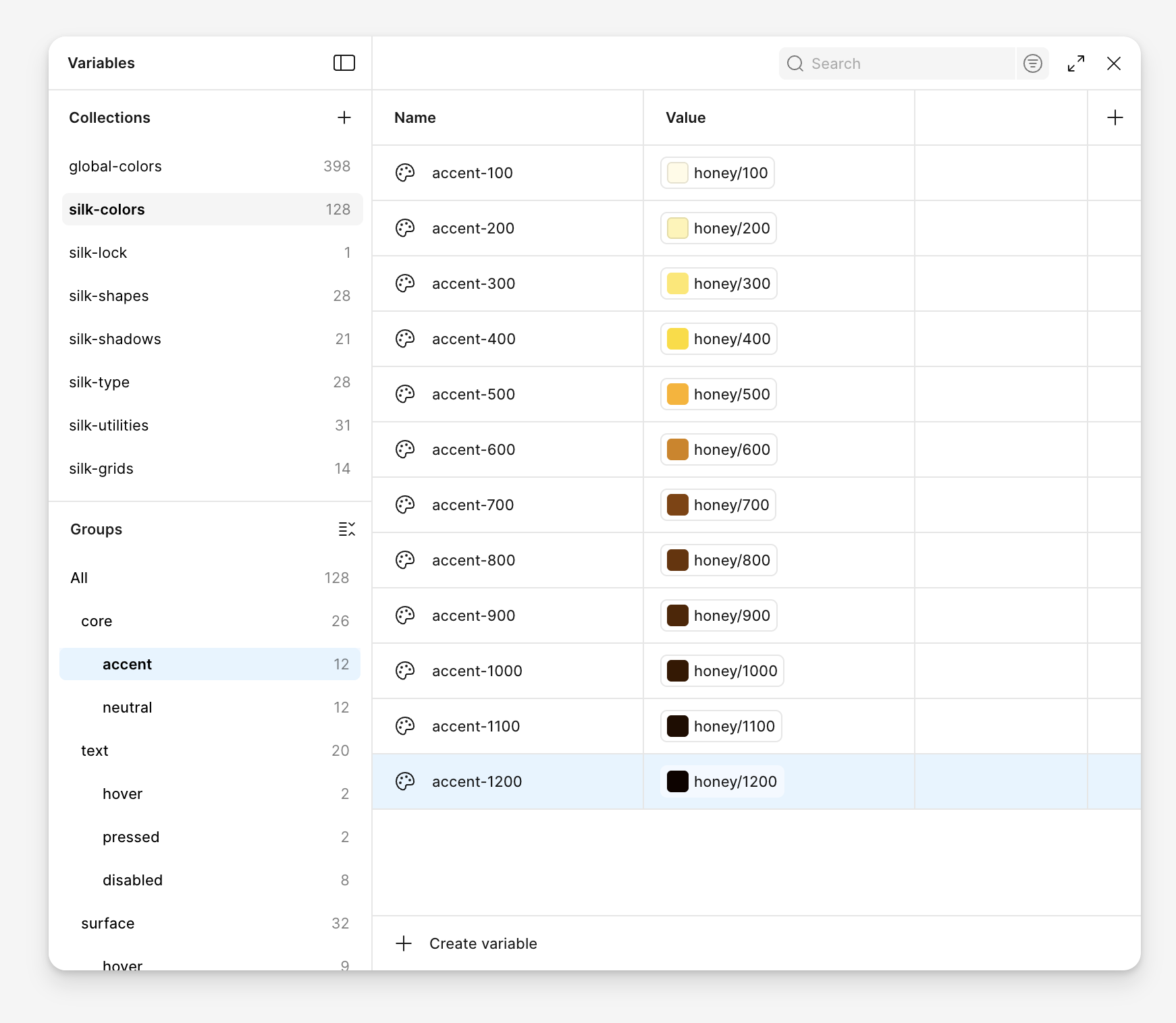 If you look at any component, you will notice that it is not directly using the core colors, let alone the primitive colors. Instead, it relies on colors from the functional sets:
 colors/text, colors/surface, and colors/border groups. Now it’s time to update those.
For example, a primary button in its default state uses the following variables:colors/surface/interactive-strongcolors/text/inverted
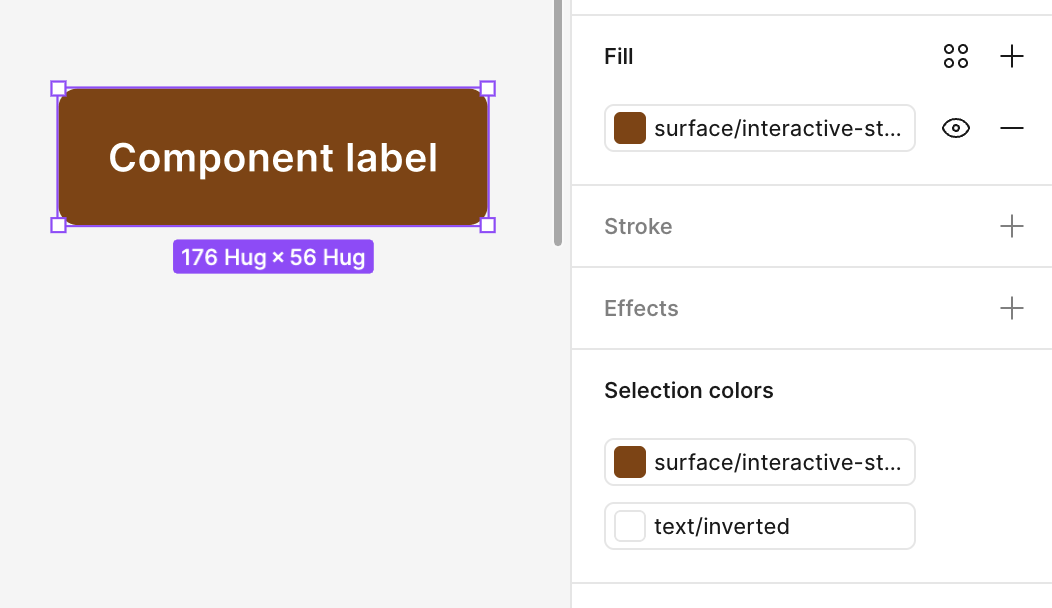 These, in turn, point to colors from
 colors/core/accent which we have just swapped. In this case, surface/interactive-strong points to accent-700.
Since our main color is honey-400, we want to update this reference to accent-400.
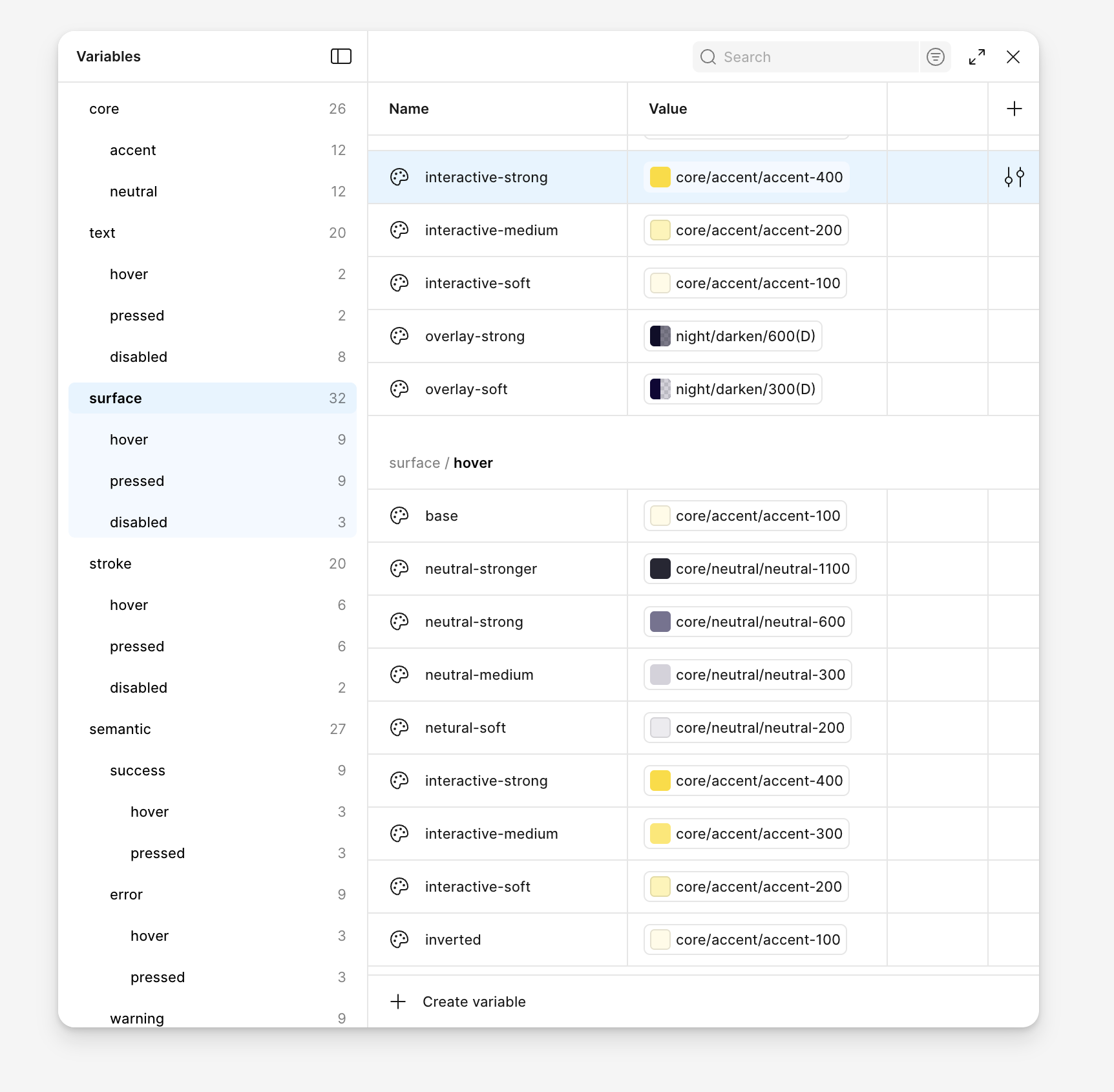 While we’re here, we can also adjust the hover and active (previously named pressed) states. In Silk, darker shades are usually used for interactive states, but you can also choose lighter ones, as shown here.
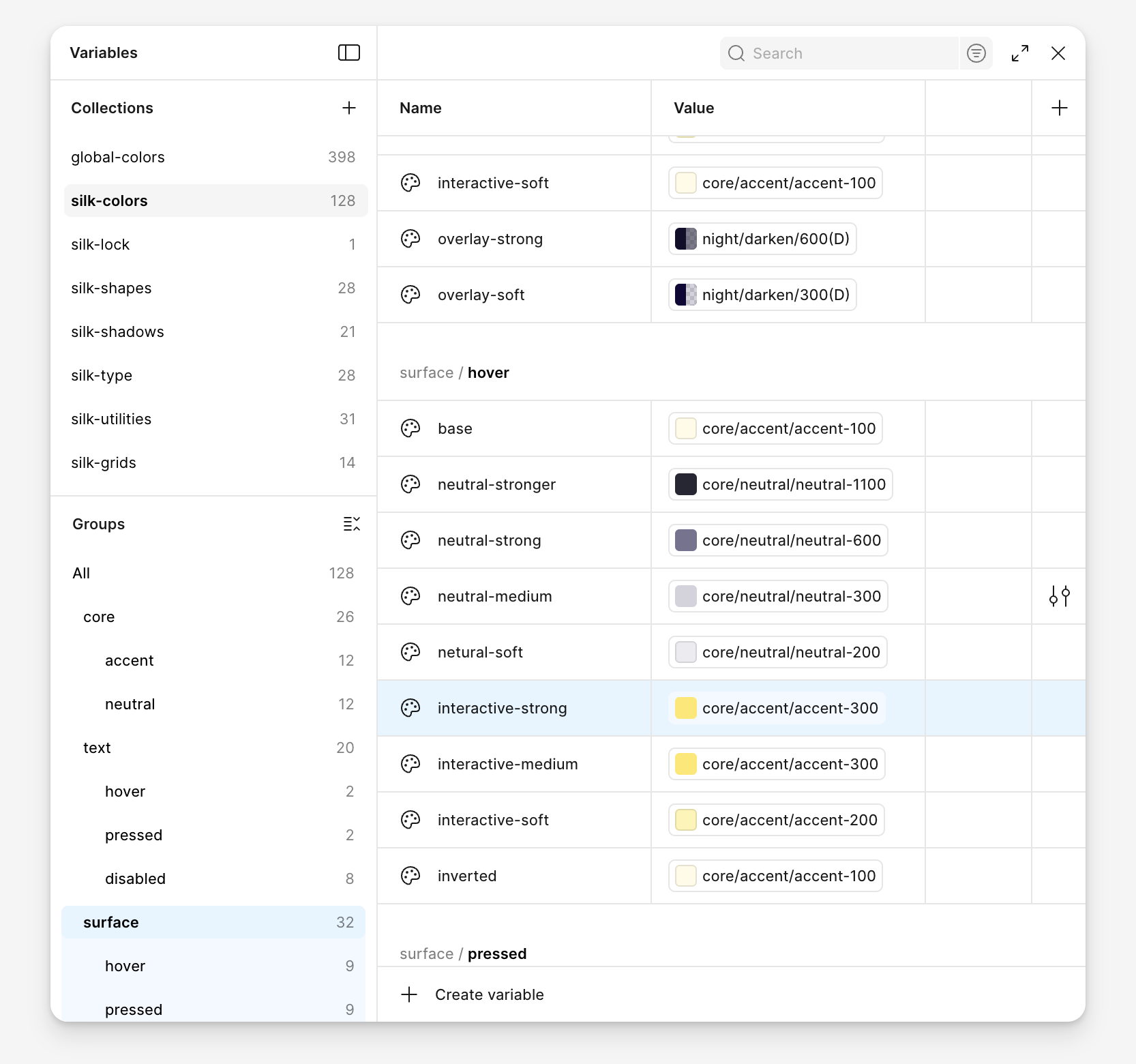 This is the result:
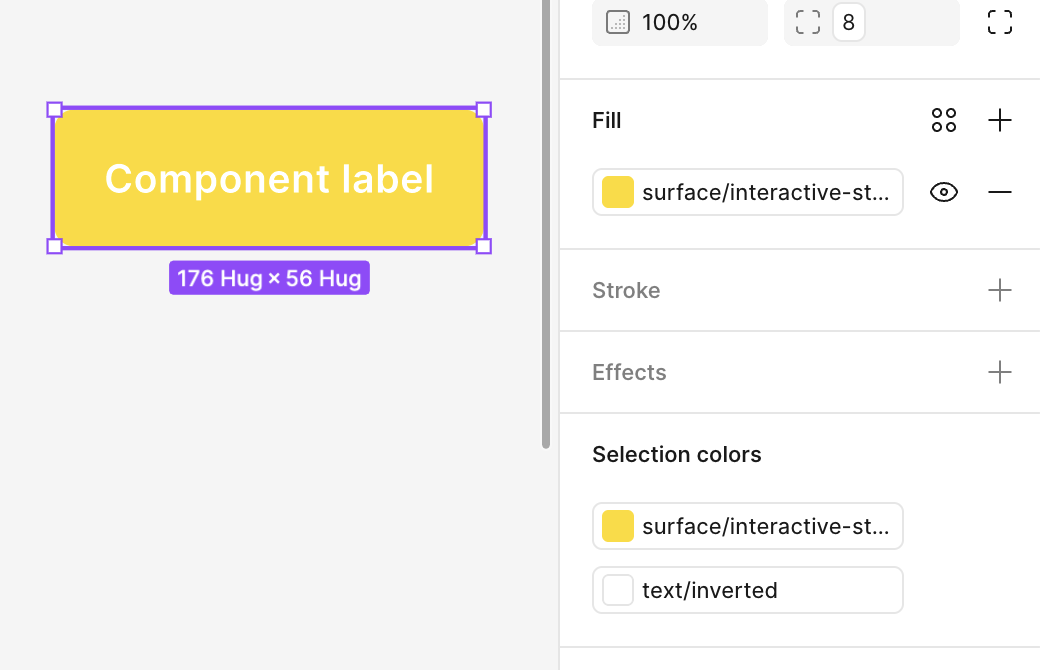 Now the text is clearly too light, so we need to adjust it as well. The original variable is named
 inverted, which suggests it is intended for use on a dark background, so we won’t use it here. Instead, we are going to create a new variable called on-accent-light, and then apply it in the master component.
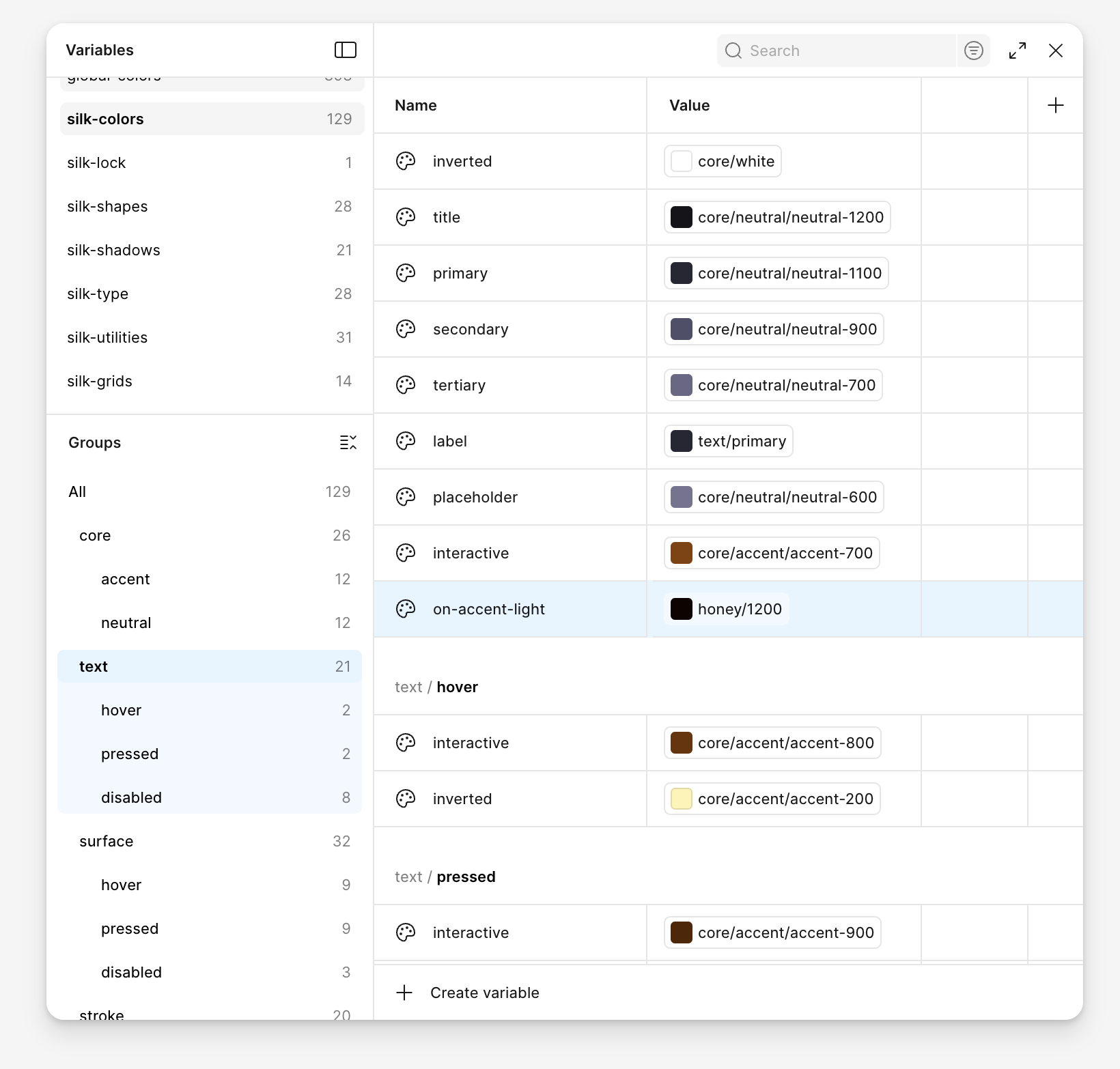
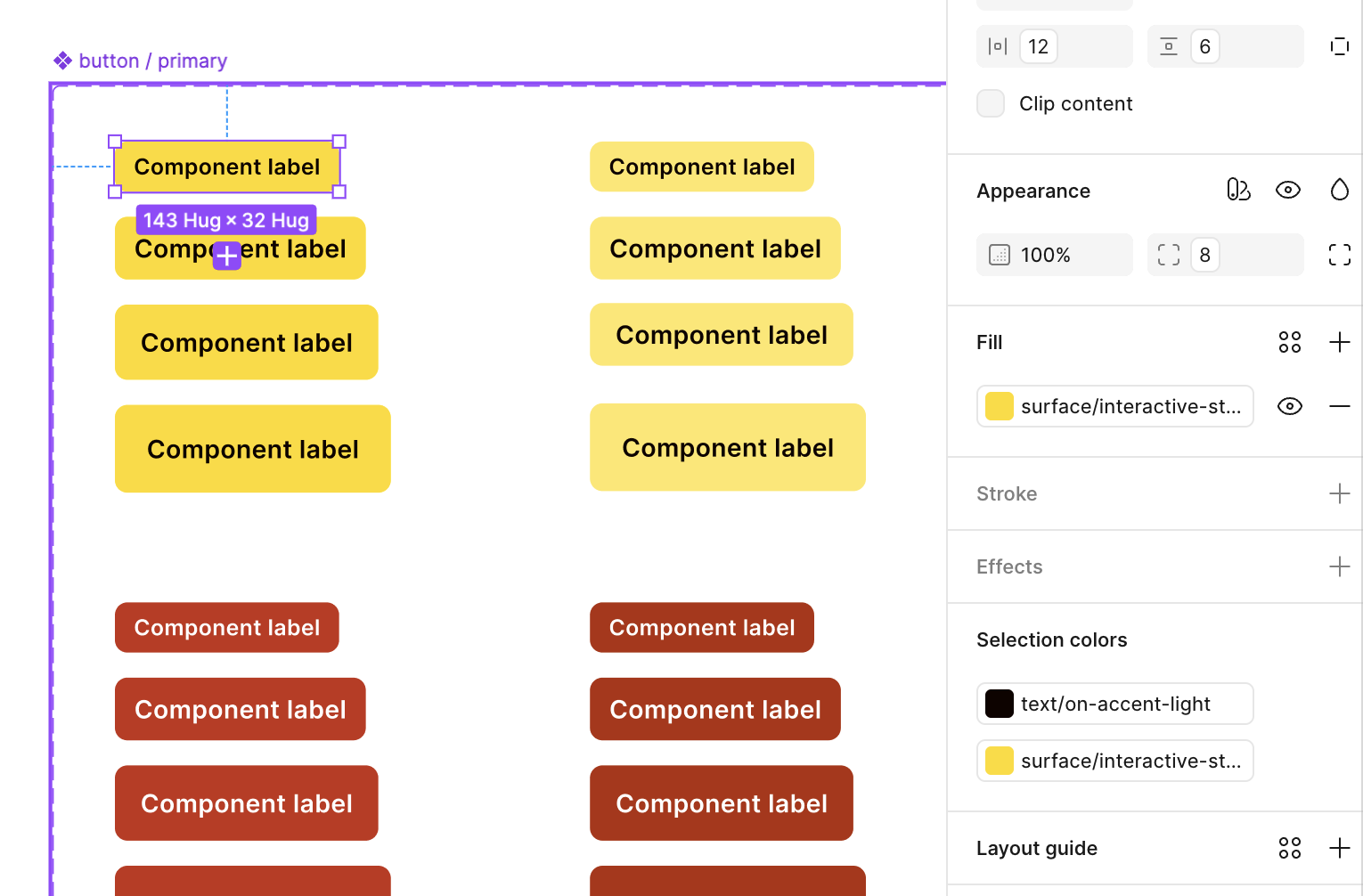 Notice that we applied this change only to the default buttons, not to the error ones.
As you continue, you might consider renaming inverted to on-dark for consistency. In more complex setups, you could also split it into on-accent-dark and on-neutral-dark.
This process should be repeated for all components. Review them one by one and check how the palette changes affect them. Adjust variables and create new ones where needed.
It may seem tedious, but it is done once during the customization process, and it’s worth the effort. You’ll not only achieve a unique look & feel, perfectly aligned with your brand, but also gain a deeper understanding of how the system works.
If you need our help, write to us at silk@netguru.com
2. Customizing typography
Silk’s typography system is built on predefined text styles that can be adapted to match your brand. Each text style is defined using variables to ensure consistent behavior across components and layouts.
A typography in Silk consists following styles:
- headings - provides options from display, h1 to h6
- labels - used for elements like cards, or inputs that require one line label
- paragraph - dedicated for long, multiline text content
- bullet - prepared for bullet point lists
- button - set dedicated to this interactive components
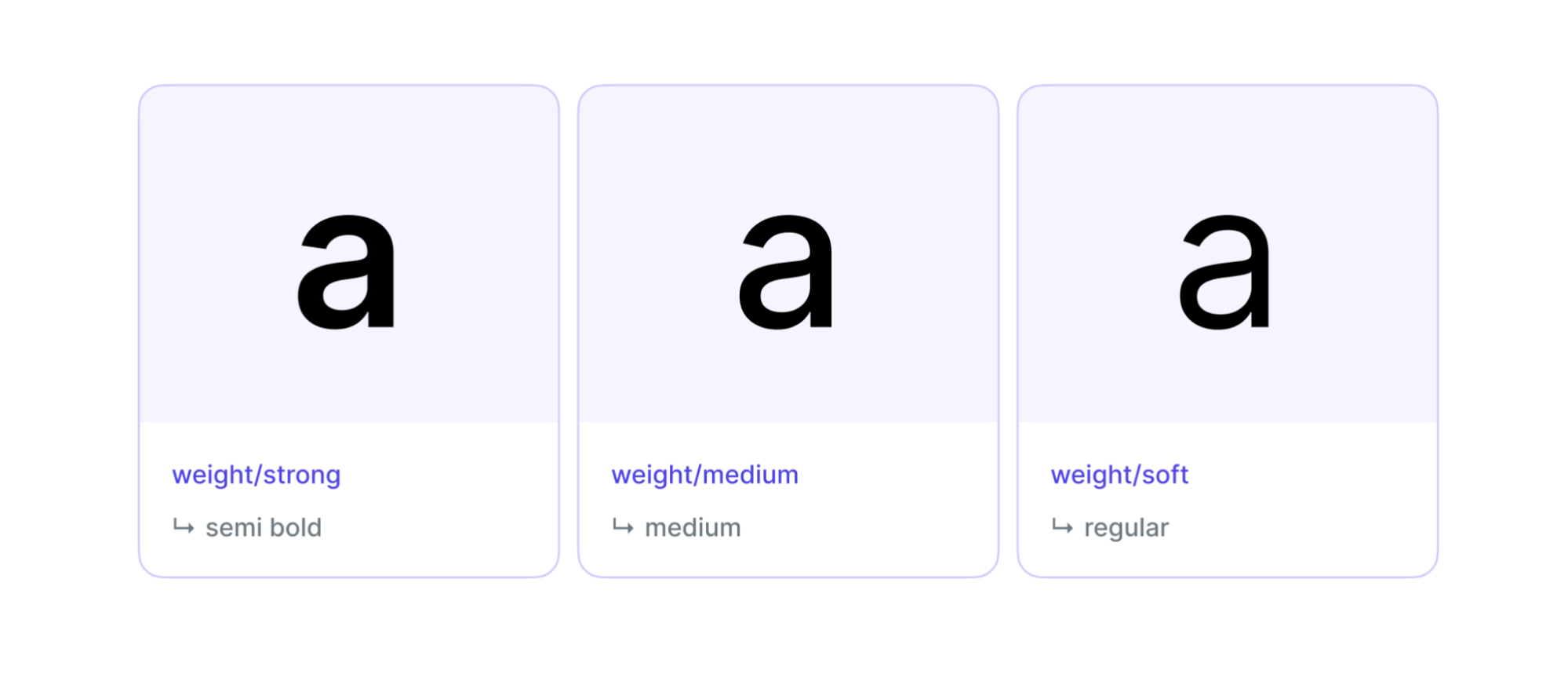
Most of the styles come with various weight options like soft, medium, strong.
Styles should be modified using Figma variables, that allow granular control over following properties:
• font-family
• font-size
• font-weight
• letter-spacing
Since Figma’s variables feature does not support percentage values, line height can be controlled directly in typography styles.
Typography variables are organised with 3 modes desktop (default), tablet and mobile. With this approach you may quickly switch the styling to the device breakpoint you are designing for.
You can adjust any of these independently or redefine the entire type system to fit your brand.
Changing headings (quick visual update)
If you want a quick way to change the overall look and feel, update the heading font family. Headings have a strong visual presence, and changing them has only minimal impact on components.
Update the typography-family-heading variable in the Figma Variables panel.
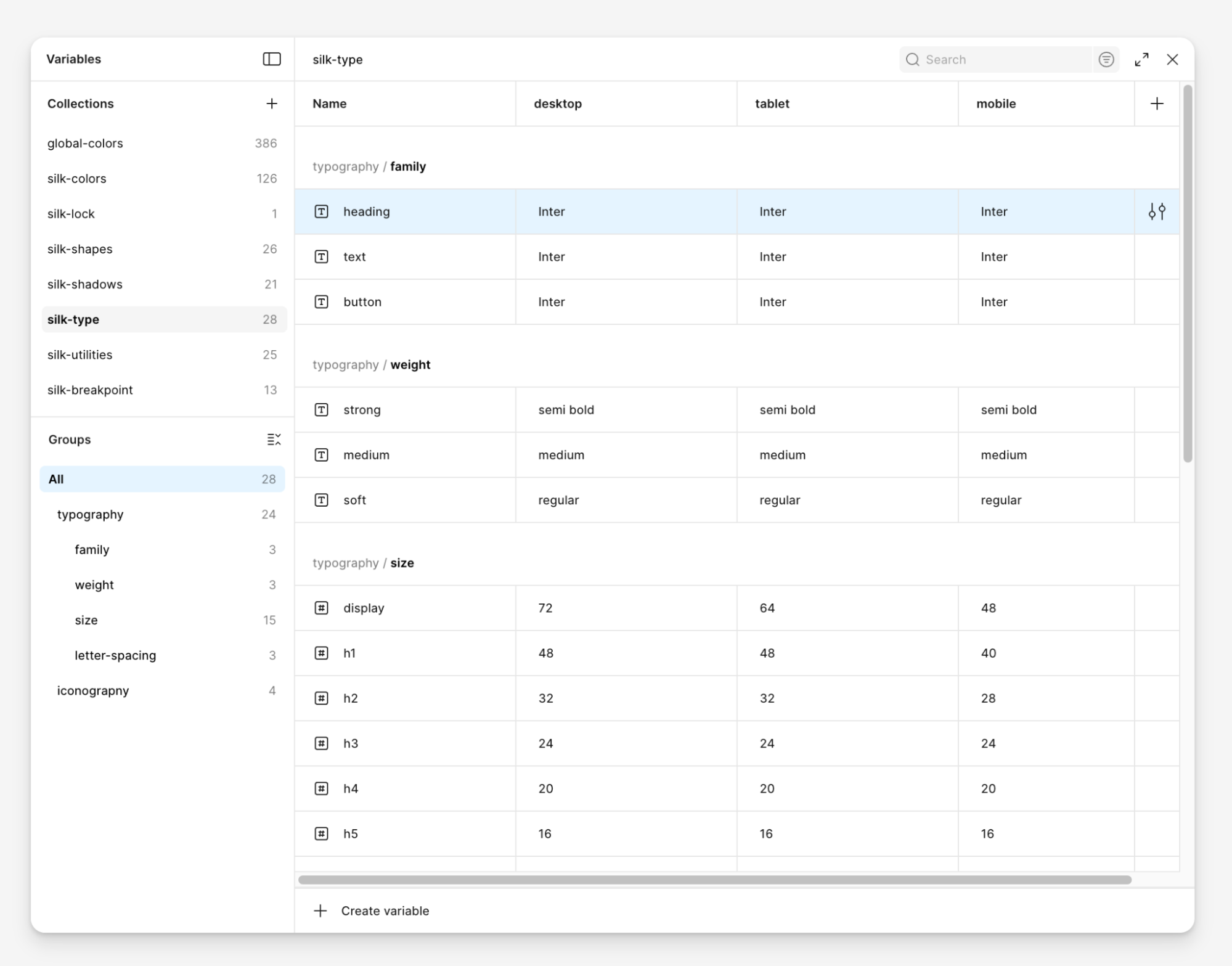 Once changed, review the full set of heading styles to make sure your new font pairs well with existing line heights, sizes, and weights. Adjust as needed.
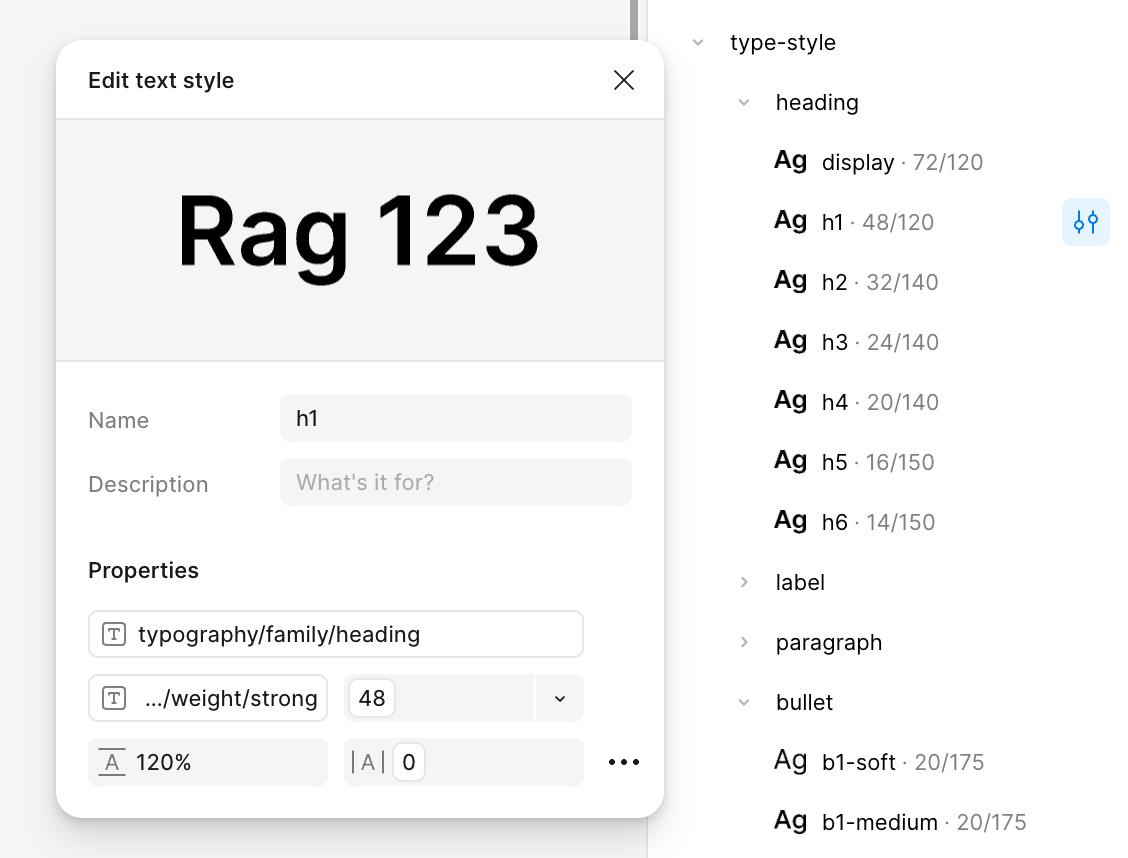 Swapping Inter entirely
You can fully replace Inter with another typeface to better reflect your brand’s identity. This change applies globally, affecting all text across headings, body styles, and UI components.
When choosing a replacement, we recommend selecting a neutral, highly legible variable font—especially if your product runs on native mobile platforms.
Recommended approach:
- Select a clean, readable typeface that fits your tone of voice
- Use a variable font for more precise control over weight and width
- Preview your font in various sizes, especially small text
To update the system fonts:
- Change
typography-family-textfor body styles - Change
typography-family-buttonfor component styles
Once applied, review how your new typeface affects the interface. Look for any shifts in line height, font weight distribution, or legibility in dense layouts. If needed, adjust supporting variables like weight, and letter-spacing.
See example
For a more custom look and feel, small adjustments can go a long way. In this example, the default Inter font was replaced with Noto Serif for headings and Noto Sans for body text—instantly giving the interface a more editorial tone.
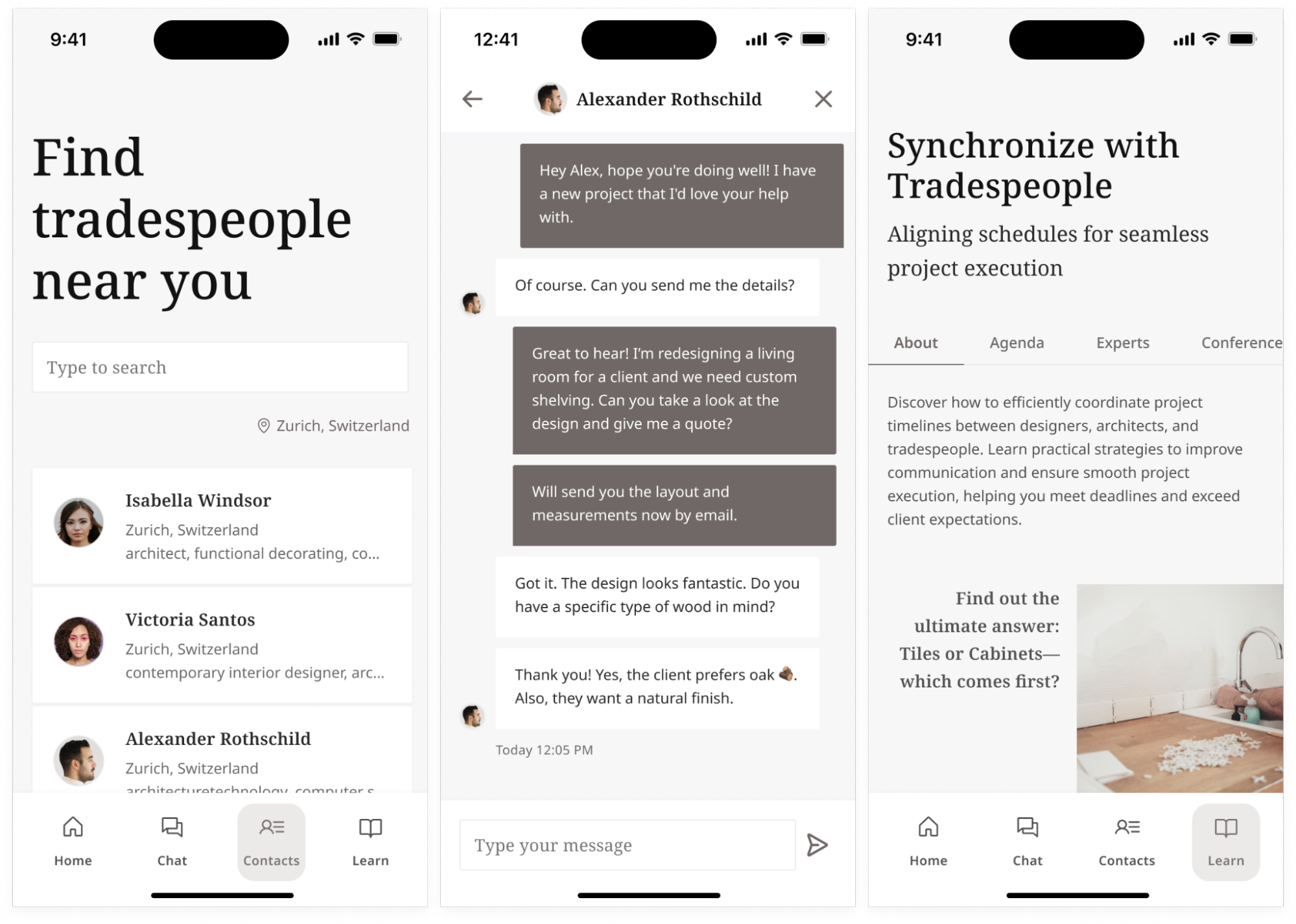 The core typography system wasn’t rebuilt from scratch. Instead, we kept the same line heights and letter spacing, but slightly increased the spacing around components to better fit the new font pairing.
We also updated the color scheme using Silk’s Sand and Gray shades, creating a softer, more refined aesthetic—without compromising structure or readability.
If you're aiming for a truly bespoke result, it’s worth fine-tuning things like:
- Letter spacing
- Line height (as a percentage or px)
- Padding and margin
These subtle refinements help your typography feel fully integrated with your brand, rather than simply swapped in.
Manipulating typography variables
If you're customizing Silk’s typography more deeply—especially after swapping fonts—it helps to understand how the typography variables work and how to adapt them to your system.
Font sizes
Silk includes a suggested type scale: a set of predefined font sizes that work well together. You can use it as is or create your own, using tools like Type Scale.
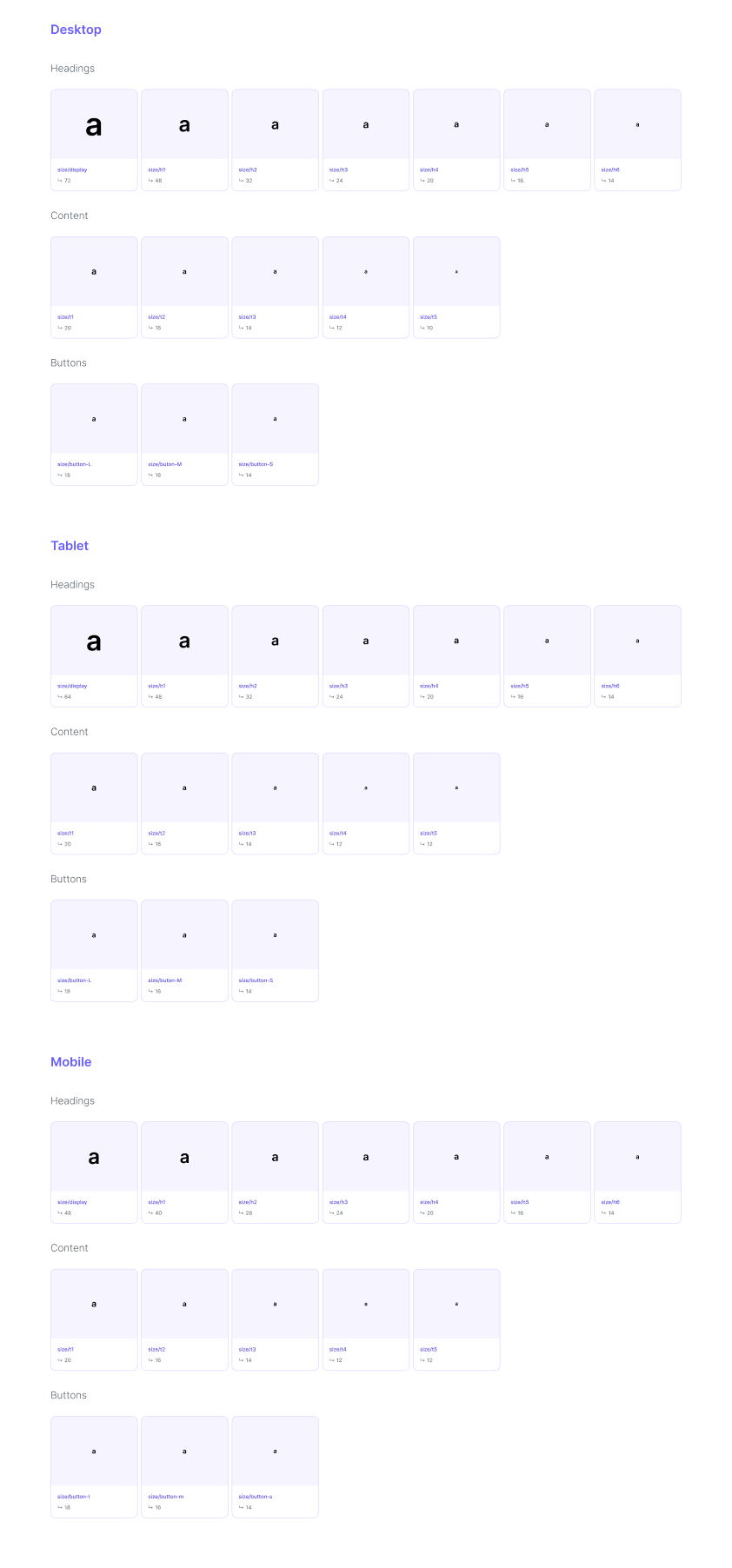 Not all values in the scale are used by default, but they remain available if you want to expand the system while maintaining consistency. The scale was built around Inter, but it should also work with other fonts as long as you adjust the line height accordingly.
Line height
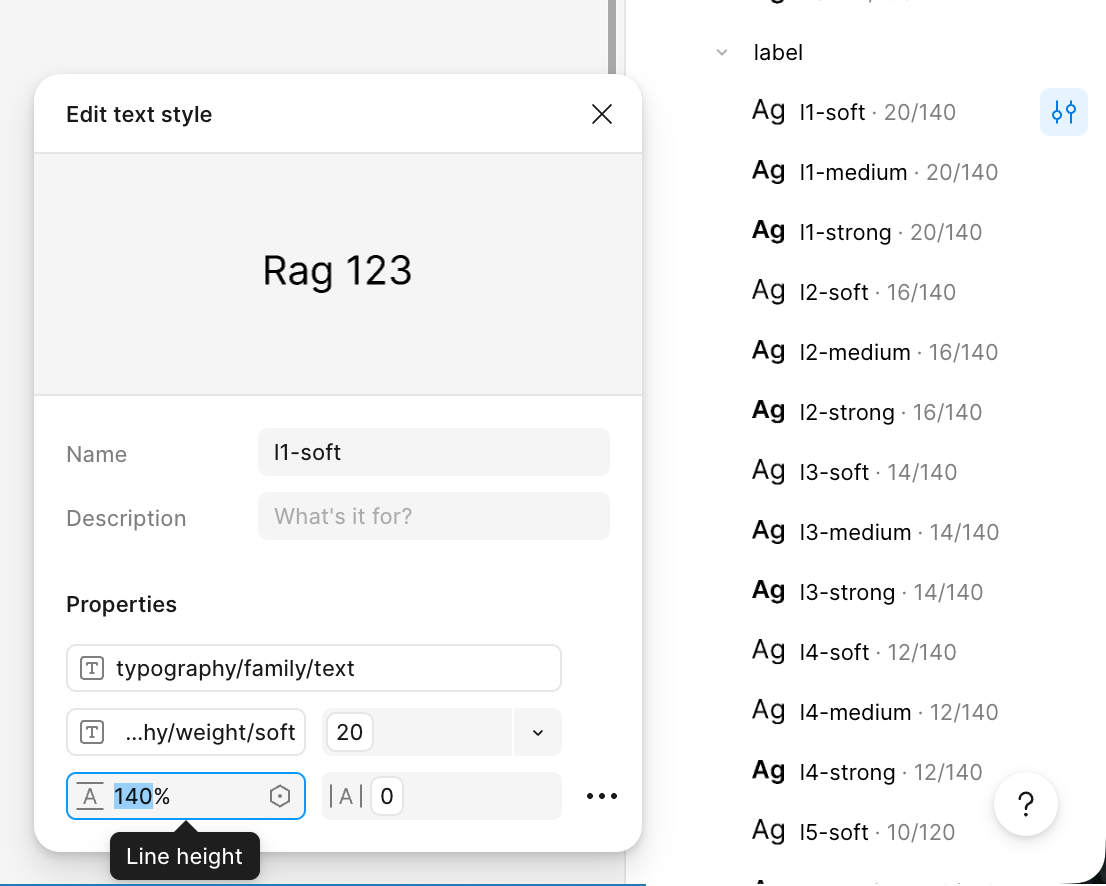
Line height is defined directly within each text style—not as a separate variable—so whenever you change font size or typeface, you'll need to adjust it manually.
There are two ways to define line height:
- Percentage values (recommended) — more flexible and scales with font size
Example: 24px font × 160% = 38.4px (rounded to 38px) - Pixel values — more precise but must be recalculated whenever font size changes
As a general rule:
- Use more generous line height for smaller text
- Use tighter spacing for larger text
- A good range is 120–140%, or multipliers between 1.2–1.4
Silk’s default recommendation:
- 120% for headings
- 140% for body text and components
You can define your own values based on the typeface and tone you're aiming for.
 Letter spacing
Letter spacing—also known as tracking—is the adjustment of space between characters in a block of text. It plays an important role in readability, especially in smaller font sizes or when using uppercase, bold styles.
As a general rule:
- Slightly increase letter spacing for small text
- Be especially mindful with bold, all-caps, or button text
Silk uses a simple, flexible system with three letter spacing levels:
- Small — for dense text styles and small labels
- Medium — the default for most body and component text
- Large — used sparingly for headings or stylized text
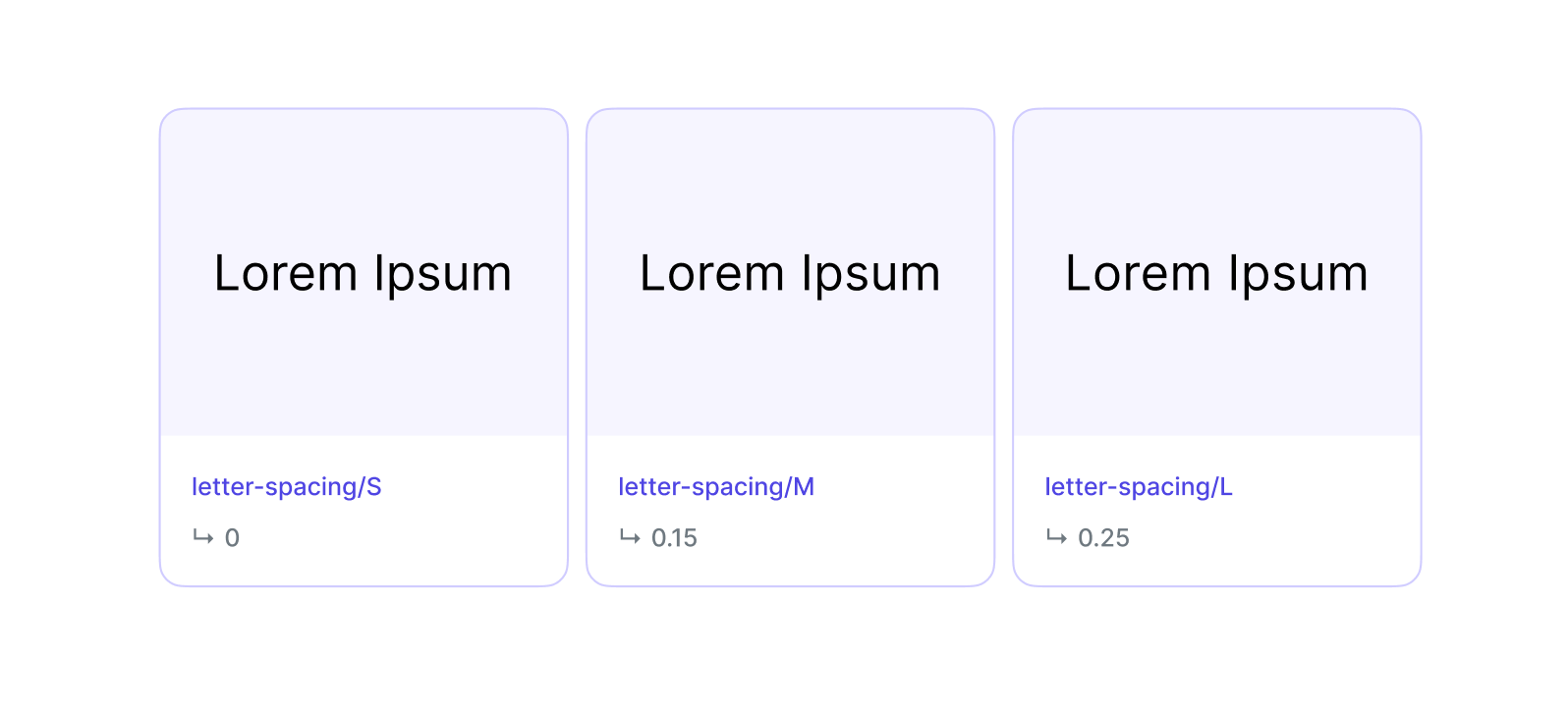 These presets are designed to keep text readable across a range of use cases, and can be adjusted if your chosen typeface requires it.
Font weights
Weight adjusts the appearance of text—how thin or thick it appears on the screen. It plays an important role in information architecture and readability, as bolder weights attract attention much faster than lighter ones.
Silk uses a simple, flexible system with three letter spacing levels:
- soft — dedicated for thinner text styles
- medium — the default for most body and component text
- strong — bold text styles, used mostly for headings or highlighted text
3. Customizing iconography
Typography and icons should be well balanced, so if you adjust your typography, you might also have a look at the icons and vice versa.
Silk uses the free Phosphor icon set, available in six styles. By default, the bold weight is applied to almost all icons within Silk components.
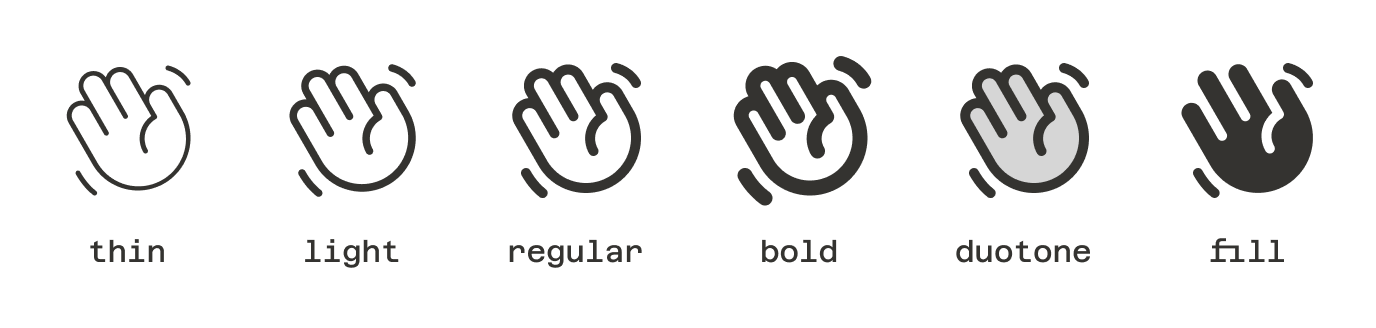 Icon style is controlled by the variables
 silk-type/iconography.
Changing icon style
To update the style globally:
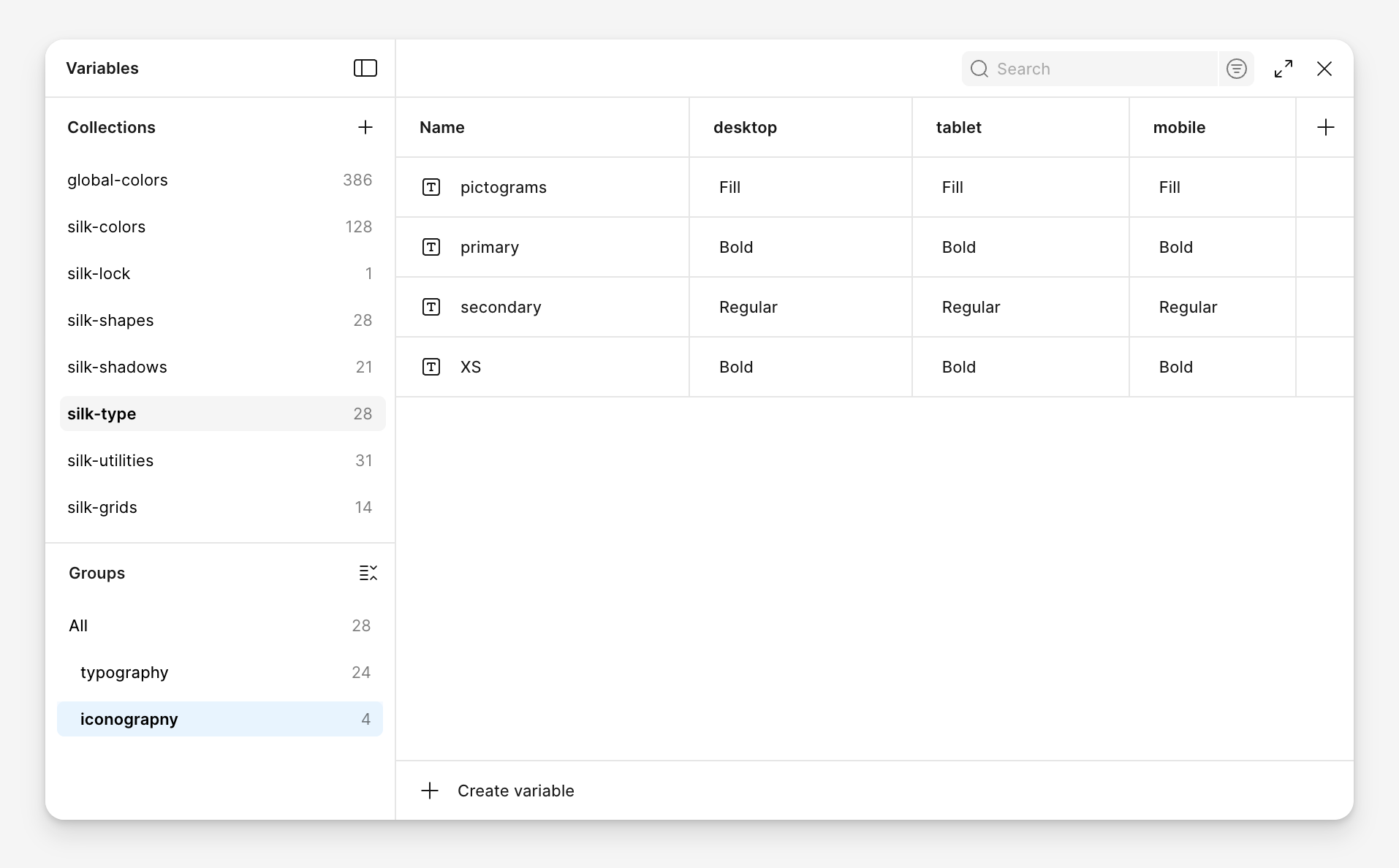
- Go to the variables collection group called
silk-type/iconography. There will be a list of modes matching typography variables (desktop,tablet,mobile) and each has defined icons style for:pictogramsprimarysecondaryXS
- Adjust the values as needed.
- The change will carry over to all components and instances using icons styled with variables, even if the icon is hidden.
Overwriting icon weight
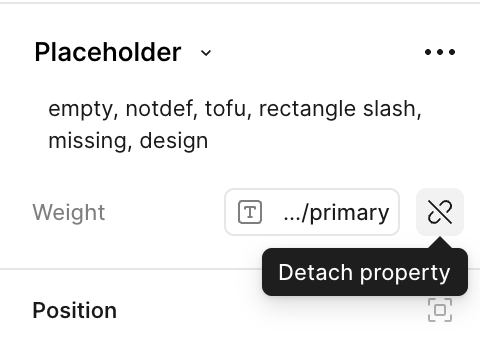
In edge cases, you can detach the variable and control it locally on a component or instance using the dropdown. However, this is not recommended. Detaching the variable removes the ability to update the icon style globally and automatically for those elements.
 .
.
Using custom icons
If you prefer a different icon family—or need a completely custom set—you can swap out Phosphor icons entirely:
- Create a separate Figma file for your custom icons.
- Each icon should be a standalone component.
- Keeping icons in a separate file helps:
- Avoid unintentional changes in your main system
- Easily switch between icon sets across products or themes
This structure also simplifies version control, especially if you're not using Figma branching.
4. Customizing shapes
Shape customization in Silk is simpler than customizing color or typography. Corner radius and border styles are controlled through shared variables, so global changes automatically update all components that use them.
For smaller projects or quick visual tweaks, local adjustments are usually sufficient. For long-term or system-wide branding, you can redefine the core shape variables.
Corner radius
Local customization
For elements that need a distinctive visual tone—like extra-rounded cards or sharp-edged components—you can adjust the corner radius at the component level.
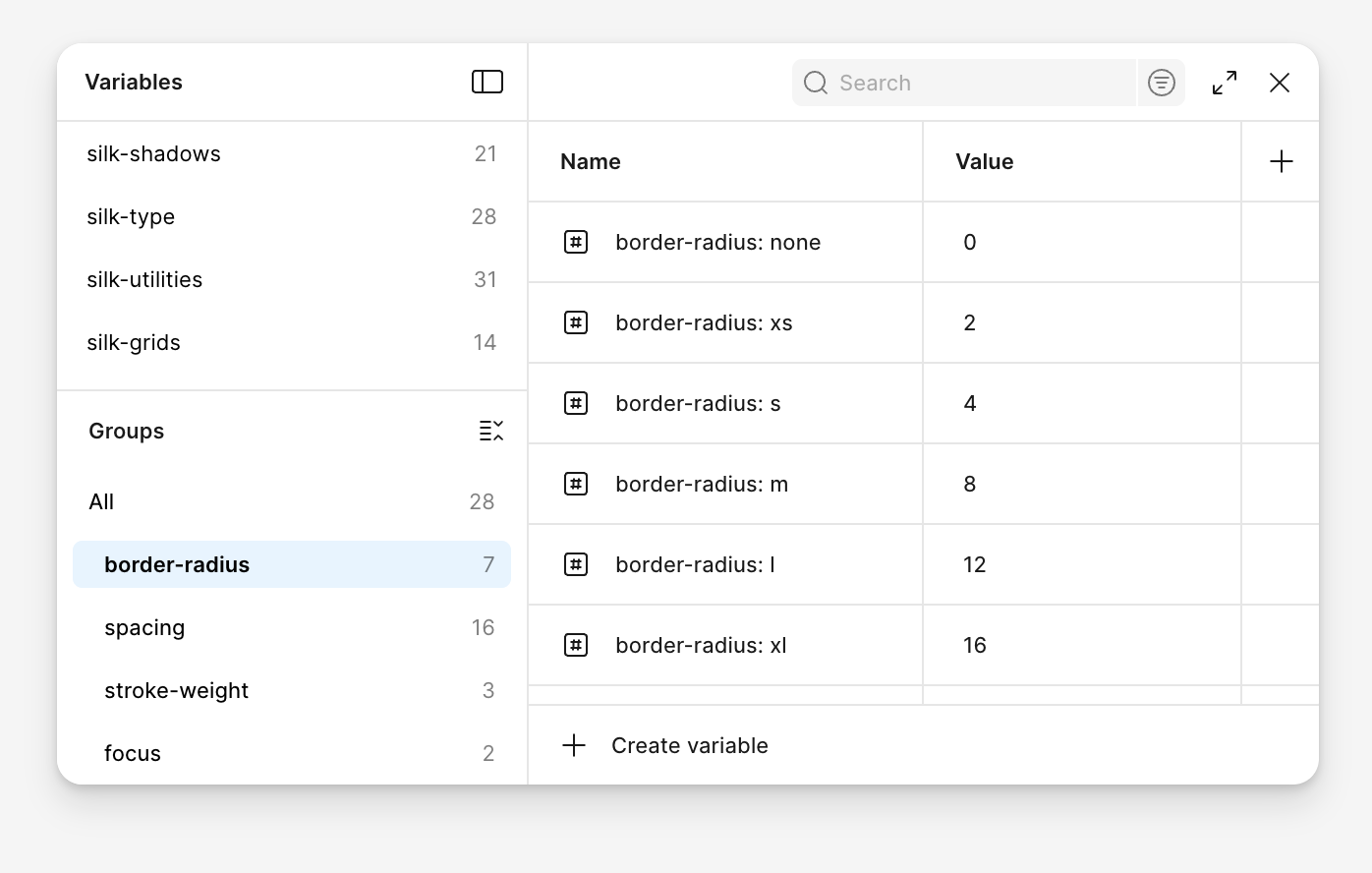
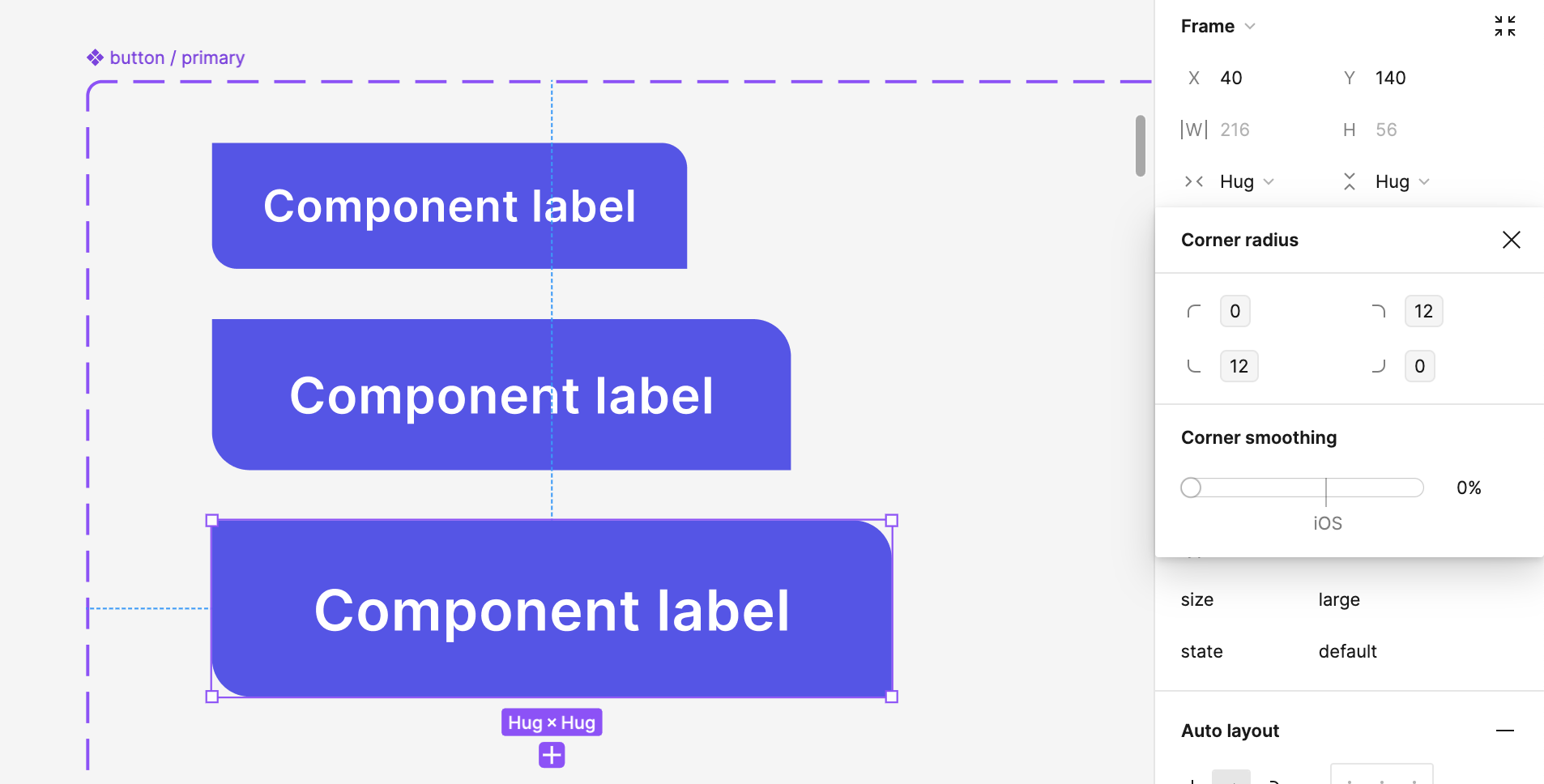 Global customization
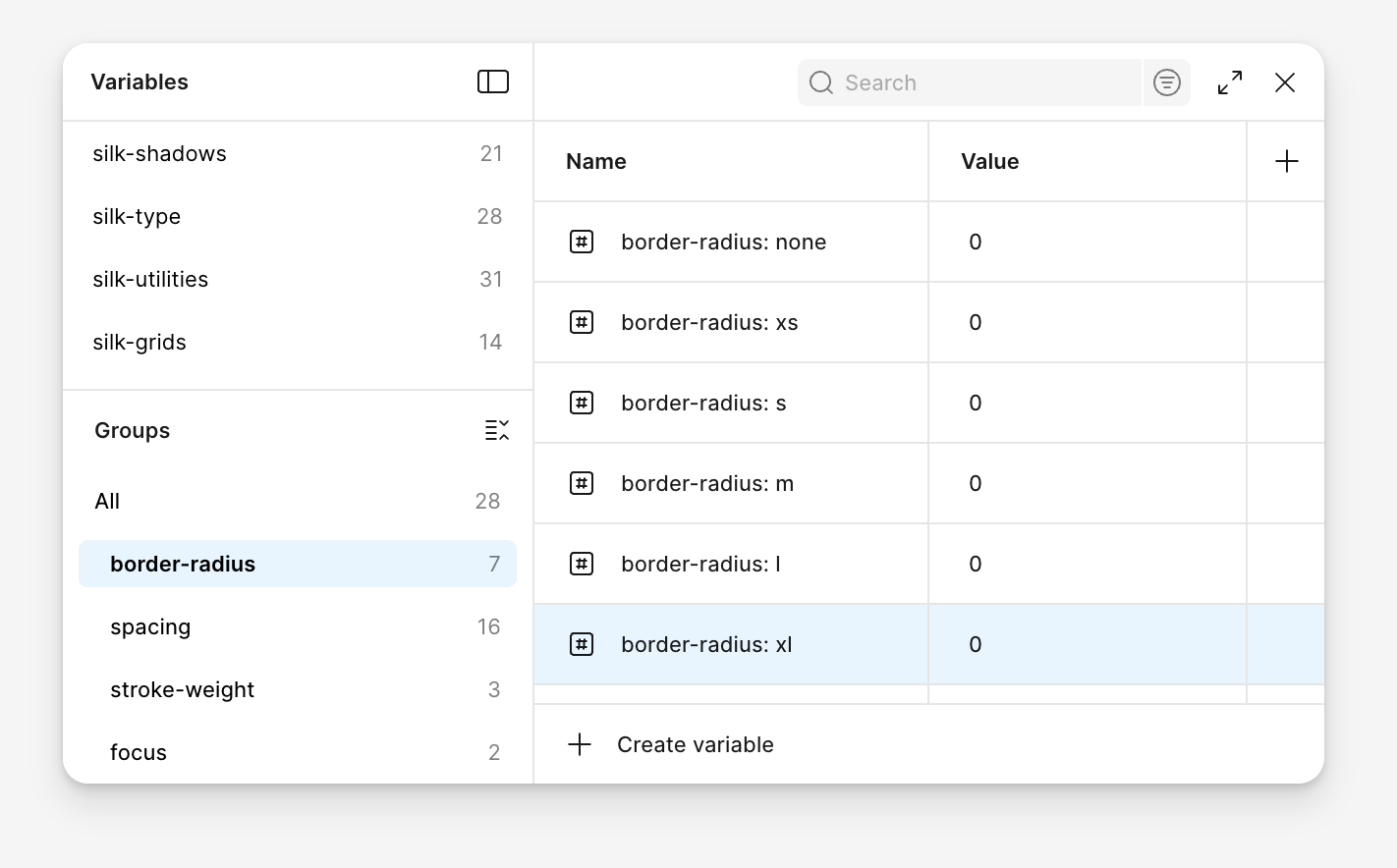
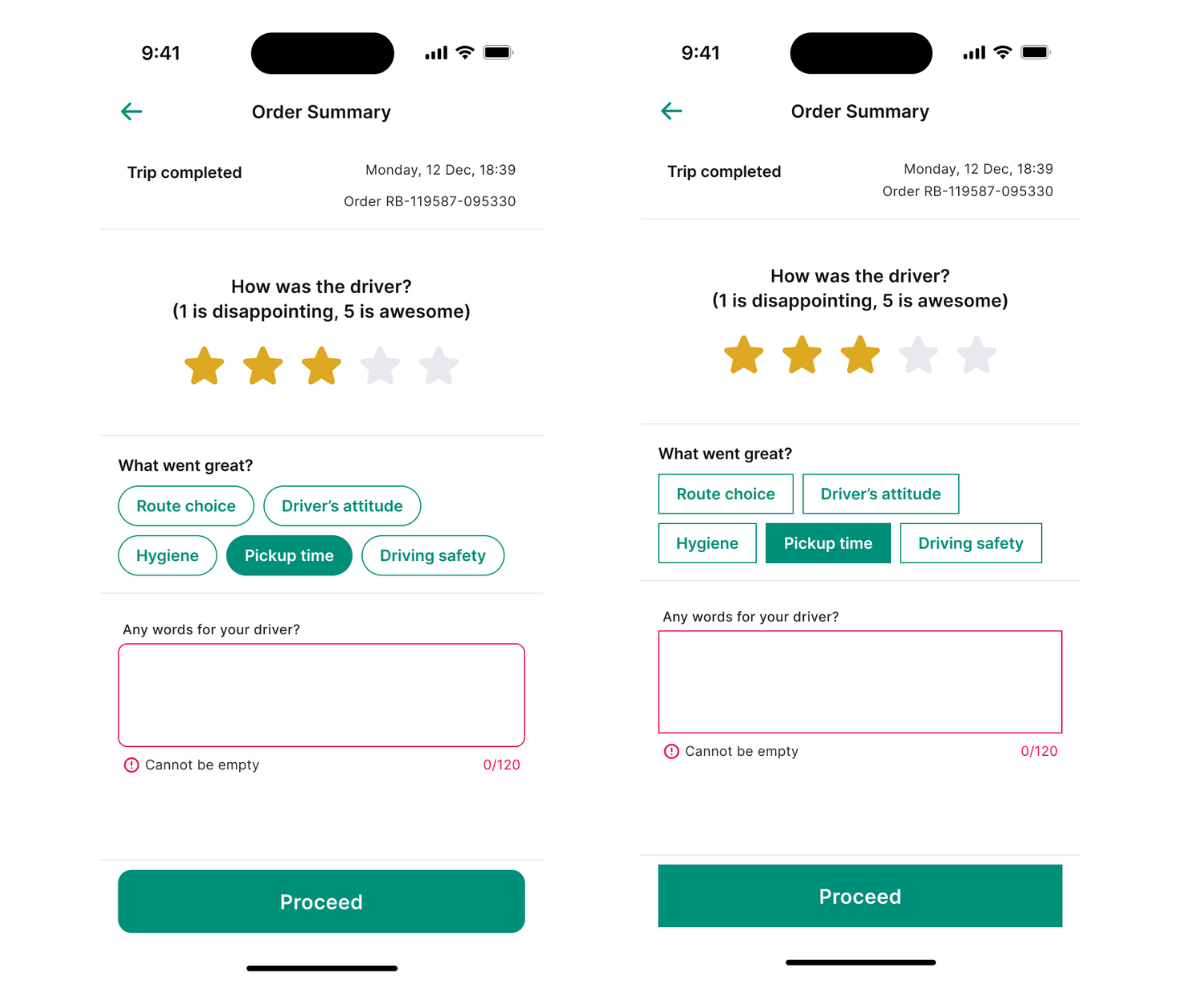
To create a unified shape language across your product, you can redefine the core radius variables. This change affects all components and instances, making the UI appear more rounded or more angular by default.
 Stroke (aka border)
Silk uses strokes in two different ways, depending on the component. To customize them properly, you’ll need to know where each type is applied and how to adjust it.
Stroke variables
Components with a fixed or preferred outline have stroke variables applied to them.
The weight of the stroke can be controlled using variables stored in the shapes/border group (previously named silk-shapes/stroke) . By default, we use 1px stroke for all the outlines, except for pressed, active, and error states.
These variables can be applied directly to any component.
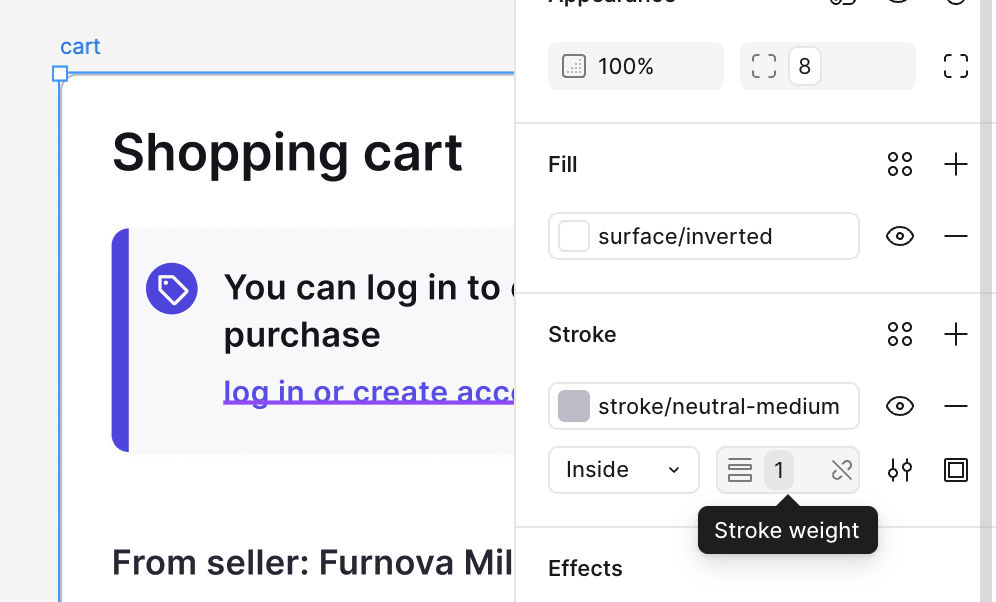 Color of the stroke is stored in the
 colors/border group (previously named silk-colors/border). Similar to stroke weight, it is applied directly to components.
In many cases, the stroke color changes depending on the component state (default, hover, active, disabled). If you update the default shade, make sure to check whether adjustments are needed for the other states as well.
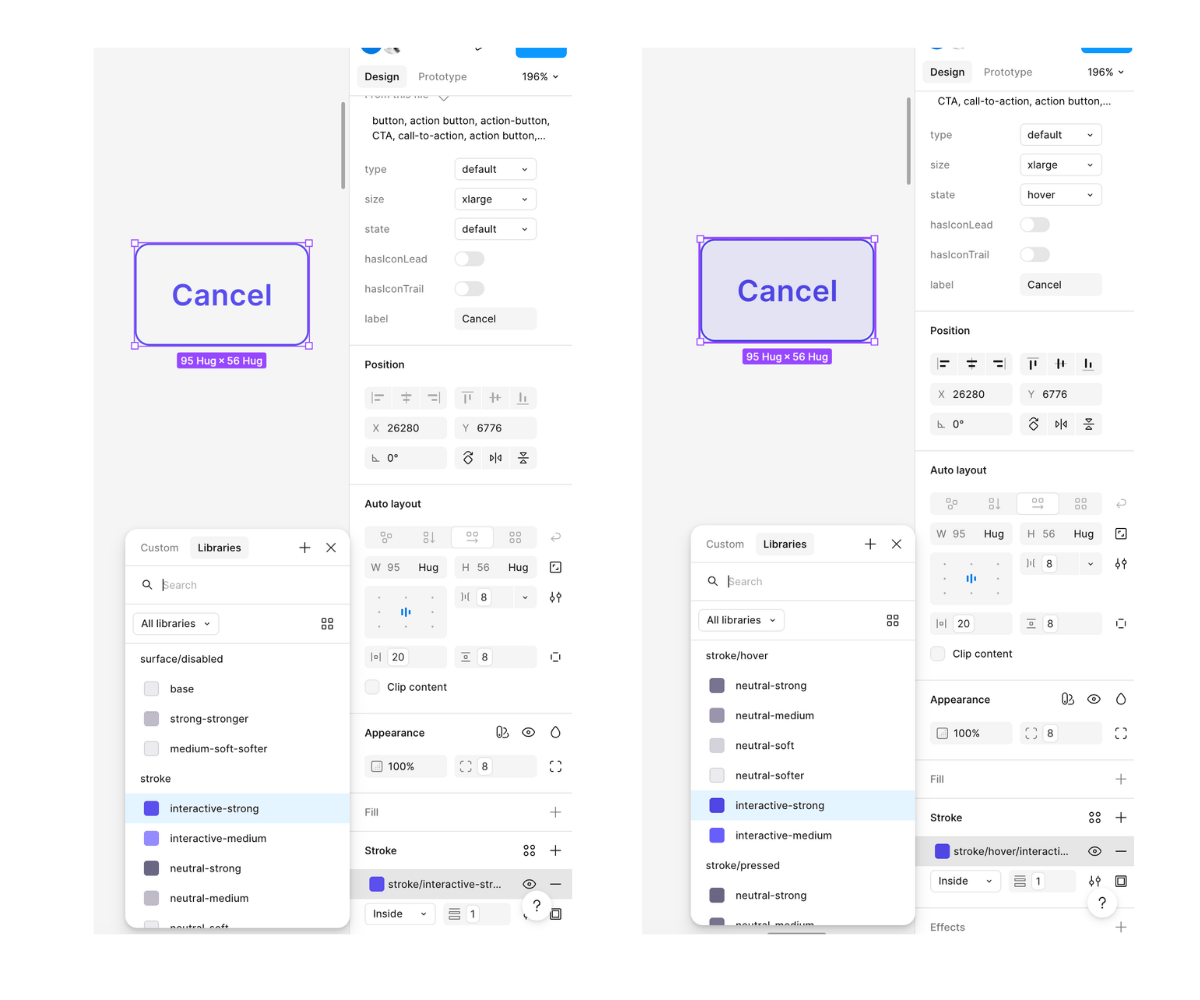 Divider
Used when stroke visibility is toggleable (e.g., show/hide states). You can customize its color and thickness directly in the style settings, as with any other component.
Spacing
Silk is designed with balanced density in mind—elements are spaced for clarity without feeling too loose or too tight. The default setup works well for most products, and we recommend starting with it.
Note: For grids, margins and gutter see the “Customizing grid” section.
Silk uses pixel values translated into rem variables. These values are defined in the shapes variables library and used consistently across both components and layouts.
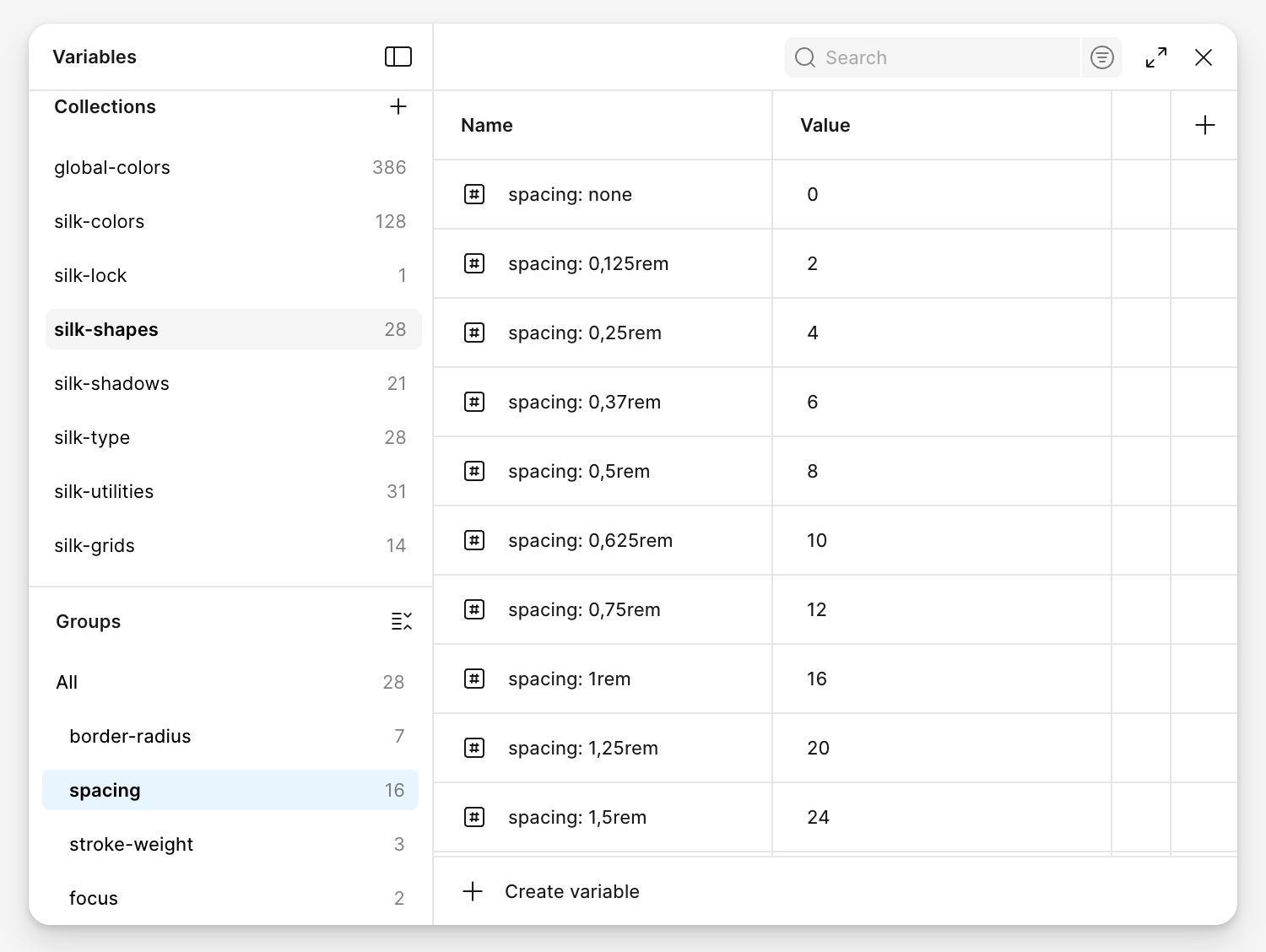 All spacing follows an 8px grid by default. Smaller increments (like 2px, 4px, or 6px) are available for fine-tuning components.
Spacing variables in Silk are not tiered—there’s no separate variable for margin, padding, or layout gaps. The same variable can be applied across different use cases.
Choosing Units
Spacing variables in Figma are defined in pixels, but you can work with your dev team to translate them into units like:
remem(relative to the container’s font size)%,vw,vh(based on container or viewport)
Using spacing variables
Use spacing variables not just in components but across your layout. This ensures consistency in both design and development.
Good practice: When building containers or lists, apply spacing variables to define gaps between elements—for example, using an 8px (0.5rem) variable to separate cards.
Customizing spacing locally
For most adjustments, spacing is best customized directly within the component. This gives you precise control without affecting other instances.
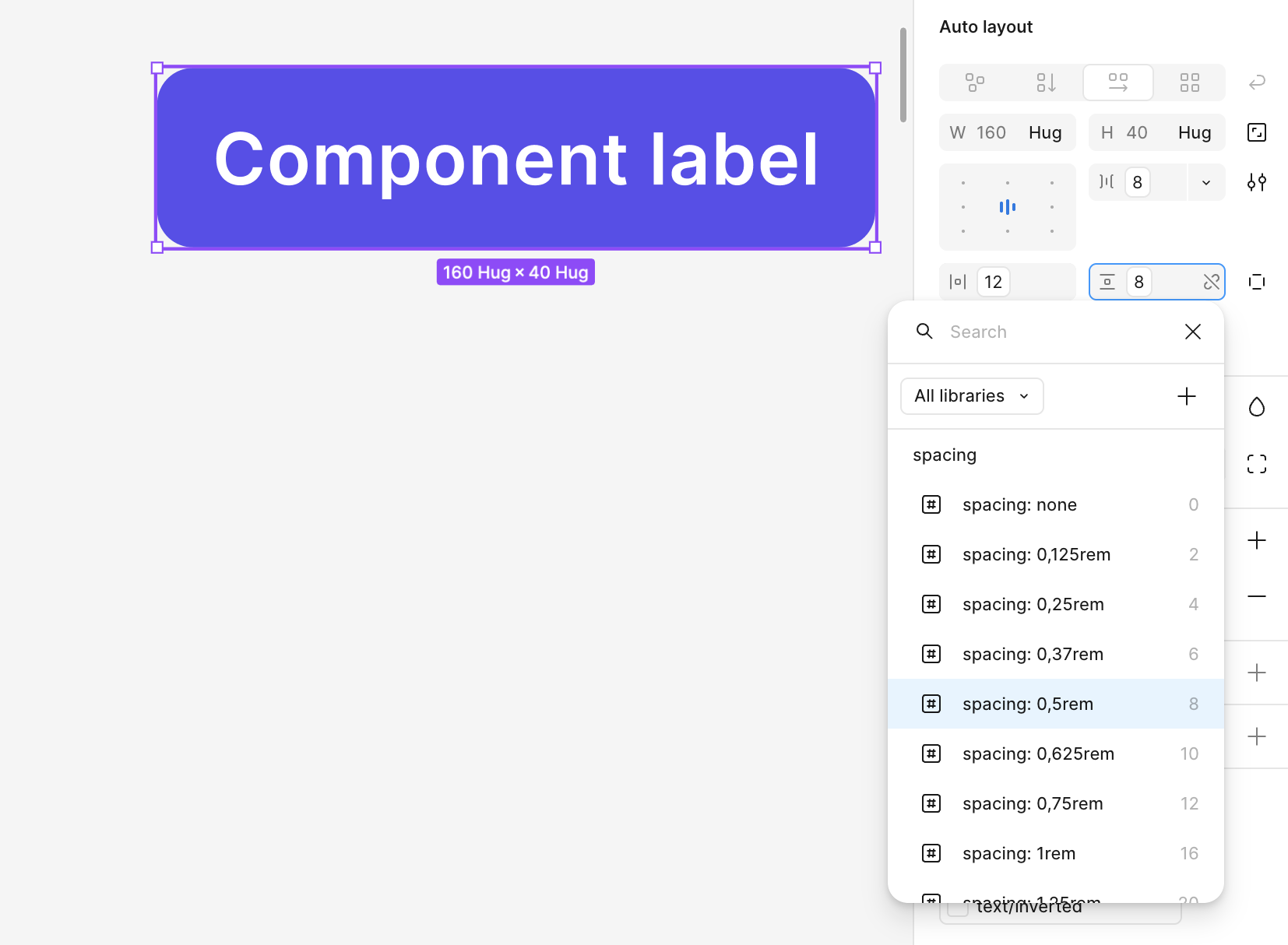
For example, if your Chip needs extra breathing room above and below the label—but not on the sides—you can tweak only the vertical padding:
- Open the component.
- Select the spacing value.
- Choose a different variable from the list.
Customizing spacing globally
We do not recommend global updates to the spacing variables. If you need to control spacing globally – for example to create a compact mode of your interface – we recommend creating component-level variables first, so that you have more control over the changes.
5. Grid and layout
Silk comes with a set of redlines to define the layout. They are available in the Layout guide panel which becomes visible once you click on any Figma frame.
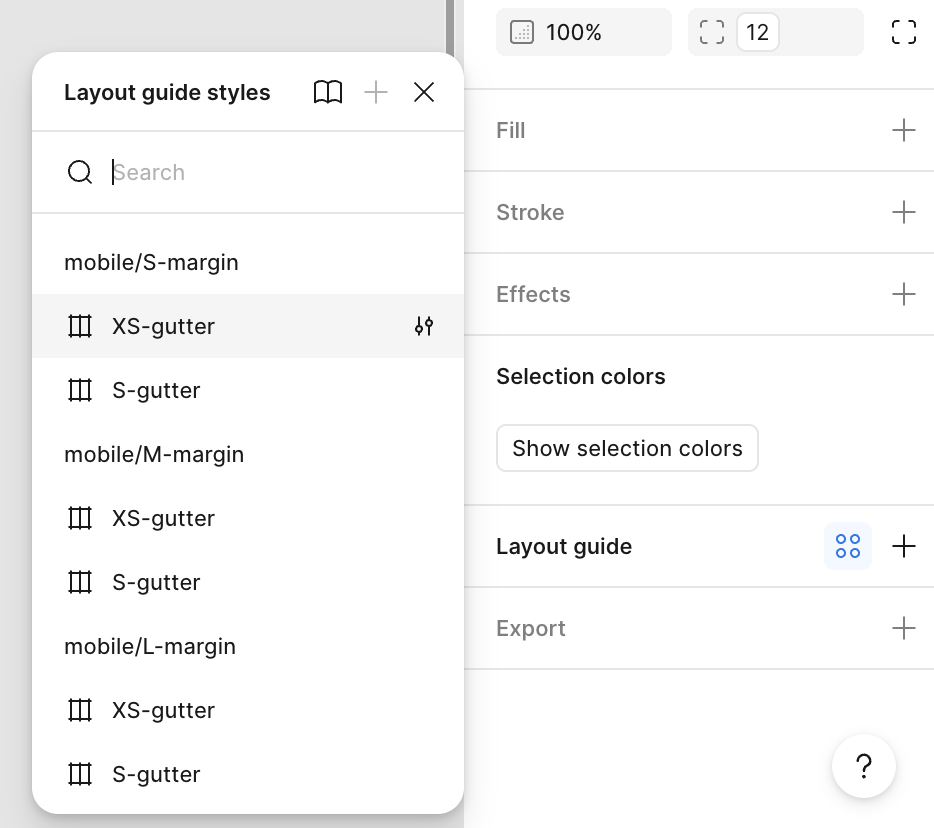 They should always be combined with autolayout and proper margin variables. Read more about applying those directly in the Figma file. Here we’re going to focus on customising them.
Each grid is a combination of:
- margin
- gutter.
Values of those two change depending on the screen size (aka breakpoint).
You can customize the predefined grids by changing values of variables in the grids collection.
Using different breakpoints? Go to the grids/breakpoint group. There you will see a list of modes (lower case l, m, s, etc.) – those are your breakpoints. Each has defined min and max screen size. Adjust the values as needed.
Need to change a margin or a gutter? Look into grids/layout groups. The modes (lower case l, m, s, etc.) refer to breakpoints. The variables (capital L, M, S) store the values.
So for example to change the medium (M) margin for the desktop (l) breakpoint, you need to update the following value:
%20margin%20for%20the%20desktop%20(l).png?width=2166&height=1190&name=Silk%20Manual%20medium%20(M)%20margin%20for%20the%20desktop%20(l).png)
The changes will be automatically reflected in the layout guide styles:
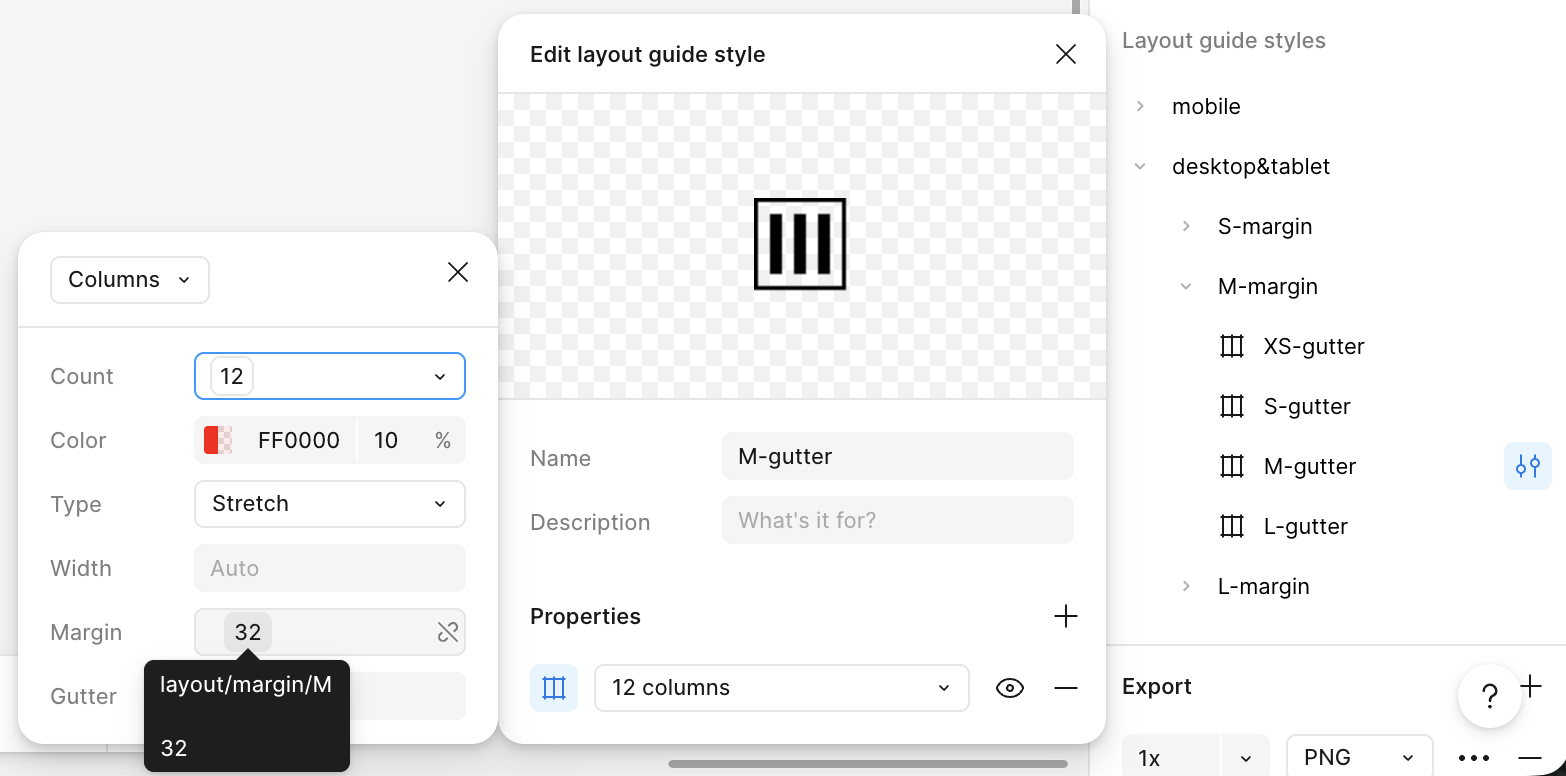
Modify it the same way for the gutter if needed.
6. Customizing components in Silk
Once you’ve updated the variables, defined your styles, and aligned your documentation, you may be wondering: Do you still need to customize the components themselves?
The answer is—it depends.
For most projects, Silk’s ready-made components will cover your needs. But if your UI requires a more distinctive look and feel, you can take things further by customizing components individually.
What you can adjust
Component customization gives you full creative control. You can:
- Tweak layout and spacing
- Add or remove dividers, icons, or atomic elements
- Unlock or lock layers for editing
- Add new properties or variants
- Nest components within other components
These changes let you adapt Silk’s foundation to fit highly specific use cases, branding requirements, or advanced product scenarios.
If you're building a system at scale or looking to optimize how components are structured, check out Figma’s best practices on component architecture. Below you will also find the principles that guided the Silk team when crafting the existing components.
7. Creating and modifying components
Silk components follow a shared set of rules so they stay predictable, scalable, and accessible.
Use this checklist whenever you create a new component, update an existing one, or prepare components for your internal Silk-based library.
Use styles and variables correctly
- Apply color, typography, spacing, and corner radius using variables. When applying colors, choose the ones from the “colors” set, not the primitive ones.
- Apply shadow using styles.
- Do not override variables of component instances.
- Avoid hardcoded values.
- Use spacing variables both for components and larger structures (organisms, layout).
Build clean component structure
- Use Auto Layout wherever possible; avoid absolute positioning.
- Keep the structure simple—no unnecessary wrappers or redundant frames.
- Ensure all required variants exist (default, hover, focused, disabled, etc.).
Apply proper component properties
- Use boolean properties for show/hide logic.
- Provide a content property for every editable text layer.
- Create instance swap properties for interchangeable icons/components.
- Lock layers that should not be modified.
The goal is to create a component that can be fully customisable using the properties panel, without manipulating the layers in the artboard directly.
Stress-test the component
- Ensure instances inherit changes from the master component. Try modifying the master and observe if the instances behave as expected.
- Switch between variants without losing user-edited text. Take an instance of a component, enter custom values (eg. label, secondary label, icon, nested component). Then change the instance’s size and state. Observe if the changes are not lost.
- Check resizing behavior. Make the component extremely long or extremely narrow, very tall or very short. Observe if it behaves as expected. The expected behavior might be different for different components (eg. either truncating the text or wrapping it into multiple lines).
Accessibility essentials
Silk aims to support WCAG 2.2 AA. Each component should have:
- A visible focus state for interactive elements
- A logical keyboard and reading order (annotate when not obvious)
- Accessible names for icons or decorative elements
- A minimum touch area of 48×48px where applicable
- No forced truncation or fixed-size text boxes
- Color contrast meeting required ratios:
- 4.5:1 for text
- 3:1 for interactive elements/icons
Full accessibility guidance is included in the Figma documentation.
7. Naming convention & structure
Components
Component names
Use kebab-case for all component names.
Examples: action-chip, link-button, avatar, v
Internal components
Start names of documentation components and primitives with a dot ..
Start names of internal components (examples, content to replace slots) with an underscore _.
Properties
Naming: camelCase
Use camelCase both for property name and for property value
Examples:
Property names: isSelected, state, hasIconTrail
Value names: default, selected, true, false
Order of the properties
Start with the most important elements:
isSelected
size
state
Include all properties that affect the entire component (eg. hasPlaceholder).
Follow with the structure of the component, listing elements from top to bottom, left to right:
hasLabel
hasIconLead
label
hasIconTrail
hasIconLead
hasHint
If one property is connected with another, place them together and use ↳ for the second property. See below.
Co-dependent properties – use ↳
If a boolean property is followed by an instance swap, start the swap property with ↳ icon followed by a space for better readability.
Example:
hasIconLead: true/false
↳ iconLead: [list of instances]
The same applies if one property is lower in hierarchy than the other.
Example:
hasHints: true/false property allows for selecting one or two options ↳ hasHintText and ↳ hasCounter.
 Sizes
Sizes
size: 2xs, xs, sm, md, lg, xl, 2xl...
Use md as your default size. Not every component has to cover all the sizes. If a component has only one size, don’t use this property.
States
state: default, hover, active, disabled, error
Most of the interactive components should cover those 4 states. Other possible states: drag, long-press
Lead/Trail instead of if Left/Right
For properties that refer to elements appearing before and after the main content use Lead and Trail properties, so that the component does not rely of left-to right reading convention.
For example: If a component has an icon before and after the label use properties hasIconLead and hasIconTrail.
Labels and placeholders
If the component has text, attach text property to it. The main text property should be named label. More text heavy components might also need some of the following:
placeholder – for elements with user generated content
content – for elements with user generated content or for longer chunks of text, like modals
hint– for additional, optional content
title – for components that have more structured text, like modals or infoboxes


