
Web analytics: Tools, metrics and setup guide

Contents
Web analytics is worth doing only if it answers a decision: where visitors drop, which channel pays back, whether a release made the site slower or converted worse. Choosing metrics, a collection method and a tool category follows from those decisions, and EU consent rules constrain all three.
GA4 fits most marketing-led sites, a privacy-first or product tool fits others, and server-side tagging is an infrastructure choice, not a way around consent. The right setup depends on your traffic, your stack and who owns the tracking plan.
What is web analytics and why do you need it?
Web analytics is the measurement of visitor behavior on a website, usually through page tagging, showing where traffic comes from and which actions produce revenue.
Google Analytics 4 is the most common starting point, and its numbers are only as reliable as the tag setup and consent handling underneath.
For teams that need to go beyond site traffic and understand feature usage and retention inside the product itself, product analytics is the natural next step.
Netguru builds web and mobile products and the tracking, consent and data layers behind them for enterprise and startup clients.
We recommend starting with one Google Analytics 4 property, a data layer, and a consent banner that loads before the tag, because duplicate tags, missed pageviews and late consent corrupt measurement before any analysis begins, especially on sites with EU traffic.
A site with no EU visitors and no need for session-level detail can start with a lighter tool.
Web analytics in digital marketing: What it decides
Web analytics settles three marketing decisions, channel budget, landing page changes and release rollbacks, when each is tied to one metric and one report chosen before the test starts.
The mapping we recommend, using Google Analytics 4:
| Decision | Metric that settles it | Where to read it |
|---|---|---|
| Move channel budget | Key event rate and cost per key event by source/medium | Traffic acquisition, with cost data imported |
| Rewrite a landing page | Engagement rate and key event rate for that page | Landing page report |
| Fix a checkout or signup step | Step completion rate in the conversion funnel | Funnel exploration |
| Roll back a release | Key event rate by release ID against the previous release | Free-form exploration on a custom event parameter |
The channel row is only as good as your UTM parameters. Every campaign link needs utm_source, utm_medium and utm_campaign, or newsletter and chat traffic lands in Direct and the budget comparison tilts toward whichever channel happens to be tagged.
For the release row, ship the release ID in the data layer so the exploration can split on it.
Brand monitoring, meaning mentions, share of voice and sentiment on other sites, sits outside this table. It shows awareness, but it cannot say which landing page or release changed on-site conversion, so keep it out of these reports.
Where consent is denied, GA4 fills gaps with modeled data, so treat small differences between channels as noise.

Which web analytics metrics matter?
Track about a dozen metrics across the conversion funnel, and in Google Analytics 4 engagement rate has replaced bounce rate as the headline quality signal.
Each stage below gets one or two metrics, so each dashboard answers a decision.
In Google Analytics 4, an engaged session is a session that lasts longer than 10 seconds, records a key event, or includes at least two page or screen views (Google Analytics Help). The 10-second threshold is configurable between 10 and 60 seconds in the web data stream's tag settings. Engagement rate is engaged sessions divided by sessions, and bounce rate is its inverse.
The metrics side by side, with where GA4 differs from what you may expect:
| Stage | Metric | Formula | What it signals | GA4 difference |
|---|---|---|---|---|
| Acquisition | Sessions by default channel group | Count of sessions per channel | Which sources send traffic | Channel rules read source/medium, so inconsistent UTM tagging misfiles traffic |
| Acquisition | Cost per key event | Ad spend / key events | Paid channel efficiency | Needs cost data from a linked Google Ads account or an import |
| Engagement | Engagement rate | Engaged sessions / sessions | Whether visits hold attention | Replaces bounce rate as the primary quality metric |
| Engagement | Bounce rate | Non-engaged sessions / sessions (1 - engagement rate) | Landing pages that fail on arrival | Universal Analytics counted single-page sessions with no further hit, so history does not line up |
| Engagement | Average engagement time per active user | Foreground time / active users | Depth of use | Counts only time the page is in the foreground |
| Conversion | Session key event rate | Sessions with a key event / sessions | Landing page and channel fit | A user-scoped variant also exists (users with a key event / active users) |
| Conversion | Funnel step completion rate | Users at step N+1 / users at step N | Where the conversion funnel leaks | Built in Explore funnel exploration, so step events must be defined first |
| Conversion | Purchase revenue per user | Purchase revenue / active users | Value per visitor | Depends on a correct purchase event with value; see our ecommerce analytics guide |
| Retention | Returning users | Users with a prior session in the period | Repeat interest | Cohort view in the Retention report |
| Retention | Stickiness | DAU / MAU | Habit strength for apps and logged-in products | Shown as active-user ratios in the Engagement reports |
| Performance | Interaction to Next Paint (INP) | 75th-percentile interaction latency | Responsiveness | web.dev rates 200 ms or less as good; GA4 does not collect it by default |
| Performance | Largest Contentful Paint (LCP) | 75th-percentile load time of the largest element | Perceived load speed | Not collected by default; send it from the web-vitals library as events |
Metric definitions drift when someone changes the engaged-session timer mid-quarter, so record the setting and its change date next to the report. Treat every pre-migration bounce rate comparison as indicative only.
Aggregate numbers show where a step drops, not why. Heatmaps and session recordings from tools like Crazy Egg show how users interact with the page at that step, which is where the fix usually comes from.
What is a conversion funnel in web analytics?
A conversion funnel in web analytics is the ordered sequence of steps users take toward a goal, plus the share who continue at each step. In Google Analytics 4, you build one in Explore as a funnel exploration.
Assume a shop with 10,000 landing views in a month (illustrative inputs, not a benchmark):
| Step | Users | Step-to-step rate | Users lost |
|---|---|---|---|
| Landing view | 10,000 | n/a | n/a |
| Product view | 3,000 | 30% | 7,000 |
| Add to cart | 600 | 20% | 2,400 |
| Purchase | 240 | 40% | 360 |
End-to-end, 2.4% of landing views convert (240 of 10,000).
The largest absolute loss is landing to product view, but that step mixes in visitors with no purchase intent. Our view is to investigate product view to add to cart first. These users have shown interest, and 80% of them leave. Check that step by device and by traffic channel before touching the page.
In funnel exploration, an open funnel counts users who join at any step, so its rates differ from a closed funnel that starts everyone at step one. Pick one and keep it fixed when you compare periods.
How does web analytics tracking work?
Web analytics tracking collects events from the browser (page tagging), the web server (log files), or a server you control (server-side tagging), then groups them into sessions and conversions. The three methods differ in accuracy, bot visibility, setup effort and privacy exposure.
The trade-offs side by side:
| Page tagging | Log file analysis | Server-side tagging | |
|---|---|---|---|
| Where data originates | JavaScript in the browser | Web server or CDN request logs | Browser tag sends to your own endpoint, which forwards to vendors |
| Accuracy | Loses users with blockers or no JavaScript; rich events | Counts every request, but has no client events such as scroll or clicks | Similar to page tagging, with some recovery depending on setup |
| Bot visibility | Low, most bots never run the tag | High, including crawlers | Low unless you filter in the container |
| Setup effort | Low with Google Tag Manager and a data layer | Medium, needs log access and parsing | High, needs a deployed and monitored container |
| Privacy impact | Cookies or identifiers on the device | No device storage by default, but IP addresses are usually treated as personal data | Fewer third-party scripts and field-level control, but device storage still applies |
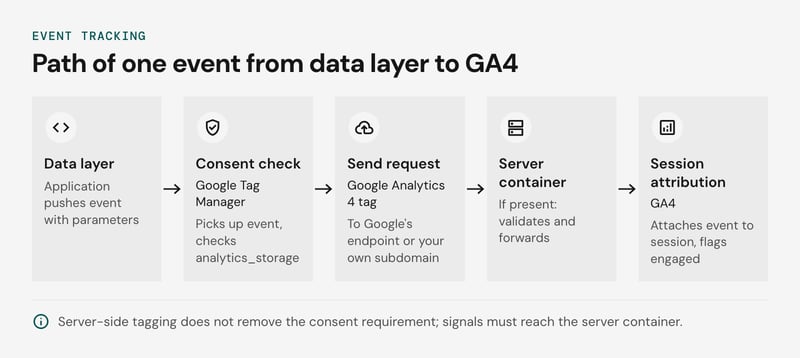
One event travels the same path in the common setup:
- The application pushes an event, for example add_to_cart, with its parameters into the data layer.
- Google Tag Manager picks up the event and checks consent state, including analytics_storage.
- The Google Analytics 4 tag sends a request to Google's collection endpoint, or to a subdomain you own if you run server-side tagging.
- A server container, if present, validates the request, removes fields you don't want shared and forwards it to GA4 and other vendors.
- GA4 attaches the event to a session and flags engaged sessions.
Server-side tagging adds cost and upkeep. You pay your cloud provider for instances that scale with request volume, and a production setup typically keeps several running. You also own container updates, uptime monitoring and alerting, because an unavailable endpoint drops data silently.
It does not remove the consent requirement. The ePrivacy rules on storing or reading information on a user's device cover the cookie or identifier wherever the hit is processed, so consent signals must be passed from the browser to the server container. The GDPR and Consent Mode section covers the legal detail.
One technical benefit is first-party cookies. A cookie set in an HTTP response header from your own domain is treated differently by Safari's tracking prevention than one written by script. Browser behavior changes between releases, so test lifetimes in your own setup.
We recommend page tagging through a tag manager and a clean data layer as the starting point. Add server-side tagging when several vendors receive the same events, when you need to redact fields before they leave your infrastructure, or when third-party script weight hurts INP.
For a small site with one analytics tool, the hosting and maintenance burden usually outweighs the gain. Keep log files for crawler audits and bot checks.
How do GDPR and Consent Mode affect tracking?
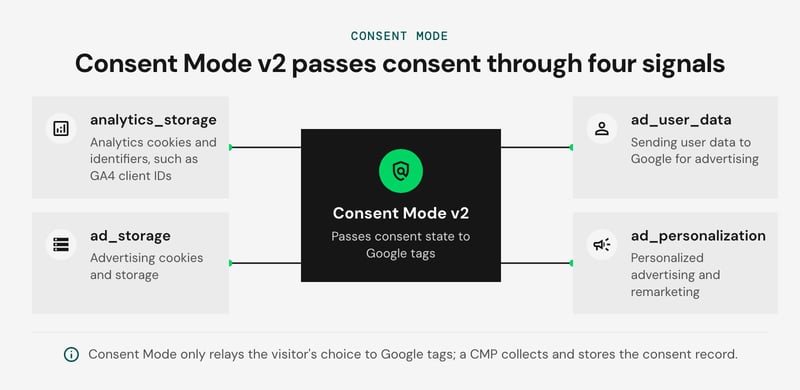
GDPR and the ePrivacy Directive require opt-in consent before analytics cookies are set, and Consent Mode v2 passes the visitor's consent state to Google tags through four signals. The guidance below is engineering advice, not legal advice.
The ePrivacy Directive (2002/58/EC), in its Article 5(3), governs storing or reading information on a visitor's device.
The GDPR (Regulation (EU) 2016/679) sets the consent standard: its Article 7(1) requires you to demonstrate consent, and Article 7(3) requires withdrawal to be as easy as giving it. A consent management platform (CMP) collects and stores that record. Consent Mode only relays the choice to tags.
The four signals, as Google's Consent Mode documentation defines them:
| Signal | What it gates |
|---|---|
| analytics_storage | Analytics cookies and identifiers, such as GA4 client IDs |
| ad_storage | Advertising cookies and storage |
| ad_user_data | Sending user data to Google for advertising |
| ad_personalization | Personalized advertising and remarketing |
The signals are the same in both modes. The difference is what tags do while a signal is denied:
- Basic mode: Google tags stay blocked until the visitor chooses. A decline sends nothing to Google, so GA4 has no behavior to model for those visitors.
- Advanced mode: tags load with defaults set to denied and send cookieless pings that carry the consent state, which Google uses for modeling. Whether those pings are acceptable under your regulator's reading of Article 5(3) is a question for counsel.
In Google Tag Manager, set the denied defaults on the Consent Initialization trigger so they apply before any other tag fires. Then call the update command from your CMP when the visitor chooses. Google's docs set volume thresholds before GA4 models anything (Google Analytics Help).
CNIL exempts some audience measurement from consent. The conditions are narrow: the data serves only the publisher's own statistics, nothing is combined with other processing or tracked across sites, retention is limited, and visitors are informed and can object. Check the current wording in CNIL's analytics guidance.
Matomo documents a configuration aimed at this exemption. A default GA4 setup with Google data-sharing enabled is unlikely to fit it.
Getting consent wrong is expensive. Under Article 83(5) of the GDPR, fines reach EUR 20,000,000 or, for an undertaking, 4% of total worldwide annual turnover of the preceding financial year, whichever is higher, and point (a) of that paragraph covers the conditions for consent.
Which web analytics tool should you pick?
Pick a web analytics tool by the question you need answered: GA4 for acquisition and ad attribution, a privacy-first tool for consent-light traffic reporting, PostHog for product behavior, Clarity for session replay.
The side-by-side below covers free tier, hosting and consent impact. Verify plan limits against each vendor's current docs, since they change.
| Tool | Free tier | Hosting | Consent impact | Pick when |
|---|---|---|---|---|
| Google Analytics 4 | Yes (standard property) | Google Cloud only | Needs a consent management platform and Consent Mode v2; denied visitors become modeled data | You run Google Ads and want cross-channel reporting |
| Matomo | Self-hosted edition is free; Cloud is paid | Self-host or Matomo Cloud | Cookieless configuration possible; CNIL has published a consent-exempt setup | You need data ownership or EU residency |
| Plausible | Self-hosted Community Edition; cloud is paid after a trial | EU cloud or self-host | Cookieless by design; whether consent is still needed depends on your regulator | You want a lightweight traffic dashboard |
| Cloudflare Web Analytics | Yes | Cloudflare edge | No cookies or client-side state | Your site already runs behind Cloudflare and you want page views and Core Web Vitals |
| PostHog | Monthly free allowance | US or EU cloud, or self-host | Cookies or localStorage by default; memory-only persistence available | You need funnels, retention and feature flags |
| Microsoft Clarity | Yes | Microsoft cloud | Cookies; expects a consent signal for EEA, UK and Swiss visitors | You need free heatmaps and recordings |
| Adobe Analytics | No | Adobe cloud | Consent handling sits in your own tag and CMP setup | You need enterprise governance and cross-channel stitching |
GA4 is the wrong choice in four situations:
- Low consent rates: most of your EU traffic gets modeled because consent restrictions limit observed data, and behavioral modeling requires sufficient volume to be reliable.
- Product questions: cohort retention, feature adoption and flag-driven experiments are easier to run in PostHog, where the event model is the product.
- Data residency or ownership: only Matomo or a self-hosted instance keeps raw hits on infrastructure you control.
- Enterprise governance: Adobe Analytics fits when many business units need separate data views.
These tools complement each other. Niche tools go deeper than general ones on their own question: Clarity or Crazy Egg shows where visitors hesitate on a page, which GA4's engaged sessions metric cannot. We recommend one general tool for traffic and conversion funnel reporting, plus one replay or heatmap tool, loaded through Google Tag Manager or server-side tagging so consent gates both.
Google Analytics 4: What it costs and where it limits you
Google Analytics 4 is Google's free web analytics platform: the standard tier costs nothing, and the paid Analytics 360 tier raises quotas. Google Tag Manager, which deploys the GA4 tag and data layer events, is also free at the standard level. The cost shows up as limits that bite once you move from dashboards to analysis.
The limits that push teams toward alternatives:
| GA4 standard limit | What it does | Typical next step |
|---|---|---|
| Sampling in Explorations | Large queries are sampled; standard reports are not. GA4 standard property Exploration sampling activates when a query covers more than 10 million events (Google Analytics Help, 2024) | BigQuery export, or 360 |
| Event-level retention | Explorations keep event data for 2 or 14 months, depending on the setting. Aggregated reports are unaffected. | Warehouse export for long-range cohorts |
| Data thresholds | Rows are withheld when Google signals or demographics are active, so small segments disappear. | Warehouse queries, or a tool without thresholding |
| Modeled data | Consent Mode gap-filling needs enough volume to activate, so low-traffic sites may get none. | Server-side tagging, or a consent-light tool |
GA4's machine-learning features (predictive audiences, anomaly detection) have similar volume requirements. Niche tools also go deeper on SEO or behavior analysis than GA4's general reporting.
Our view: keep GA4 for acquisition and ad attribution, and add a BigQuery export when sampling or retention first block a question. Move product behavior questions to PostHog or Matomo. For consent obligations, see the GDPR section above.
Which free web analytics options are reliable?
Free web analytics options are reliable at different prices: Google Analytics 4 charges in data limits, Matomo On-Premise in infrastructure you operate, and Cloudflare Web Analytics in missing features. Plausible's free route is its self-hosted Community Edition only.
The trade-offs side by side:
| Tool | What is free | Where the cost lands | Fits when |
|---|---|---|---|
| Google Analytics 4 | Standard property | Quota limits in analysis, plus BigQuery charges for heavy querying | You need Google Ads integration and accept modeled data |
| Matomo On-Premise | Open-source, self-hosted | PHP and MySQL or MariaDB hosting, upgrades, backups, archiving jobs, paid plugins for some features | You need raw-data ownership and have ops capacity |
| Plausible Community Edition | Open-source, self-hosted | The same ops work, with fewer features than the paid hosted product | You want simple traffic reporting without a vendor |
| Cloudflare Web Analytics | Cookieless beacon | No custom events or funnel reporting | You need a traffic and Core Web Vitals baseline |
Self-hosting swaps a vendor fee for engineering time. Event volume grows, the database needs tuning, and every upgrade needs a test. At modest traffic a hosted subscription can cost less than that time, so price it at your own loaded engineering rate before choosing.
We recommend running Cloudflare Web Analytics beside GA4 as an independent check on traffic and INP. Add Matomo On-Premise only if a team owns it. Cloudflare states it sets no cookies and collects no personal data, but have counsel confirm what that means under the ePrivacy Directive.
How to set up web analytics, step by step
Set up web analytics in this order: tracking plan, Google Analytics 4 property, Google Tag Manager, consent wiring, events, internal traffic filters, then verification in DebugView. Each step depends on the one before it, and consent has to come before any tag fires.
- Write the tracking plan. Use a spreadsheet with one row per event: name, trigger, parameters, owner, and the business question it answers. Prefer GA4's recommended event names (generate_lead, sign_up, purchase) where one fits. We suggest starting with fewer than 20 events, since every extra one needs a maintainer.
- Create the GA4 property and web data stream. Copy the Measurement ID and set the reporting time zone and currency. Raise event data retention to 14 months under Admin > Data settings. The default is 2 months, which limits Explorations on older data.
- Deploy Google Tag Manager. Add the container snippet once, then load the Google tag with your Measurement ID from inside the container. Keep staging and production in separate environments so tests never pollute production data.
- Wire consent before tags fire. Consent Mode v2 only works if the default state is set before the Google tag loads. Fire your consent management platform's template on the Consent Initialization trigger. Set analytics_storage, ad_storage, ad_user_data and ad_personalization to denied by default, then send an update call when the visitor chooses.
Whether to run basic or advanced mode is a legal call; see the GDPR section.
- Push events through the data layer. Developers push structured events, and GTM maps them to GA4 event tags using Custom Event triggers and data layer variables.
   window.dataLayer = window.dataLayer || [];
   dataLayer.push({
     event: 'generate_lead',
     form_id: 'contact_main',
     lead_type: 'demo_request'
   });
Mark the events that matter as key events. Register parameters such as lead_type as custom dimensions, or they won't appear in standard reports. Check that your tags don't duplicate events enhanced measurement already collects, such as scrolls and file downloads.
- Filter internal traffic. Define internal traffic by office and VPN IP ranges under the data stream's tag settings, then activate the Internal Traffic data filter. It starts in Testing state and excludes nothing until you switch it on.
- Verify in three places. Run GTM Preview and confirm each tag fires on its trigger, and that the Consent tab shows denied by default and granted after acceptance. Open GA4 DebugView to confirm events and parameters arrive with the right names. Finally, check in browser devtools that no _ga cookie exists before the visitor accepts.
If you run a CMS or hosted builder
Steps 2 and 3 change on hosted platforms because you paste IDs into a settings screen. Menu labels move between releases, so confirm each path against the platform's current help pages.
- Squarespace: open Settings > Developer Tools > External API Keys and paste your GA4 Measurement ID. To install a GTM container instead, use Settings > Developer Tools > Code Injection, on plans that allow code injection. Paste the container snippet into the header field.
- WordPress: go to Plugins > Add New, search for Site Kit by Google, then Install and Activate. Choose Start setup, sign in to Google, and connect your existing GA4 property.
Built-in reports, such as the Analytics panel in Squarespace, count differently from GA4, so the two will not match. Choose one as the source of truth before anyone builds a dashboard on either.
If the platform can't inject a Tag Manager container or run your consent platform's default-denied state, steps 4 and 5 are not possible there. A plugin or a custom front end is the next option.
Why is your analytics data wrong?
Analytics data is usually wrong because of implementation defects: duplicate tags, broken single-page-app pageviews, inconsistent UTM parameters, and consent banners that load after tags fire. Most show up in Google Analytics 4 as numbers that look plausible, which is why they survive for months.
The failure modes, their symptoms, and the fix for each:
| Failure mode | Symptom in GA4 | Check or fix |
|---|---|---|
| Duplicate tags | Inflated pageviews, distorted engaged sessions | A Google Tag Manager container and a hardcoded gtag.js snippet send to the same stream. Keep one; confirm in Tag Assistant. |
| SPA pageviews | One pageview per visit, route changes invisible | Add a History Change trigger in Tag Manager, or rely on enhanced measurement page changes. Never run both. |
| UTM casing | "Email" and "email" appear as separate channel rows | UTM values are case-sensitive. Enforce lowercase in a shared builder. |
| Cross-domain checkout | Payment domain shows as a referral, conversions credited to direct | Configure the domains in the data stream settings and add the payment provider to the unwanted referrals list. |
| Late consent banner | Early hits lost, or sent before a choice exists | Set the default consent state before any tag loads, then update it on the visitor's choice. |
| Ad blockers | Totals below server logs | Compare against CDN or server logs. Server-side tagging on a first-party domain recovers part of the gap. |
| Bot spam | Direct-traffic spikes with near-zero engagement time | GA4 excludes known bots automatically. Segment by hostname and country, then block the rest at the WAF. |
The consent row carries legal weight as well: a tag that fires before the consent management platform resolves leaves nothing to demonstrate under Article 7(1) of the GDPR.
For a startup, a minimal setup avoids most of these failures: one Tag Manager container as the only source of GA4 tags, a consent management platform wired to Consent Mode v2, a lowercase UTM convention in one shared sheet, and five or fewer key events verified in DebugView. We recommend deferring server-side tagging until you have measured the ad-blocker gap against your own server logs.


