
App store optimization: Strategy for Apple and Google Play (2026)


Contents
App store optimization is two jobs: getting found in store search, and converting the people who land on your product page. The two stores index different fields, test differently and report conversion differently, so a single checklist rarely fits both.
What is app store optimization?
App store optimization (ASO) is the practice of raising an app's visibility in store search and its product page conversion rate, so more impressions turn into installs. Web SEO ranks open pages across the internet; ASO works inside two closed stores, where you edit a fixed set of metadata fields and creatives in App Store Connect or Google Play Console.
A common failure is shipping metadata and creative changes in the same release, then being unable to tell which one moved installs. Netguru designs and builds mobile apps and the product-side features, such as rating prompts and release pipelines, that store listings depend on. We recommend changing one thing at a time, because a single change can be read against conversion and two cannot.
Quick wins: What can you fix this week?
Five fixes can ship this week, ordered by engineering effort: the first three need only App Store Connect or Google Play Console access, the fourth needs a build, and the fifth needs a test slot and a few weeks to read.
- Remove duplicate keywords. Strip from the iOS keyword field any word already in the app name or subtitle, and drop spaces after commas. Spend the freed characters on terms the listing does not yet carry; the field holds 100 bytes, per App Store Connect Help.
- Rewrite the first three screenshots. These are the frames most searchers see before tapping, so give each one a single benefit and a short caption. Assets only, no release.
- Audit locales. Compare impressions and conversion by storefront in App Store Connect Analytics, then add localized metadata where traffic exists and conversion lags. Text changes only.
- Add a review prompt. Call SKStoreReviewController after a completed task, never at launch. Apple's review request documentation limits the system prompt to three displays per app in a 365-day period, so the call may do nothing. This is product-side work, so it ships with your next build and may need mobile development capacity.
- Start one product page optimization test. Change a single variable, such as the first screenshot, against the original page. Play's equivalent is a store listing experiment. Start it after item 2 ships so the baseline is stable.
Re-check the limits above in the store help pages before you act, because both stores revise them.
How do the App Store and Google Play rank apps?
The App Store indexes the app name, subtitle, and iOS keyword field, while Google Play also indexes the full description. Neither store publishes ranking weights, so the table separates what the store documents from what practitioners report.
| Field | App Store (App Store Connect) | Google Play (Google Play Console) | Status |
|---|---|---|---|
| Name / title | 30 characters, searchable | 30 characters, searchable | Documented |
| Subtitle / short description | Subtitle, 30 characters, searchable | Short description, 80 characters | iOS documented; Play search weight unconfirmed |
| iOS keyword field | 100 bytes, comma-separated, hidden from users | No equivalent field | Documented |
| Long description | 4,000 characters, not used for search | 4,000 characters, indexed (Play full description indexing) | Play: documented guidance, weight unconfirmed. iOS: observed by practitioners |
| Promotional text | 170 characters, editable without a new version | Not applicable | Documented, not a search input |
| Ratings, download velocity, retention | Influence stated, weight unpublished | Influence stated, weight unpublished | Unconfirmed |
In short: the iOS keyword field holds 100 bytes of hidden search terms, so every character spent repeating the name or subtitle is wasted. Google Play has no such field. It reads the 4,000-character full description, so keywords have to appear in natural copy.
The practical difference is release cost. Keyword and subtitle edits on iOS ship with a new app version submitted through App Store Connect. Play listing text can be edited in Google Play Console without a build. That makes Play copy the cheaper surface to iterate on, though it is also the one most exposed to keyword stuffing, which Google's metadata policy prohibits.
Custom product pages and custom store listings are mainly conversion levers, but both now touch search.
On the App Store, you can assign keywords from your approved version to a custom product page, which then replaces the default page in search for those terms. On Google Play, custom store listings can target search keywords as well as countries and user states. Neither adds new indexed text.
All limits above reflect the store help pages as we last checked them, and both stores change limits, so re-check before you plan copy. For the Play-specific detail, see our Google Play Store optimization guide.
Since iOS 26, Apple also shows App Store tags: labels generated by Apple's AI from your metadata and reviewed by people before they go live. You can hide a tag in App Store Connect but can't write your own, so the description and screenshots still need to state your core features plainly.
How do you research and place keywords?
Research keywords per storefront, then place them in the app name, subtitle, and the 100-byte iOS keyword field, using Apple Ads search term reports to confirm which terms convert. Every limit below should be re-checked in App Store Connect Help before you submit.
Keyword fields are set per localization, so each storefront needs its own list. A US list translated into German rarely matches how German users search. Treat each storefront as a separate research task.
A repeatable SOP for each storefront:
- Build candidates. Collect terms from your own metadata, from competitors ranking in that storefront's search results, and from how users describe the job your app does.
- Run a discovery campaign. In Apple Ads, start a low-budget campaign with Search Match on. Search Match matches your ad to searches relevant to your metadata, and the Apple Ads search term reports show the queries that produced impressions and taps.
- Promote and prune. Move terms that earn taps and installs into exact-match keywords. Add irrelevant queries as negatives.
- Place by priority. Put the strongest phrases in the name and subtitle (30 characters each). Fill the keyword field with comma-separated terms and no spaces after the commas.
- Cut repeated words. Never repeat a word from the name or subtitle in the keyword field. Practitioners report that the store combines words across fields into phrases, so a repeat wastes bytes you could give to a new term.
- Ship and re-measure. Keyword changes ship with an app version, so schedule them with the release train. Compare rank and product page views after the version is live.
Paid search data is a cross-check on the research, not only a campaign tool. A term that earns taps but few installs points to a metadata mismatch. A term with installs and no organic rank is a candidate for the keyword field.
The same data shows where you are paying for traffic you would get free. Where you already rank at the top organically, lower or pause the exact-match bid, and track the term in both the search term report and your rank tracking. Keep bidding on your brand name if competitors bid on it, because organic rank does not stop their ads from appearing above you.
Write these steps into a one-page SOP with a named owner and a per-release cadence. That keeps keyword decisions consistent when the team or the storefront list grows.
How to search keywords for app store optimization
Search keywords for app store optimization by pulling candidates from Apple Ads search term reports and Google Play Console, then keeping only terms that describe your app and that you can realistically rank for. Popularity scores alone mislead. For a broader set of tactics beyond keywords, see these techniques to improve iOS app visibility.
Three failure modes cost teams the most:
- Chasing terms you cannot rank for. A high-popularity term dominated by established apps sends a new app almost no traffic. Shortlist mid-popularity phrases that match what the app does, and check whether the top results are apps like yours. An irrelevant term that does rank lowers product page conversion rate.
- Duplicating words across iOS fields. The title (30 characters), subtitle (30 characters) and 100-byte keyword field are all indexed. A word already in the title spends keyword-field bytes without adding a new term. Deduplicate per storefront, separate terms with commas and no spaces, and re-check the limits in App Store Connect Help.
- Stuffing the Play full description. Play full description indexing means the long text (4,000 characters at the time of writing) feeds search, which tempts teams to repeat target phrases. Google's metadata policy prohibits repetitive or irrelevant keywords, and violations can bring enforcement action. Use each target phrase where it reads naturally. Google Play Store optimization covers the Play side in depth.
Write the process into a short standard operating procedure: sources, relevance filter, placement per field, and a review date tied to each release.
Apple Ads search term reports show which queries produced taps and installs, which is conversion evidence a popularity score cannot give.
If you are still deciding where to launch, this guide to Android and iOS app development explains which platform to target first, so you know whether Apple Ads or Google campaigns deserve budget at the start.
Which creatives convert visitors into installs?
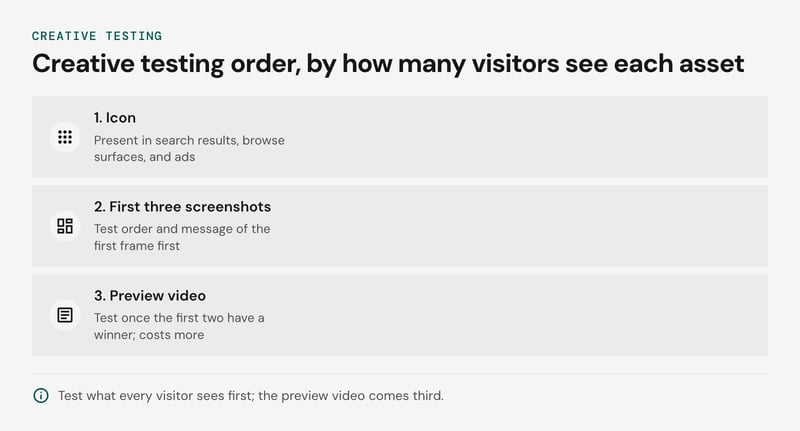
Test the icon and the first three screenshots before the preview video, because every visitor sees them, and they appear in search results before anyone opens the page. Video comes third.
Both stores have a native tool for this: product page optimization in App Store Connect and store listing experiments in Google Play Console. Apple's product page optimization splits traffic between the original page and up to three treatments.
Icon tests need the alternate icons shipped inside the app binary, so on iOS an icon test starts as a release-management task. Re-check variant limits and requirements in each store's help pages.
The order we recommend:
- Icon. It is the one asset present in search results, browse surfaces, and ads.
- First three screenshots. Test the order and the message of the first frame before polishing later frames.
- Preview video. Test it once the first two have a winner, because production costs more and fewer visitors reach it. This is a judgement call, not a measured rule.
Keep metadata and creative changes out of the same release. A new title or keyword set changes which queries bring visitors, so a shift in product page conversion rate can't be attributed to the creative. Run the creative test on a stable keyword set, and change metadata after it closes.
Log each change with its date and build number in the keyword SOP so the measurement loop stays readable. Apps with little traffic may never reach a conclusive result. For them, a before-and-after comparison in analytics is weaker evidence, but it is the available option.
If you are still choosing a setup for that comparison, it helps to compare mobile analytics tools on attribution, event tracking, and reporting depth before you commit.
Custom product pages or product page optimization: Which to use?
Use product page optimization or store listing experiments to test which creative converts better; use custom product pages or custom store listings to show different pages to different audiences. Testing tools change your default page, while segmentation tools add pages beside it.
The four tools side by side:
| Product page optimization | Custom product pages | Store listing experiments | Custom store listings | |
|---|---|---|---|---|
| Console | App Store Connect | App Store Connect | Google Play Console | Google Play Console |
| Job | Test | Segment | Test | Segment |
| Who sees it | Organic App Store visitors, split between original and treatments | Visitors who open a page's unique URL, such as an Apple Ads click, or search for keywords assigned to the page | Play visitors split between current and test listing | Visitors matched by country, install state, pre-registration, search keyword, or URL |
| What changes | Icon, screenshots, preview video | Screenshots, previews, promotional text | Icon, graphics, screenshots, video, descriptions | Listing content for the targeted group |
| Traffic need | Enough page views for a confident result | None to publish, enough per page to read results | Enough installs for a confident result | None to publish, enough per listing to read results |
| Review | Treatments go through App Review; alternate icons ship in the binary | Each page is reviewed; no new binary | No release needed; Play metadata policy applies | No release needed; Play metadata policy applies |
| Use when | You have a creative hypothesis for the default page | An audience, keyword theme, or campaign needs its own message | You have a hypothesis for the main listing | A segment needs its own message, or a Google App campaign needs a matching page |
Sequence matters. Run the test first, because segmentation multiplies pages that all inherit the default's weaknesses. Promote the winner, then branch.
Product page optimization tests run for a maximum of 90 days, so plan a test calendar around that. Apple allows up to 70 custom product pages per app and Google Play up to 50 custom store listings, and each one needs an owner on the team.
Custom pages and listings are not tests, so they produce no confidence interval. Read each page's product page conversion rate in App Store Connect Analytics or the Play Console acquisition reports, and compare it only against traffic of the same source. A custom page fed by Apple Ads will convert differently from the default page fed by search, whatever the creative.
Write a one-page procedure for the test log: hypothesis, tool, start and end dates, traffic source, decision. Without it, results from three quarters ago cannot be compared with this quarter's.
App store optimization examples
A worked example shows how an iOS keyword field rewrite and a screenshot change each move a different metric: the keyword edit targets impressions, and the screenshot swap targets product page conversion rate.
Assume a hypothetical expense-tracking app for freelancers. Its title is "LedgerLeaf: Expense Tracker" and its subtitle is "Track money easily". The current iOS keyword field reads expense,tracker,money,budget,app,finance,receipts,freelancer,invoices.
Seven of those nine terms are already covered by the title and subtitle, or are too generic to qualify the app.
The rewrite spends the field on terms the visible metadata lacks: receipts,mileage,invoice,freelancer,self-employed,tax,deductions,1099,quarterly. That is 79 characters against the 100-byte limit, which leaves room for two or three more terms.
The screenshot change replaces a generic dashboard in slot one (caption "Your finances, simplified") with a receipt scan and the caption "Scan a receipt, tag a deduction".
| Change | Metric it should move | Where to read it |
|---|---|---|
| Keyword field rewrite | Impressions on newly targeted queries | App Store Connect Analytics, by source type |
| Screenshot slot one | Product page conversion rate | Product page optimization results; store listing experiments on Google Play |
Ship the two changes in separate releases, or the impressions shift and the conversion shift cannot be attributed. A "tax season" custom product pages variant, linked from Apple Ads, can carry the deduction message to that audience without touching the default page.
Do ratings and reviews change rankings and installs?
Ratings and reviews clearly affect installs through the product page, but neither Apple nor Google publishes how much they weigh in search rankings. Plan around the conversion effect, which you can measure, and treat any ranking effect as a bonus.
Both stores show the average rating and review count in search results and on the product page, so a rating change moves product page conversion rate directly. That part is documented. A ranking boost from higher ratings is something practitioners report, not something either store's help pages state, so we would not forecast on it.
Timing is where teams lose stars. Apple's SKStoreReviewController (superseded by StoreKit's AppStore.requestReview on newer SDKs) caps the system prompt at three displays per app in a 365-day period, so each wasted prompt costs a scarce slot. Google Play's In-App Review API applies its own quota. Re-check both limits in the developer documentation before release.
Two failure modes recur:
- Prompting before a success moment. A user who has not yet reached value rates the onboarding friction. In the LedgerLeaf example, trigger after the first invoice is exported, not on the third launch.
- Prompting while crash rate is high. The users who crash are the ones who see the prompt, and they rate low. Gate the prompt behind a remote flag and keep it off until the release clears a crash-rate floor.
For the floor, Android vitals publishes bad-behavior thresholds in Google Play Console (1.09% user-perceived crash rate and 0.47% ANR rate at the time of writing; verify in Play Console Help) (Android Developers - Android vitals).
Apple has no equivalent published number, so set an internal gate from the Xcode Organizer crash data. An illustrative starting point is your last stable release's crash-free rate. This stability work sits with your mobile development team, not the marketing team.
A reply workflow keeps the rating recoverable:
- Review new ratings weekly in App Store Connect and Google Play Console, filtered by app version and by three stars or fewer.
- Reply to bug reports once the fix ships, naming the version. Reviewers can edit their rating after a reply.
- Tag feature requests and send them to the backlog.
- Never offer rewards for ratings. Apple's App Store Review Guidelines and Google Play's policies both prohibit incentivized reviews.
Why localize beyond translation?
Localizing beyond translation means researching keywords and rewriting creative for each storefront, because a translated listing carries over search terms that nobody in that market uses. In CSA Research's 2020 "Can't Read, Won't Buy" survey, 76% of online shoppers said they prefer to buy products with information in their own language.
We recommend sequencing markets by evidence you already hold:
- Rank storefronts by existing demand. Sort impressions, product page views, and revenue by country in App Store Connect Analytics and the Play Console acquisition reports. Localize the top two or three. Markets with no traffic wait.
- Research keywords per storefront. Write the iOS keyword field (100 characters per localization) from terms local users search. Apple can index more than one localization per storefront, so a secondary locale may add keyword space without a new language. Re-check this in App Store Connect Help.
- Localize the first screenshots. These and the title and subtitle are what a searcher sees before opening the page. In Google Play Console, add the language to the store listing and write the full description in local phrasing, since Play indexes it.
- Measure per locale. Compare product page conversion rate against the pre-localization baseline for that country.
The order changes when your user base differs by platform. If one store drives most of a market's revenue, localize there first (iPhone vs Android user differences covers where that tends to happen).
App store marketing vs app store optimization
App store marketing covers every channel that sends people to your listing, paid and organic, while app store optimization improves how that listing ranks and converts. Apple Ads and Google App campaigns buy reach. ASO decides how much of that reach becomes installs.
Paid also gives you query data on demand. Apple Ads reports the search terms users typed before tapping your ad, so you can test a term in a discovery campaign before spending a slot on it in the iOS keyword field.
Google App campaigns can draw on your store listing assets, so weak creative raises the cost of both channels.
Two store surfaces sit outside paid entirely. In-app events on the App Store and promotional content in Google Play Console (events, offers, major updates) put time-bound activity in front of existing and lapsed users without a bid.
Watch for cannibalization
The sign to look for is a drop in organic downloads that coincides with a rise in paid downloads. It usually means you are paying for installs the listing would have won anyway, most often on brand terms where you already rank first.
We recommend this routine:
- Report paid and organic separately. Use the source breakdowns in App Store Connect Analytics and the Play Console acquisition reports, and re-check the current source definitions in each help center.
- Run a holdout. Pause brand-term bidding in one storefront for a fixed window (two weeks is an illustrative choice) and compare organic downloads against a similar storefront.
- Keep one keyword log. Record which terms are paid, which are organic, and which are both, and review it at every metadata update.
This breaks down for new apps with no organic baseline, where paid is the only way to gather data. For free channels beyond the store, see how to promote a mobile app for free.
How do you track ASO impact?
Track ASO impact in App Store Connect Analytics and the Play Console acquisition reports, each against its own baseline, because the two stores define product page conversion rate differently. Blending them into one number hides which store moved.
Run every change through the same five steps:
- Baseline: export several full weeks of impressions, product page views, and conversion, split by traffic source.
- Change: alter one lever at a time (icon, first screenshot, subtitle, a custom product page).
- Hypothesis: write down the metric you expect to move and the size of move that would count as a win.
- Window: run in whole weeks, so weekday patterns cancel. We suggest at least two weeks, and longer for low-traffic apps.
- Read-out: compare against the baseline and, where the tool allows, a concurrent control.
The metric-to-report mapping, side by side:
| What you measure | App Store Connect Analytics | Google Play Console |
|---|---|---|
| Reach | Impressions | Store listing visitors (Play counts listing visits, not search-result impressions) |
| Page-level demand | Product page views | Store listing visitors |
| Conversion | Product page conversion rate, based on product page views | Store listing conversion rate, based on listing visitors and acquirers |
| Paid vs organic split | Source type (App Store Search, Browse, Apple Ads, referrers) | Acquisition channel (Play Store search and explore, Google Ads, third-party referrers) |
| Controlled tests | Product page optimization | Store listing experiments |
The denominators differ, so an Apple rate and a Play rate are not comparable. Compare each store only with its own history. Confirm the current metric definitions in App Store Connect Help and Play Console Help before you build a dashboard on them.
Metadata changes, such as the title, subtitle, and iOS keyword field, cannot be split-tested, so they are read as before-and-after. That read is exposed to seasonality. Compare the same calendar weeks from the previous year if you have them, and note holidays, platform events, and release dates inside the window.
A paid push distorts the read in a second way. Apple Ads and Google App campaigns add traffic that converts differently from organic traffic, so a blended conversion rate can move with no listing change at all. Read organic source types on their own.
If organic downloads fall while paid downloads rise, suspect cannibalization before you blame the listing. Pause or cap the paid spend on branded terms and check whether organic recovers.
In-store tests are the cleaner instrument, because variants run concurrently and seasonality hits all of them equally. Keep a paid campaign from changing mid-test, and let the test reach its confidence threshold before you act on it.
FAQ
Why is app store optimization important?
How do you do app store optimization?
How do you track app store optimization impact?
Can app store optimization hurt your app?
Next step: Audit your listing and release process
Start with a one-week audit of your App Store Connect and Google Play Console data, then check whether your release process can act on what it shows. Pull impressions, product page views, and conversion rate by storefront from App Store Connect Analytics and the Play Console acquisition reports, and flag the storefronts where conversion trails the rest.
Next, list what stops a metadata change, an in-app event, or a rating-prompt fix from shipping within one release cycle. That list becomes your first test backlog. If the blockers sit in the app itself, talk to our team and we will help you scope the work.


